# Classroom Displays
MLC Classrooms in the WCC, Music Hall, and Music Center are equipped with a display that can be hooked up to your device. There are three general display types; interactive whiteboard, projector, and TV. Please see the [Interactive Whiteboard](https://help.mlc-wels.edu/books/campus-technology/page/interactive-whiteboards) page for information on those specific devices. Instructions on connecting to the projectors and TVs can be found below.
[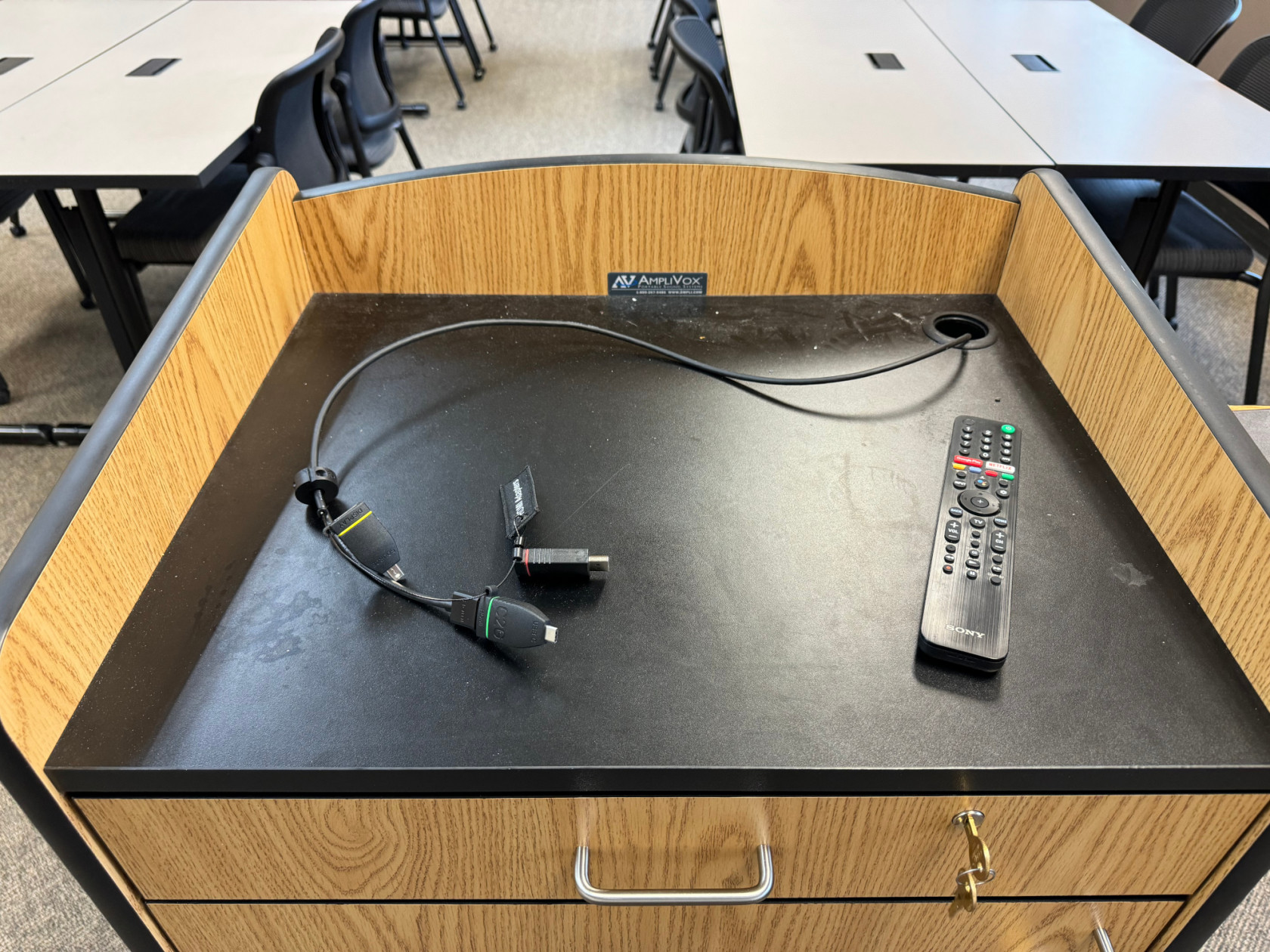](https://help.mlc-wels.edu/uploads/images/gallery/2024-08/img-6251.jpeg)
#### Displays (TVs)
- - Plug the HDMI cable (with an adapter, if required) into your device. The adapter ring is labeled if your device does not have an HDMI port.
- Turn on the display.
- The default display input is HDMI1. If your device's screen does not appear, use the **Input** button on the remote to select HDMI1.
- *The best screen resolution for your device when using the displays is 1920x1080. [Click here](https://support.microsoft.com/en-us/windows/view-display-settings-in-windows-10-37f0e05e-98a9-474c-317a-e85422daa8bb) for instructions on how to change it.*
- *Some of the displays are mounted on adjustable mounts. **Please keep them pushed as close to the wall as possible** to reduce strain on the mounts. If you need adjustments made, please contact IT Services.*
#### Projectors
- Plug the HDMI cable (with an adapter, if required) into your device. The adapter ring is labeled if your device does not have an HDMI port.
- Turn on the projector.
- The projector should default to the proper source to show your device. If your device's screen does not appear, use the **Source Search** button on the remote.
#### Sound
- As of Summer 2024, in most cases, sound is run through the display and not through a different sound system. If you need help switching your audio output, [please watch this short YouTube video](https://youtu.be/7bIj55rXoTw?si=iUyORFGWzYO8Of2c).
- Your device needs to be connected via the HDMI cable (with or without an adapter) for sound to work.
- Sound levels are controlled on your device **and** through the volume control on either the display or projector.
- *There are still a small number of rooms with auxiliary sound systems. Please contact IT Services if you require their use and need help.*