# Graduate Studies and Continuing Education
# Program Information
- #### [Graduate Studies Website](https://mlc-wels.edu/graduate-studies/)
- #### [Graduate Studies Bulletin](https://mlc-wels.edu/graduate-studies/wp-content/uploads/sites/16/2020/12/2020-22-Bulletin-12.3.20-revision-faculty-update-and-dual-creditpub.pdf)
# How Do I?
# Register for Courses
For existing users, course registration takes place on the MLC Portal. Instructions can be found on the [Graduate Studies website](https://mlc-wels.edu/continuing-education/registration/).
# Check Program Progress
You can quickly check your program progress through the MLC Portal, noting which courses are still left in your program plan.
#### Instructions
- Log into the [MLC Portal](https://help.mlc-wels.edu/portal.mlc-wels.edu)
- If you are not asked for your username and password, click **Login** in the upper right corner.
- Under **Scheduling** click **Program Progress**.
- Use the drop down menu to select the program you are in.
- Click **Select Plan**.
- Your program will populate under the drop-down menu.
- The courses you have taken are crossed out.
- Purple highlighting means the course is completed.
- Green highlighting means you are currently enrolled in the course.
# Check Grades
Graduate Studies and Continuing Education course grades can be found in two places. If the course is completed, your final grade can be found on the MLC Portal. If the course is in-progress, your assignment grades and current course grade can be found in Moodle.
#### Grades on Portal
- Log in to the [MLC Portal](https://help.mlc-wels.edu/portal.mlc-wels.edu).
- If you are not prompted to enter your username and password, click **Login** in the upper right corner.
- Click **Grades** and choose **Unofficial Transcripts**.
- *Note that grades do not show up in the unofficial transcript until they have been submitted by the instructor.*
#### Grades in Moodle
- Log in to [Moodle](https://help.mlc-wels.edu/moodle.mlc-wels.edu) and select the course you want to check.
- Click on **Grades** on the left-side menu on the course page.
- If the menu does not appear, click the  icon in the upper left corner.
- Use the drop-down menu to change your view. You can also view grades and feedback by clicking on individual assignments or discussion forums on the course main page.
#### Clock Hours on Portal
- Log in to the [MLC Portal](https://help.mlc-wels.edu/portal.mlc-wels.edu).
- If you are not prompted to enter your username and password, click **Login** in the upper right corner.
- After you have logged in, click **Grades**, choose **Grade Cards**, and click on the course/webinar name.
# Registration Tasks
- #### [Registration Instructions](https://mlc-wels.edu/continuing-education/registration/)
- #### [Long-Term Course Calendar](https://mlc-wels.edu/graduate-studies/long-term-course-calendar/)
- #### [Program Plans - Master of Science in Education](https://mlc-wels.edu/graduate-studies/master-of-education/)
- #### [Program Plan - Master of Arts in Theological Studies](https://mlc-wels.edu/graduate-studies/mats/)
- #### [Tracking Program Progress](https://mlc-wels.edu/graduate-studies/new-online-tool-makes-tracking-program-progress-easy/)
# ECE Associate's Degree
# APA Formatting Resources
# Graduate Writing Resources
### APA Formatting
MS Graduate students are expected to follow APA Manual (7th Edition) in formal writing, and follow the MLC [*Form and Style Sheet*](https://mlc-wels.edu/graduate-studies/form-and-style-sheet/). Below are some sites to assist you with citations and APA style.
- [The Writer's Handbook: APA Documentation Guide](https://writing.wisc.edu/handbook/documentation/docapa/) (UW-Madison)
- [Purdue OWL: APA Formatting and Style Guide](https://owl.english.purdue.edu/owl/resource/560/01/) (Purdue)
*This information is for students in the MLC Graduate program. Undergraduate students should check with their course instructors for citation and formatting guidelines.*
### Society of Biblical Literature Formatting
MATS Graduate students are expected to follow the Society of Biblical Literature Handbook of Style in formal writing, and follow the MLC [*Form and Style Sheet*](https://mlc-wels.edu/graduate-studies/form-and-style-sheet/). Below are some sites to assist you with citations and formatting.
- [The SBL Handbook of Style](https://emil.mlc-wels.edu/login?url=https://search.ebscohost.com/login.aspx?direct=true&db=nlebk&AN=970822&site=eds-live&scope=site) (MLC Library - use your MLC login information to access the PDF)
- [SBL Style Guide ](https://guides.mlc-wels.edu/subjects/guide.php?subject=sbl-style)(MLC Library)
- [Student Supplement for ](https://www.sbl-site.org/assets/pdfs/pubs/sblhssupp2015-02.pdf)*[The SBL Handbook of Style](https://www.sbl-site.org/assets/pdfs/pubs/sblhssupp2015-02.pdf)* (PDF)
*This information is for students in the MLC Graduate program. Undergraduate students should check with their course instructors for citation and formatting guidelines.*
### Citation Tools
- #### [Citation Management suggestions from the MLC Library](https://mlc-wels.edu/library/library/library-information/graduate-student-resources/#toggle-id-4)
### Grammarly
MLC has purchased a site license for Grammarly Premium. Some of you may be using the free version, but Premium offers some advanced options. This tool is to be considered as a resource primarily for writers as they compose and edit their writing, whether academic or professional.
To log in, follow these directions:
1. Go to [grammarly.com/enterprise/signup](http://grammarly.com/enterprise/signup)
2. Provide your name, your @mlc-wels.edu email, and email password.
3. Check your inbox for the email and click on the activation link. (If you have the free version, log in at this location and follow the directions — including the email activation link.
### Authorship
Instructors may require you to use Grammarly's Authorship feature for writing assignments. Please follow the instructions below to access this feature.
- If you have not done so already, follow the instructions above to activate your Grammarly Premium account.
#### Authorship in Google Docs
- **Step 1: Open Grammarly in Google Docs**
- Open your Google Doc using the Google Chrome browser.
- If you do not have Google Chrome, you can download it [here](https://www.google.com/chrome/dr/download/?brand=JJTC&ds_kid=43700082450527270&gclsrc=aw.ds&gad_source=1&gad_campaignid=22852283685&gbraid=0AAAAAoY3CA4ilqJA0USKc71zaCr-IKEW-&gclid=Cj0KCQjw5JXFBhCrARIsAL1ckPt69r98gjxRMjZDOGnPHSSZEZTQCcUAn7VmD3_Tt75mTirakA9Yan8aAtlZEALw_wcB).
- Make sure you have the [Grammarly extension installed](https://www.grammarly.com/browser/chrome) in your Chrome browser.
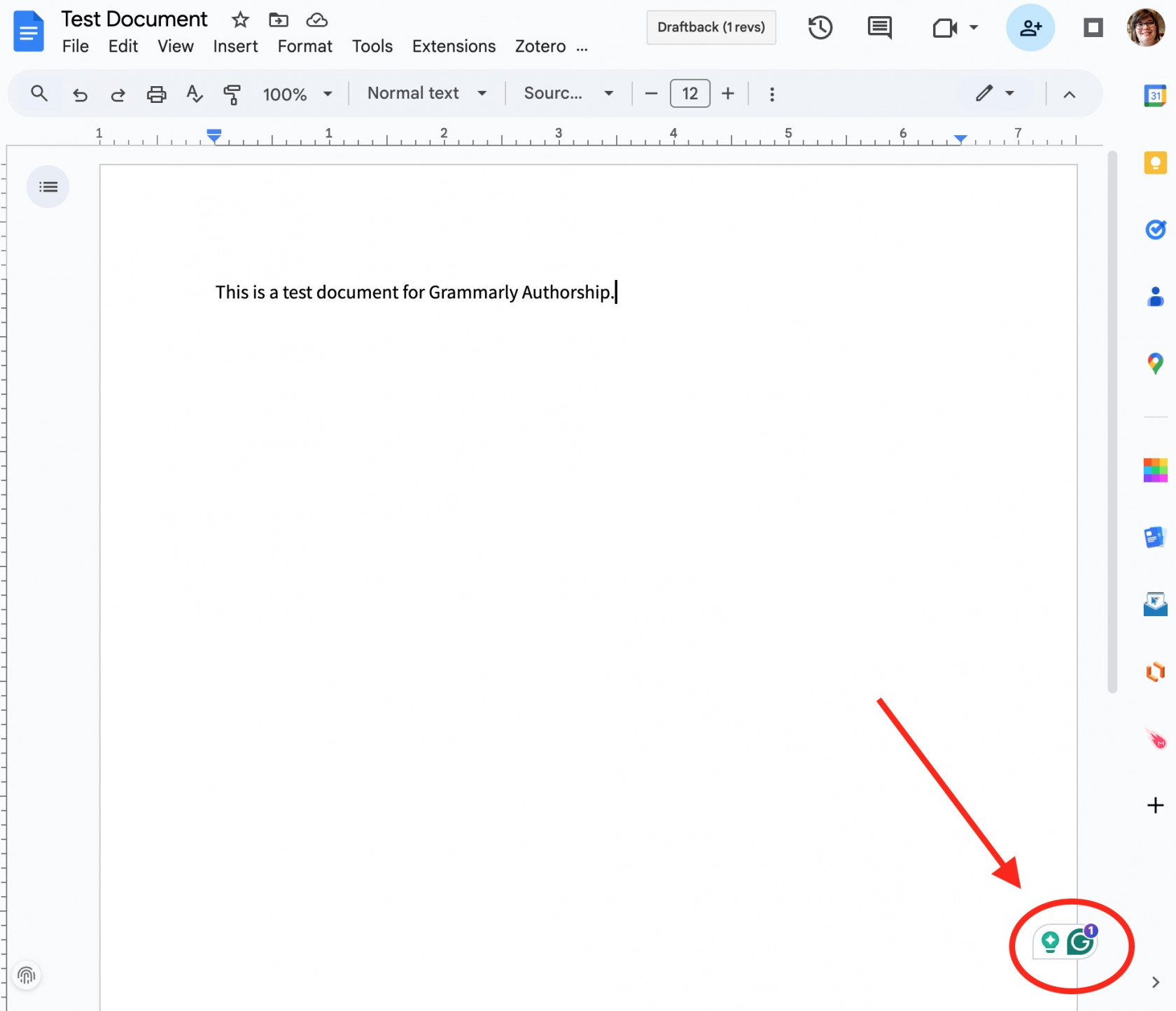
- Click on the Grammarly "G" icon on the right side of your document.
[](https://help.mlc-wels.edu/uploads/images/gallery/2025-08/grammarlyicon.jpg)
- **Step 2: Turn on Authorship**
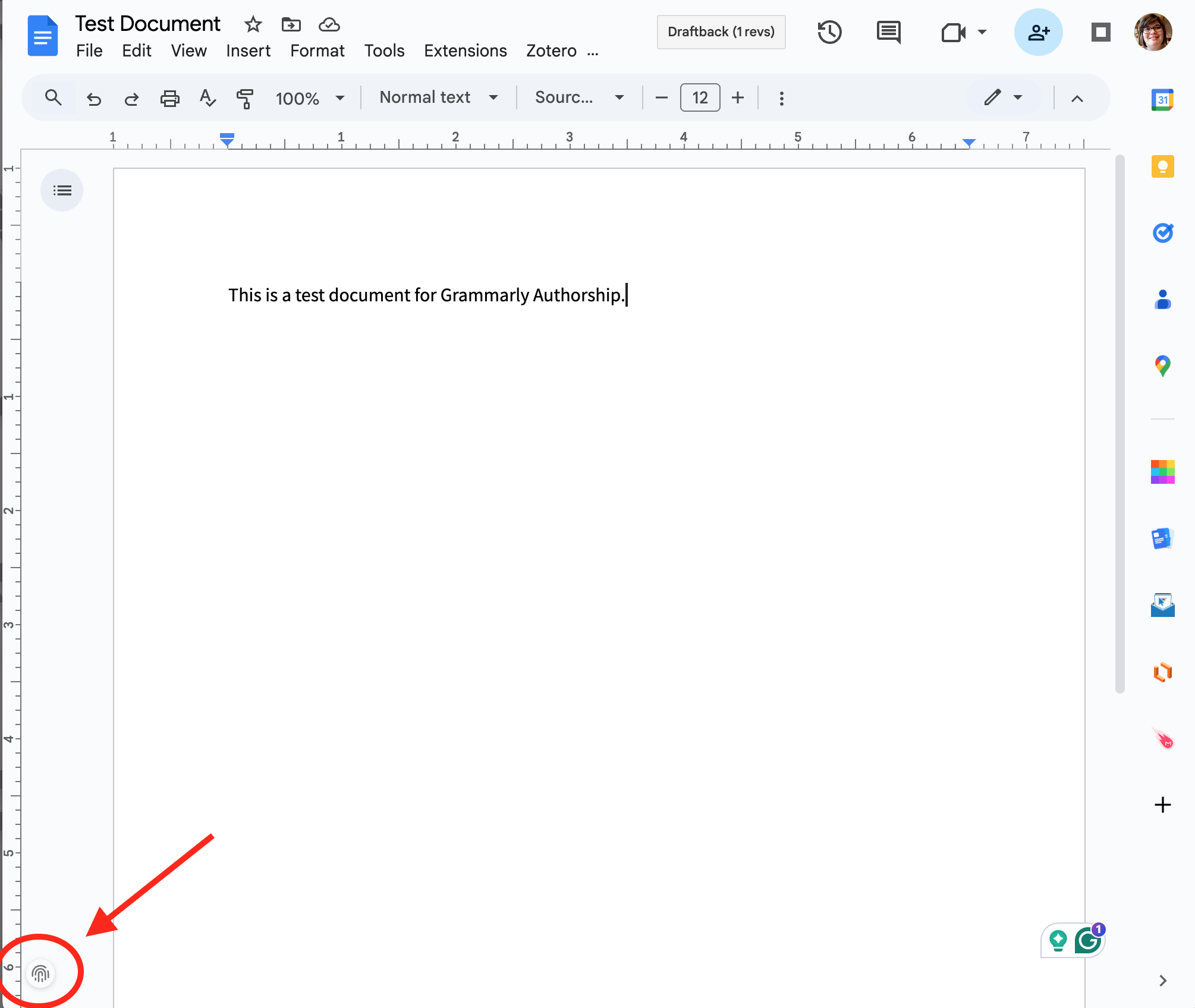
- When Grammarly opens, look for the Authorship fingerprint icon in the bottom left corner.
[](https://help.mlc-wels.edu/uploads/images/gallery/2025-08/grammarlyauthorship.png)
- - Click it to activate the tool.
- If it’s your first time, Grammarly may give you links to learn more about how Grammarly Authorship works. Click OK to continue.
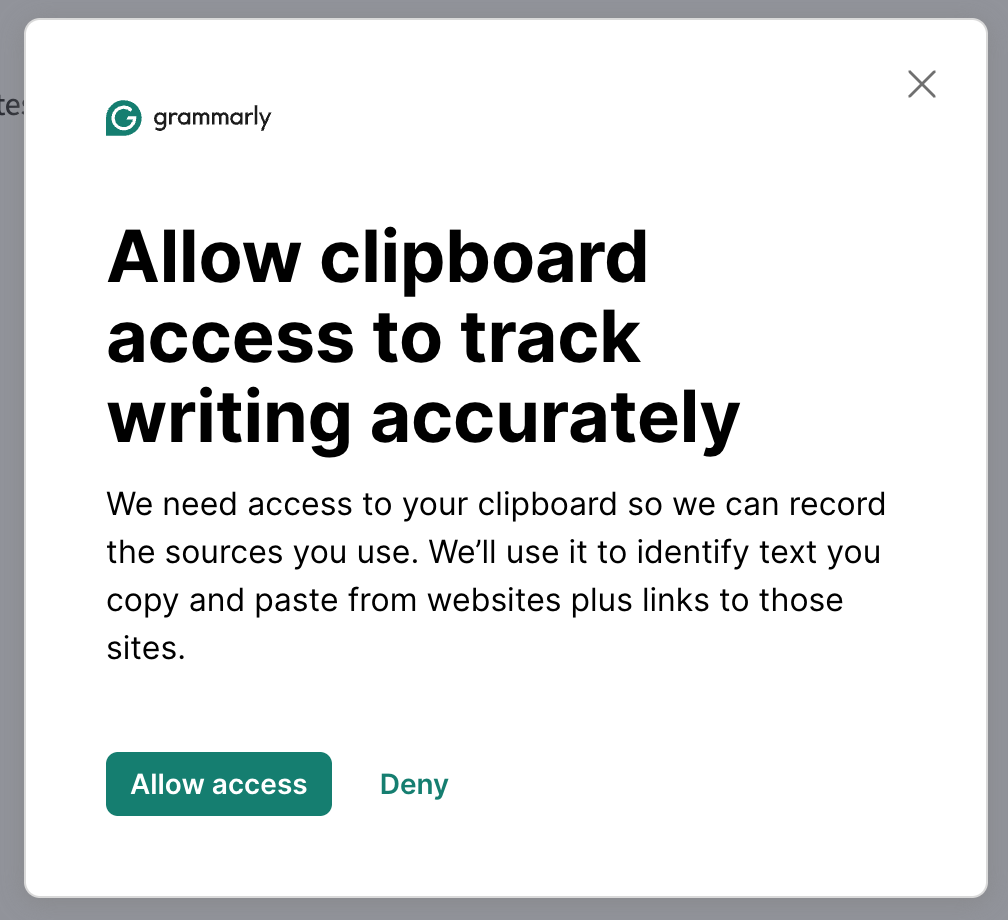
- Grammarly will ask for access to your clipboard to function properly. Click "allow access" to use the tool.
[](https://help.mlc-wels.edu/uploads/images/gallery/2025-08/screenshot-2025-08-20-at-2-26-51-pm.png)
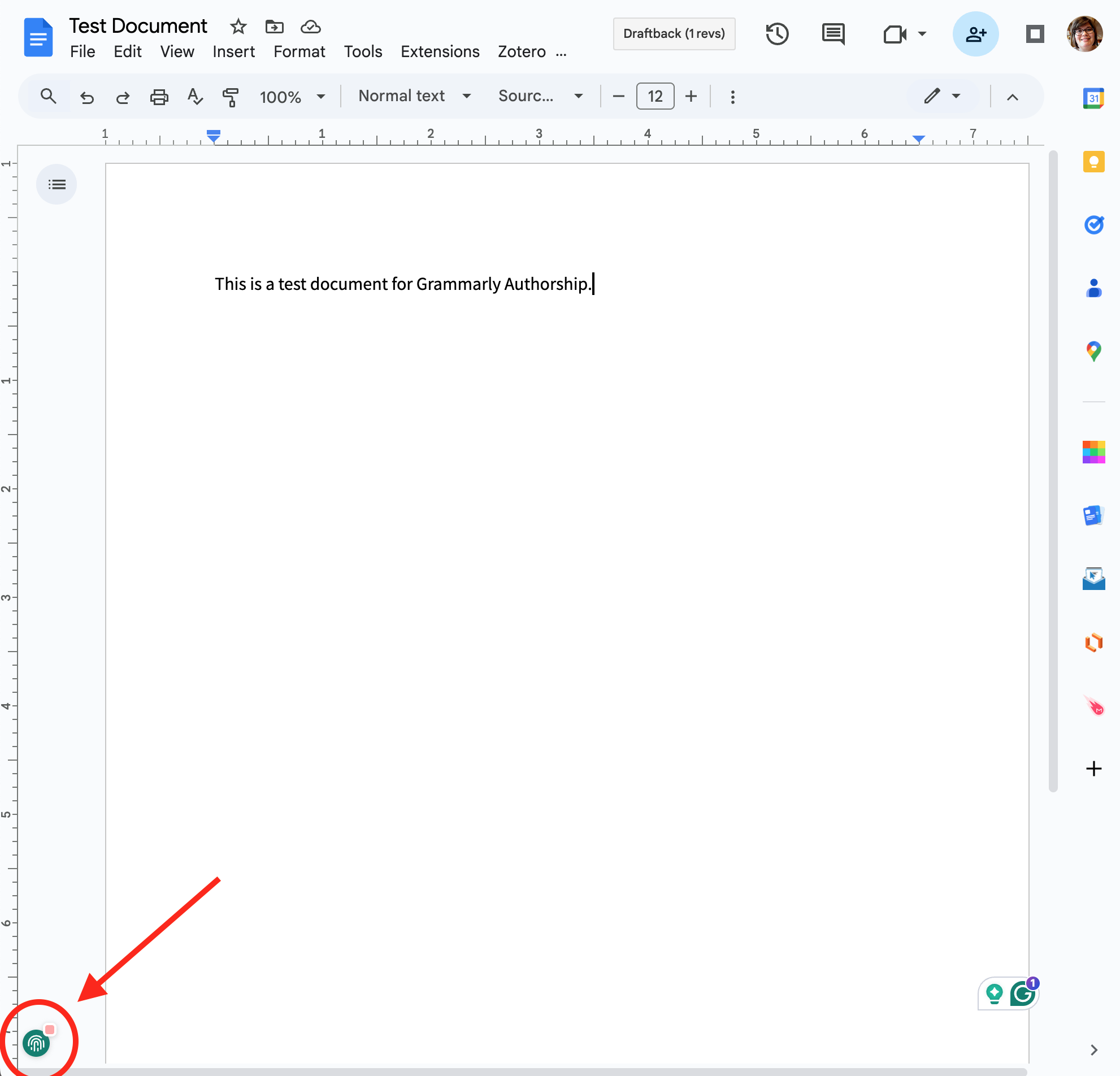
- - When Authorship is enabled, the fingerprint icon will be green. You can also click the icon to check that tracking is on, access the report, and check for AI and plagiarism.
[ ](https://help.mlc-wels.edu/uploads/images/gallery/2025-08/authorshipenabled.png)[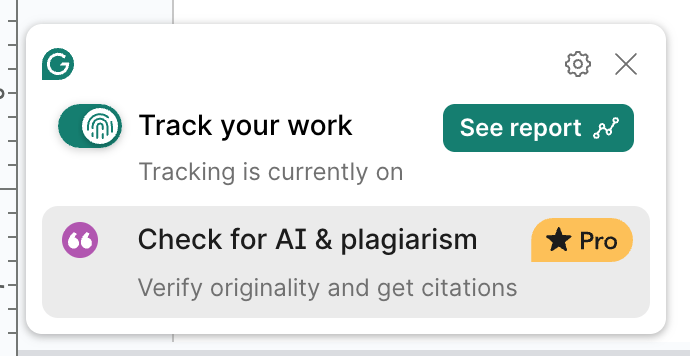](https://help.mlc-wels.edu/uploads/images/gallery/2025-08/screenshot-2025-08-20-at-2-30-33-pm.png)
- **Step 3: Complete Your Assignment**
- If you have to leave the document and come back, check that Authorship is enabled each time you open it again.
- **Step 4: Review the Authorship Report**
- Click the green fingerprint icon and then the "See report" button to access your Authorship Report.
- You can review the various stats that Grammarly tracked as you were writing.
- **Step 5: Share With Your Instructor**
- After clicking the "See report" button to access your Authorship Report, click the green "Share report" button at the top right corner of your report.
- Click the toggle button to make the report visible to anyone with the link. [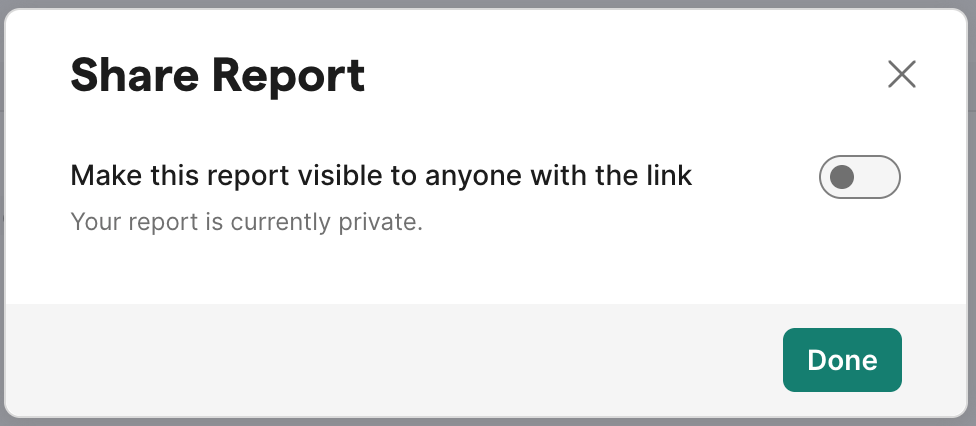](https://help.mlc-wels.edu/uploads/images/gallery/2025-08/screenshot-2025-08-20-at-2-37-26-pm.png)
- Copy the link and send it to your instructor following the directions they provided. [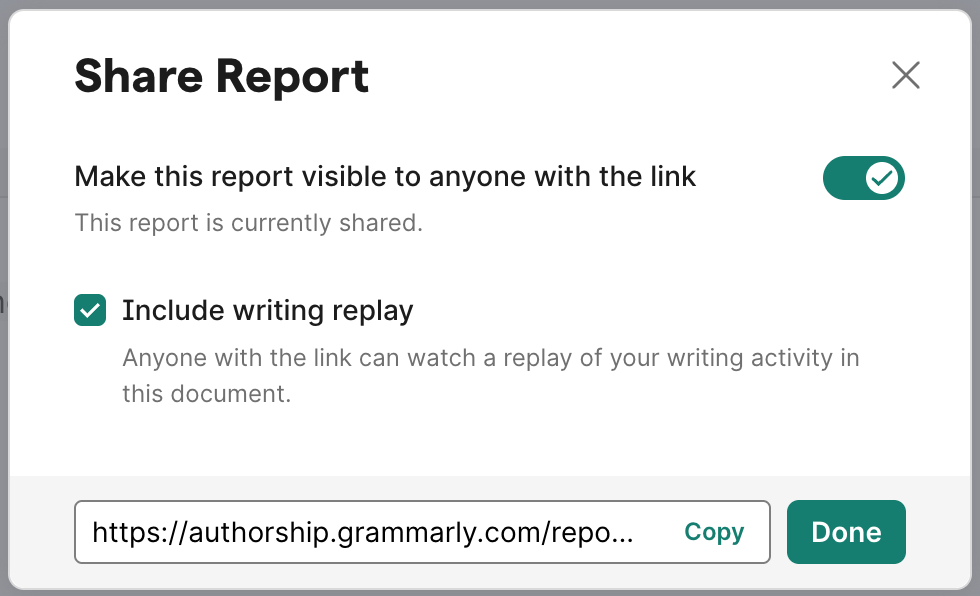](https://help.mlc-wels.edu/uploads/images/gallery/2025-08/screenshot-2025-08-20-at-2-38-23-pm.png)
####
#### Authorship in Microsoft Word
- Follow [these instructions](https://support.grammarly.com/hc/en-us/articles/4412835925389-How-do-I-install-Grammarly-for-Windows-or-Grammarly-for-Mac) to install the Grammarly program on your Windows or Mac computer.
- After you've installed Grammarly, follow the instructions above to use Authorship.