MLC Microsoft Account Transition
We are transitioning to Microsoft-backed MLC Accounts ... keep up with that transition here!
Overview
Starting in October 2026 and lasting through Summer 2027, MLC will be transitioning to using Microsoft-backed authentication and directory services for all MLC Accounts. This page has an overview of the entire project, links to updates on where we are, and information on all of the various stages including information on what is happening and some troubleshooting steps and things to know!
All times and specific tasks are subject to change as we figure things out. Reach out to IT Services if you want more information.
Where We Are
- Two (or three) main accounts:
- MLC Account (eDirectory) for OES Client, Filr, Portal, Moodle, etc.
- MLC Google Workspace Account for Gmail, Google Calendar, Google Drive, etc.
- Local account if using laptop
- OES Client for direct file access and Filr for access off campus
- iPrint for printing
- No consistent secure access (e.g. multi-factor authentication, passkeys)
Where We Are Going
- One MLC Account to access most things (e.g. Portal, Moodle, files, your computer, Gmail)
- Microsoft OneDrive for personal files and SharePoint for collaboration
- PaperCut only for printing
- Consistent secure access via modern authentication methods (e.g. passkeys, TOTP)
- Microsoft InTune for workstation management from anywhere
- Google services will still be around but will access with MLC Account credentials
Stages
Stage 1: Faculty & Staff Access
- Timeframe: October 2026
Things To Do
- Active faculty & staff members will gain access to their new MLC Microsoft Accounts
- Will include setting up secure access to account (e.g multi-factor authentication)
- Stay tuned for in-person options for training and getting set up
- NO CHANGE for your current MLC Account or MLC Google Workspace Account … this is a third account
- How we print on campus will be changing (also be on the lookout for this)
- More detailed information will be sent in the near future
- Coincides with the launch of our internal communications platform (accounts are required to view)
Stage 2: Student Access & Web Authentication Transition
- Timeframe: January 2027
Things To Do
- Students gain access
- Web services transition to new Microsoft-backed MLC Accounts and old eDirectory-backed accounts are dubbed Legacy MLC Accounts
- New licensing model for Microsoft technologies
Stage 3: Files & Collaboration Transition
- Timeframe: January - June 2027
Things To Do
- Transition most on-premises files from OES file servers to OneDrive and SharePoint
- Work with departments on their collaboration needs
- Sunset Legacy MLC Accounts
Stage 4: Google Authentication Transition
- Timeframe: Summer 2027
Things To Do
- Switch Google Workspace authentication to use MLC Accounts
Stage 5: Refinement
- Timeframe: Summer 2027 and beyond ...
Things To Do
- Investigate and implement additional changes to improve user experience and provide more services
Updates & FAQs
Posted Updates
- [video]
Frequently Asked Questions
If I have a WELS Cloud account, do I still need to maintain it?
Yes, at this time you will need to maintain a WELS Cloud account and an MLC Account even after we have completed the transition. If that changes, we will let you know.
Stage 1: Faculty & Staff Access
Getting Started with Your New MLC Microsoft Account
MLC is introducing new Microsoft accounts for faculty and staff. This account will eventually become your primary MLC account, providing a simpler and more secure way to access MLC services.
For now, you will continue using your existing OES account for many campus services while we gradually transition to the new system.
Step 1: Find Your Welcome Email
You will receive an email from MLC IT containing:
-
Your new Microsoft account username
-
A temporary password
-
A link to MLC's SharePoint site KnightLine
Your account has already been created. You do not need to register for a new account.
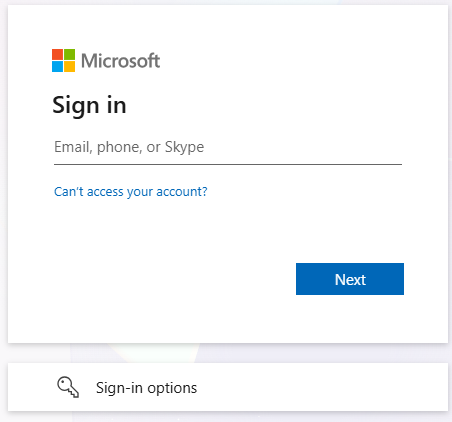
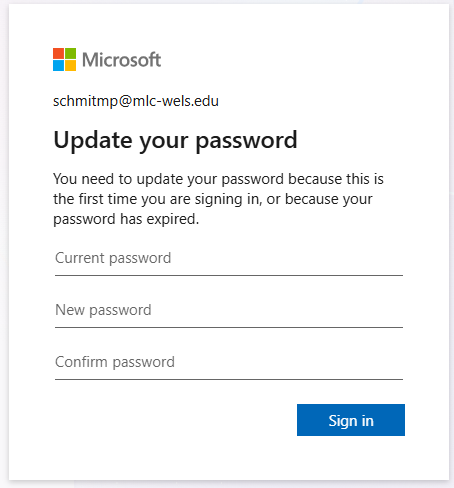
Step 2: Sign In for the First Time
Important: Your new Microsoft password is separate from your existing OES password.
Step 3: Set Up Account Security
Microsoft will guide you through setting up additional security for your account.
You will be asked to:
-
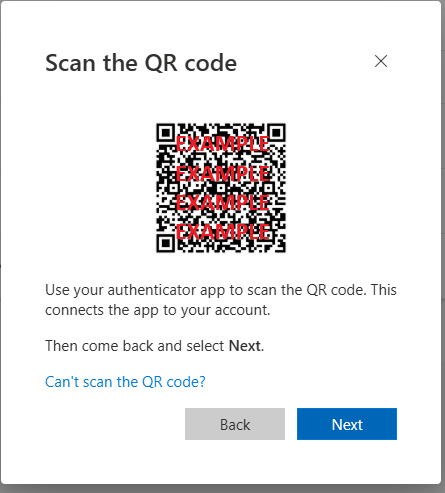
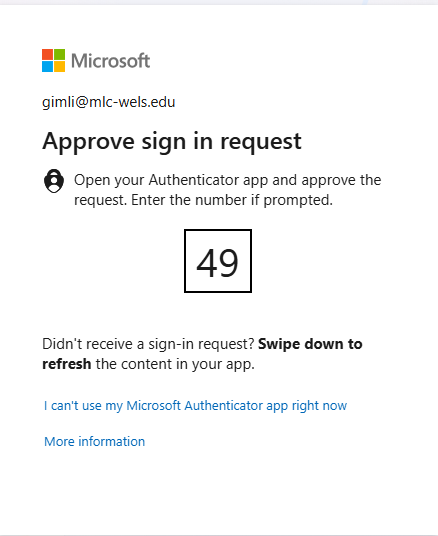
Set up multifactor authentication (MFA). This helps protect your account by requiring an additional verification step when signing in.
-
To use a different app, click the link at the bottom of the setup screen to choose another authenticator.
The setup process is nearly identical for either option. Simply scan the QR code with your chosen app and follow the prompts to finish adding your account.
-
-
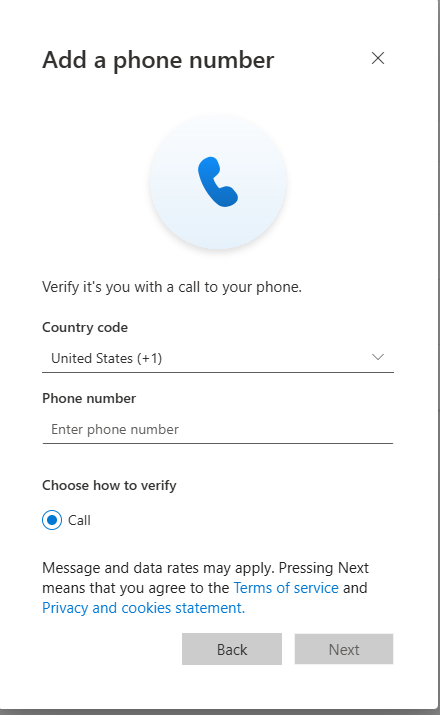
Add your phone number. This can be used to verify your identity and help secure your account.
Follow the instructions on the screen to complete the setup.
Step 4: You're All Set!
Once setup is complete, you should be able to access MLC's SharePoint site using your new Microsoft account.
You do not need to start using this account for everything immediately. MLC IT will communicate when additional services transition to Microsoft sign-in.
Signing In to the MLC Login Server
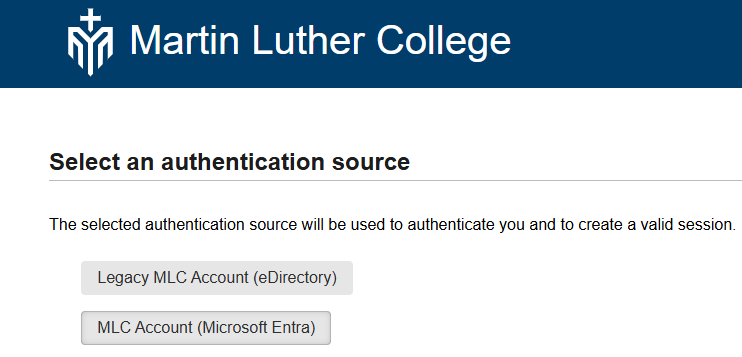
You will notice a new option when signing in to the MLC Login Server.
-
You can choose to sign in using either your OES account or your Microsoft (Entra) account.
-
Both options will work during the transition.
-
Eventually, this choice will be removed, and the Login Server will use Microsoft accounts automatically.
Need Help?
If you have trouble signing in, changing your password, or setting up MFA, please contact the MLC IT Department.
Remember: You only need to complete this initial setup once. Your new Microsoft account will gradually replace your OES account as MLC transitions to the new system.