Networking
This contains information about the information network on campus including wireless networks, wired networks, and other information.
Dorm Networking
Networking
Residential students can connect their devices to the campus-wide network to access MLC services and the Internet. Most devices should connect using the KnightNet wireless network. Wired Ethernet connections are also available in residence halls where needed.
If you have questions or experience connection issues, contact IT Services for assistance.
Before connecting a personal device to the campus network, please review the MLC Student-Owned Devices Policy.
Connecting to KnightNet
Wireless
KnightNet is the primary wireless network for student devices across campus, including residence halls.
To connect:
- Sign in to Portal.
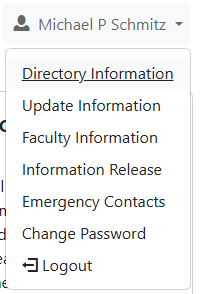
- Open the Directory and locate your information.
- Find the KnightNet Wi-Fi password listed with your information.
- Open the Wi-Fi settings on your device.
- Select KnightNet from the list of available wireless networks.
- Enter that password on your device and connect.
No separate device registration is required.
If you have trouble connecting, try forgetting the KnightNet network on your device and connecting again. If the issue continues, contact IT Services.
Wired
While wireless routers are now prohibited in the dorms, wired connections are still supplied for those instances where it makes sense to connect a device using an Ethernet connection. How you will go around connecting is dependent on how your room is setup.
Wireless Access Points
If your room has one of our wireless access points installed, you will find two Ethernet ports available for your use either on the bottom or the top (depending on the orientation of the device). You are free to connect your device to either of these ports.
Standard Ethernet Ports
Most residence hall rooms also have standard Ethernet wall jacks. Connect your device to the appropriate network jack using an Ethernet cable.
If your wired device does not receive network access or you are unsure which port to use, contact Network Services.
Devices
Some devices have specific requirements and will work better than others on certain networks. The following section will outline some of the issues to keep in mind when it comes to using your devices on campus.
Laptops/Phones/Tablets/Desktops
Most computers, phones, and tablets can connect directly to KnightNet.
To connect:
- Open your device's Wi-Fi settings.
- Select KnightNet.
- Enter the KnightNet password found under your information in the Directory on Portal.
If you experience problems, try forgetting KnightNet from your saved wireless networks and reconnecting.
Gaming Consoles
Gaming consoles can connect to KnightNet if they support the wireless network's connection requirements. For the best performance and reliability, a wired Ethernet connection may be preferable when one is available.
If your console cannot connect to KnightNet or you have difficulty getting online, contact IT Services for assistance.
Please note that MLC cannot guarantee that every game, online service, or gaming console will function on the campus network. Network Services will make a reasonable effort to assist, but some services may have requirements that cannot be supported on a campus network.
Streaming/Smart Devices/Printers/Televisions
Many streaming and smart devices—including streaming boxes, smart speakers, televisions, printers, and similar devices—have different networking capabilities.
If your device allows you to select a Wi-Fi network and enter a password, select KnightNet and use the KnightNet password found under your information in the Directory on Portal.
Some devices may have limitations that prevent them from connecting successfully to a campus network. If you are unable to connect a device, contact IT Services for assistance.
Keep in mind that some smart devices depend on your phone, computer, or other controlling device being able to communicate with them over the network. Certain device features may therefore work differently on a campus network than they would on a home network.
Frequently Asked Questions
Where do I find the KnightNet password?
Sign in to Portal, open the Directory, and locate your information. Your KnightNet Wi-Fi password will be listed there.

Do I need to register my device?
No. Devices connecting to KnightNet do not require a separate registration process.
What should I do if KnightNet won't connect?
First, try forgetting the KnightNet network on your device and then reconnecting using the password listed under your information in the Directory on Portal.
If you continue to have problems, contact IT Services.
Can I use my own wireless router in the dorms?
No. Personal wireless routers are not permitted in the residence halls.
I can't connect my device to the network, what should I do?
If you are having issues, the best option is to contact IT Services to get the discussion started on how to best meet your needs.
Can you open a port for me?
As long as your gaming device is registered properly on the network, you should not need to request any additional network ports to be opened.
Be warned, some features of modern gaming devices are built with the idea that you are connected to a minimally shared internet connection in your home. However, this is not the case with a network shared among hundreds of students. If a feature is not working, please contact our office so that we can try and look into it but we are not able to guarantee operation of all features.
Where can I get an Ethernet cable?
The MLC Bookstore sells cables, along with Walmart in New Ulm as well.
What if I want/need to hook up multiple devices using a wired connection and have only one port?
You will need to purchase a network switch, NOT a router. Switches are usually quite cheap and easy to order online.
Does MLC filter Internet access?
MLC maintains firewalls and a filtering service.
MLC provides Internet access for all students, staff, and faculty with the purpose of enabling and enriching your academic experience. While it is available for personal and recreational purposes, we contract a service that runs on our firewalls that filters out pornographic and gambling sites.
The firewalls also filter by port. Ports that are not needed for common web applications are blocked to prevent attacks on your computers from the outside. This may prevent you from playing some multiuser games and other web applications that use non-standard ports in their setup.
Direct outbound SMTP (port 25 mail) is also blocked from the dormitories to prevent computers that have been infected with viruses from sending emails to propagate the virus. Outbound SMTP email is only allowed through MLC's mailhost which does antivirus checking prior to sending. You can, however, send and receive mail though any web based email system that uses ports 80 or 443.
Wireless Networks
Martin Luther College maintains three wireless networks throughout the main campus and the Early Childhood Learning Center:
Click the above links for more information.
MLC Guest WLAN
The MLC Guest WLAN is the main wireless network on campus for guests on campus. It is an open network that requires users to register via a captive portal before users are able to access the Internet. The MLC Guest WLAN has access to a limited number of campus-specific web properties, so internal users should instead log into the MLC Academic WLAN or MLC Student WLAN.
Who Can Connect
This is open to guests, faculty, staff, and students to connect to and use at any time. You do not need to have your device registered in the past, or have a campus-owned device either.
Guests will need to have a passcode (which can change periodically). Please contact the front desk or talk with another member of the campus for the current passcode. They will need to log into the MLC Portal and then visit Portal > Information > Network Guest Codes to retrieved the current passcode.
How to Connect
Any computing device with a web browser and a wireless network adapter are able to connect to the MLC Guest WLAN wireless network. The following instructions will help you get started.
- Connect To the MLC Guest WLAN with your computing device and open a web browser.
- Read the Acceptable Use Policy, scroll to the bottom of the screen and click on the “I agree” button to proceed.
- Choose who you are.
- Guest: Please enter your full name and the passcode you received from someone on the faculty or staff of Martin Luther College.
- MLC User: Please enter your MLC Account username and password.
- You now have access to the internet for a 24 hour period as a guest or 183 days as an MLC user.
If, at any point, you have any issues. Please stop by IT Services on the second floor of the Wittenberg Collegiate Center.
Frequently Asked Questions
I do not know the passcode needed as a guest.
Guests will need to have a passcode (which can change periodically). Please contact the front desk or talk with another member of the campus for the current passcode. They will need to log into the MLC Portal and then visit Portal > Information > Network Guest Codes to retrieved the current passcode.
I cannot get the captive portal page to come up.
Often this is an issue when the device's DNS settings are not being set automatically by our internal systems. This can happen if you (or your network admin at your school or work) have set the DNS servers manually, or there is an issue with your device.
Either reset your DNS settings or contact IT Services.
MLC Student WLAN
Who Can Connect
The MLC Student WLAN is meant for use by currently-enrolled students at Martin Luther College with a currently-active MLC Account.
How to Connect
Your device will need to support WPA2 Enterprise security standards in order to connect to the MLC Student WLAN. The following instructions will help you get started.
First, you will need to connect to the MLC Student WLAN.
-
On your device, choose the MLC Student WLAN from the list of available wireless networks.
-
You should be prompted for some account credentials, use your MLC Account credentials to log into the network. You may need to accept/trust a server certificate as well.
-
Wait to be connected!
If you have registered your device recently, you should now be connected and ready to go. If not, you will also need to register your device on the network.
- Connect To the MLC Student WLAN with your computing device and open a web browser.
- Read the Acceptable Use Policy, scroll to the bottom of the screen and click on the “I agree” button to proceed.
- Only current MLC users are able to register on the MLC Student WLAN. Select the MLC User option and then enter your MLC Account username and password.
- Your device is now registered for 183 days.
MLC Academic WLAN
Who Can Connect
The MLC Academic WLAN is meant for current faculty and staff to connect to in order to complete their work while on campus. This is most often used for MLC-owned devices and not personal devices.
How To Connect
Your device will need to support WPA2 Enterprise security standards in order to connect to the MLC Academic WLAN. The following instructions will help you get started.
First, you will need to connect to the MLC Academic WLAN.
-
On your device, choose the MLC Academic WLAN from the list of available wireless networks.
-
You should be prompted for some account credentials, use your MLC Account credentials to log into the network. You may need to accept/trust a server certificate as well.
-
Wait to be connected!
If you have registered your device recently, you should now be connected and ready to go. If not, you will also need to register your device on the network.
- Connect To the MLC Academic WLAN with your computing device and open a web browser.
- Read the Acceptable Use Policy, scroll to the bottom of the screen and click on the “I agree” button to proceed.
- Only current MLC users are able to register on the MLC Student WLAN. Select the MLC User option and then enter your MLC Account username and password.
- Your device is now registered for 183 days.
Troubleshooting Issues
I just changed my MLC Account password and cannot connect!
Some operating systems (Windows 10 has been known to have issues) will not prompt you to change the saved password when connecting after you have changed your password. You will need to forget that saved account and reconnect. Here are some simple instructions:
- click on the wireless network icon in the lower-right of the screen
- right-click on the network (either the MLC Academic WLAN or MLC Student WLAN) you want to forget
- click
Forget
Then follow the connection instructions above. For other devices, you will need to follow the instructions from your operating system or device manufacturer. Here are some links to try out:
I am using a Chromebook, Chrome OS, Android, a Linux distribution, or some other operating system!
You are going to have to do more manual setup to get things working. Here are some settings you can look for!
- EAP method: "PEAP" or "Protected EAP"
- EAP Phase 2 authentication: Best option "MSCHAPv2" (or "Automatic")
- Server CA certificate: Best option "Default" or "Use system certificates". If needed, use one of "Do not check"/"Do not validate"/"No CA certificate is required".
- Domain: "mlc-wels.edu"
- Subject name match: "radius.mlc-wels.edu"
- Domain suffix match: "mlc-wels.edu"
- Identity: your MLC Account username
- Password: your MLC Account password
- Anonymous Identity: leave blank
Then use your MLC Account username and password from there.
There are often other words used depending on the specific operating system you are using. Feel free to contact IT Services if you have questions. Also, some devices do not support WPA2 Enterprise authentication methods, so check with your manufacturer.
I just cannot seem to connect!
Please contact IT Services or stop in the office to get some help.
Known Issues
This page will contain known issues that students, faculty, and staff have run into with connecting and using devices on campus.
Internet of Things
TP-Link Kasa Smart Plug
This device requires connecting to a protected wireless network, but does not support the needed wireless authentication standards of WPA2 Enterprise.
This means that, at this time (August 22, 2019), we cannot support TP-Link Kasa Smart Plug devices on campus.