Using the Safe Exam Browser
If enabled, Moodle can force students to use the Safe Exam Browser (SEB) to take a Moodle quiz. This browser will restrict them from opening other browser tabs or programs on their quiz-taking device while completing the quiz. It will not restrict them from using other devices (like their phone) while taking the quiz.
Students must download and install the SEB on their device in order for it to work. The SEB is compatible with current versions of Windows, macOS, and iOS. It is not compatible with Chromebooks. The SEB is also available on the computers outside of the Biology lab.
Setting Up a Quiz to use SEB
- Begin by setting up a quiz like you normally would.
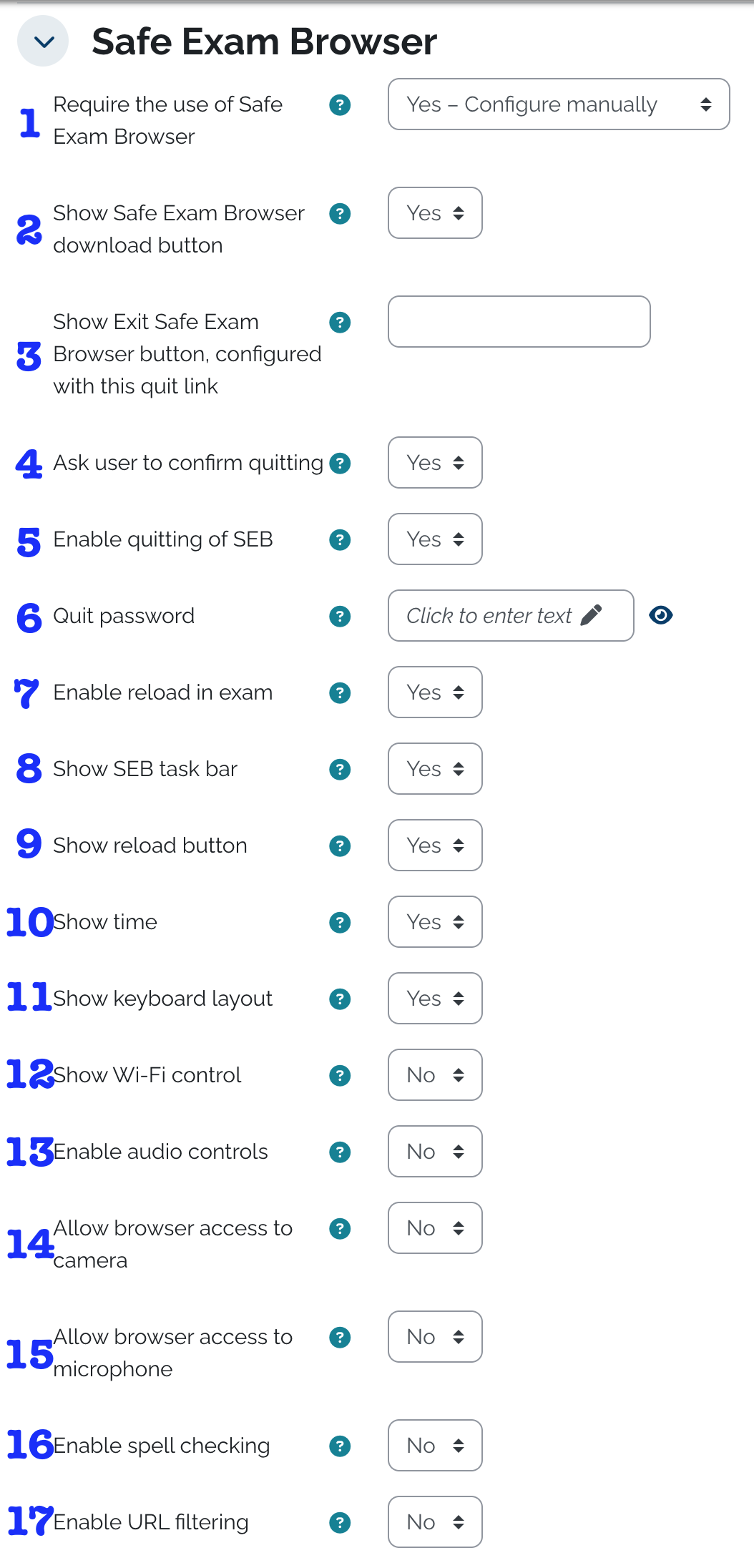
- In the quiz Settings, expand the section with the heading Safe Exam Browser.
- Configure the SEB using the following options:
- This lets Moodle know you want to use SEB for this quiz. Choose Yes - Configure manually to continue.
- Gives students a button to download the SEB when they open the quiz. Choose Yes.
- Gives students a link to quit the SEB. Otherwise, they will not have a link to exit the SEB. Enter something here, like your course number.
- Asks students to confirm that they want to quit the SEB if they click the link. Choose Yes.
- Allows students to quit the SEB. Choose Yes.
- Requires students to have a password to quit the SEB. This is optional.
- Allows students to reload the page if the internet has a connection issue. Choose Yes.
- Allows students to see the SEB taskbar. Choose Yes.
- Allows students to see the reload button in the SEB taskbar. Choose Yes.
- Shows the current time in the SEB taskbar. The default is Yes, but can be changed if desired.
- Allows students to choose keyboard layout in the SEB taskbar. Choose Yes.
- Allows students to see Wi-FI controls in the SEB taskbar. The default is No, but can be changed if desired.
- Allows students to see volume controls in the SEB taskbar. The default is No. Change to Yes if the quiz uses audio.
- Allows students to access a webcam during the quiz. The default is No. Change to Yes if the quiz requires the use of their webcam.
- Allows students to access a microphone during the quiz. The default is No. Change to Yes if the quiz requires the use of their microphone.
- Allows for spellchecking within their written answers. The default is No, but can be changed if desired.
- Gives options for filtering of URLs during the quiz. The default is No, but can be changed if desired.
What the Student Sees
Before Launching the SEB
When a student opens a quiz that's configured to use the Safe Exam Browser, the screen will look slightly different than a typical quiz.
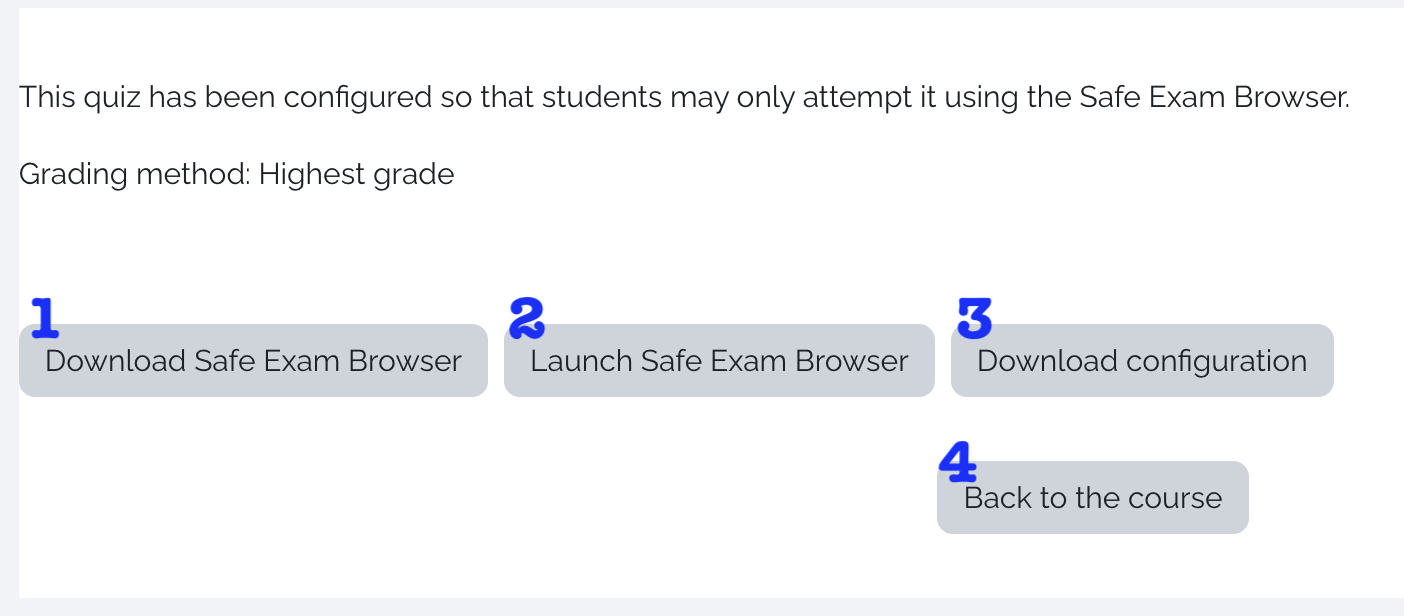
- If students click here, they'll be taken to a page to download the latest version of the SEB for their device. They only have to download and install the SEB for the first Moodle quiz they take using the SEB, even if it's not for your course.
- Students will click here to launch the SEB and start their quiz.
- Students do not need to use the Download configuration option. Instructors can download the configuration file to use for future quizzes if desired. It will not harm anything if a student accidentally downloads it.
- This button takes students back to the course home page.
After Launching the SEB
Note: if a student has not downloaded the Safe Exam Browser, they'll need to do that before they can launch it.
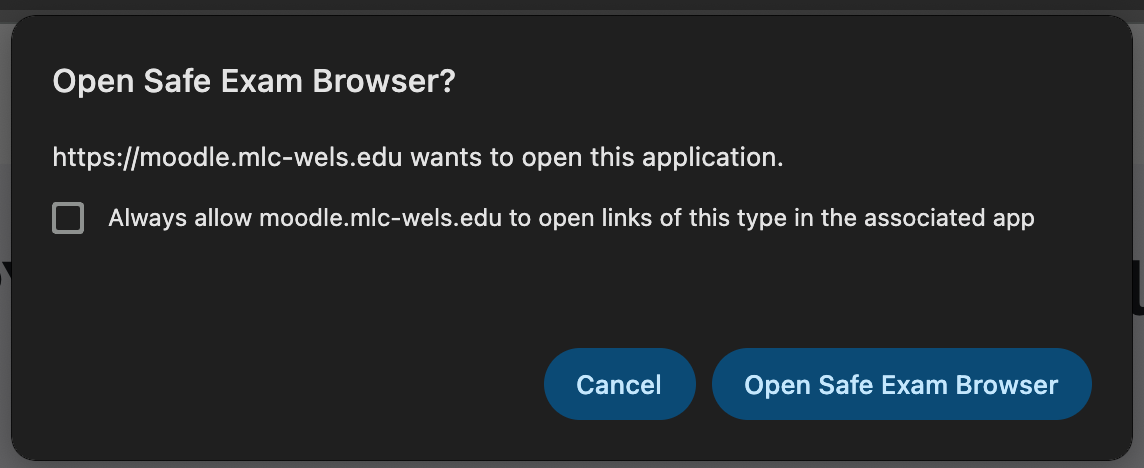
- When students click Launch Safe Exam Browser, they'll likely first get a pop-up asking if it's ok for their computer to open the SEB app. Students need to click Open Safe Exam Browser or whatever is the affirmative choice.
- As the SEB launches, it will look for applications that cannot be running while SEB is running. Zoom is one such application. The SEB will then try to close those applications. Students may have to click to allow the applications to close.
- The SEB window will open with the familiar Moodle login screen. Students will log in with their MLC username and password.
- After logging in, students will be taken right to the quiz page where they can start the quiz.
- When students have submitted their quiz, they can close the SEB and return to their normal browser by clicking the power icon
 in the bottom right corner of the screen.
- The SEB will try to relaunch the applications that it closed.
- Students can continue in Moodle as normal.