# F2: Build and Organize Course Content


# Show/Hide Course Content

When content is not ready for students to view, you can hide whole sections or individual items from student view. You can also use the bulk edit feature to hide course content.

##### Instructions

<div id="bkmrk-%2A%2A-best-experienced-" style="max-width: 100%; width: 800px; margin: 0 auto;">*\*\* Best experienced in Full Screen (click the icon in the top right corner before you begin) \*\**</div>[https://www.iorad.com/player/2415696/Change-availability-of-course-items](https://www.iorad.com/player/2415696/Change-availability-of-course-items)

<iframe allow="camera; microphone; clipboard-write" allowfullscreen="allowfullscreen" frameborder="0" height="500px" src="https://www.iorad.com/player/2415696/Change-availability-of-course-items?src=iframe&oembed=1" style="width: 100%; height: 500px;" width="100%"></iframe>

*10 STEPS*

1\. The first step is to open your course and click to turn on **Edit mode**

![Step 1 image](https://www.iorad.com/api/tutorial/stepScreenshot?tutorial_id=2415696&step_number=1&width=800&height=600&mobile_width=450&mobile_height=400&apply_resize=true&min_zoom=0.5)

2\. Scroll to the item you want to hide/show and click **the three dots**

![Step 2 image](https://www.iorad.com/api/tutorial/stepScreenshot?tutorial_id=2415696&step_number=2&width=800&height=600&mobile_width=450&mobile_height=400&apply_resize=true&min_zoom=0.5)

3\. Click **Hide on course page** to <u>hide</u> the item or **Show on course page** to <u>show</u> the item

![Step 3 image](https://www.iorad.com/api/tutorial/stepScreenshot?tutorial_id=2415696&step_number=3&width=800&height=600&mobile_width=450&mobile_height=400&apply_resize=true&min_zoom=0.5)

4\. Once hidden, you can also adjust the availability by clicking **Hidden from students** and choosing **Show on course page**

![Step 4 image](https://www.iorad.com/api/tutorial/stepScreenshot?tutorial_id=2415696&step_number=4&width=800&height=600&mobile_width=450&mobile_height=400&apply_resize=true&min_zoom=0.5)

5\. To change availability for multiple items, click **Bulk actions** near the top of the page

![Step 5 image](https://www.iorad.com/api/tutorial/stepScreenshot?tutorial_id=2415696&step_number=5&width=800&height=600&mobile_width=450&mobile_height=400&apply_resize=true&min_zoom=0.5)

6\. Click the boxes to **Select** the items you want to show/hide

![Step 6 image](https://www.iorad.com/api/tutorial/stepScreenshot?tutorial_id=2415696&step_number=6&width=800&height=600&mobile_width=450&mobile_height=400&apply_resize=true&min_zoom=0.5)

7\. After you've selected the items you want, click **Availability** at the bottom of the page

![Step 7 image](https://www.iorad.com/api/tutorial/stepScreenshot?tutorial_id=2415696&step_number=7&width=800&height=600&mobile_width=450&mobile_height=400&apply_resize=true&min_zoom=0.5)

8\. Click **Hide** or **Show**, depending on what you want to do

![Step 8 image](https://www.iorad.com/api/tutorial/stepScreenshot?tutorial_id=2415696&step_number=8&width=800&height=600&mobile_width=450&mobile_height=400&apply_resize=true&min_zoom=0.5)

9\. Click **Apply**

![Step 9 image](https://www.iorad.com/api/tutorial/stepScreenshot?tutorial_id=2415696&step_number=9&width=800&height=600&mobile_width=450&mobile_height=400&apply_resize=true&min_zoom=0.5)

10\. That's it. You're done.

<div id="bkmrk-tutorial-completed.-" style="max-width: 100%; width: 800px; margin: 0 auto;"><div style="margin-top: 20px;"><div style="position: relative; text-align: center;">![Step 10 image](https://www.iorad.com/api/tutorial/stepScreenshot?tutorial_id=2415696&step_number=10&width=800&height=600&mobile_width=450&mobile_height=400&apply_resize=true&min_zoom=0.5)<div class="step-info notranslate" style="position: absolute; top: 0; left: 0; z-index: 2; width: 100%; height: 100%; display: flex; align-items: center; justify-content: center; backdrop-filter: blur(10px); color: #000000;"><div style="display: block; width: 100%; height: 100%; flex-shrink: 0; background: white; text-align: left; background-image: none; background-repeat: no-repeat; background-position: center; background-size: cover;"><div style="background-color: #ffffff; width: 100%; height: 100%; padding: 35px 25px; display: flex; flex-direction: column; overflow: hidden; color: inherit; box-sizing: border-box;"><div style="display: block; height: 45px; font-style: normal; font-weight: 400; font-size: 18px; line-height: 20px; flex-shrink: 0; color: inherit;">Tutorial completed.</div><div style="display: block; margin-top: 3px; font-style: normal; font-weight: 400; font-size: 15px; line-height: 20px; flex-grow: 1; color: inherit; overflow: overlay;">Congratulations on finishing this tutorial.</div></div></div></div></div></div></div>

# Adding a Link to a Webpage in your Moodle Course

Nearly anything with a web link can be shared to your Moodle course page.

##### Instructions

- Log into Moodle and enter your course site.
- Click the **Gear** in the upper right corner and choose **Turn Editing On**.
- Scroll to the course section where you want the link to be. Click **Add an activity or resource**.
- On the pop-up window, scroll to the bottom of the list. Choose **URL** and click **Add**.
- On the next screen, you'll see a few text boxes. You must fill in the top two. 
    - Name: what students will see on the Moodle course page.
    - External URL: the link you want students to visit. It is easiest to copy and paste this.
- Scroll to the bottom and click **Save and return to course.**

# Layout and Navigation Basics

Having an organized Moodle course site can go a long way in helping students succeed in online learning. Some things to consider:

- Use sections to organize your course in Moodle rather than having one long list. Think of these sections like file folders -- all the materials for one lesson (or week, depending on how you're organizing your course) should go in a section.
- Number your assignments to help students locate them and keep track of what they've done. Then, if there are handouts, direction pages, or other parts that go with an assignment, label them similarly. For example, in week 1, you might have assignment 1.1 that goes with handout 1.1a.
- Put due dates at the end of the assignment name in Moodle so students can quickly see what's due each day without having to open everything.
- Create a checklist of what students are expected to do for each lesson or week.
- Add a discussion forum for questions to your class for students to post questions in. This will help reduce your email volume, let students check for questions that have already been asked, and let students answer each other's questions.
- If you have lots of files, consider setting up folders to hold related files.

####  

#### Course Layout Explained

#### <iframe allowfullscreen="allowfullscreen" height="314" src="//www.youtube.com/embed/y12xYdGOq0s" width="560"></iframe>


#### Turning Editing On

1\. Enter the course site you want to edit.

2\. Click the blue **Turn Editing On** button in the upper right corner.

---

#### Adding Course Content

1\. Turn editing on for the course site.

2\. Click **Add an activity or resource** in the topic where you want to add content.

3\. From the resulting window, choose the activity or resource type you'd like to add and follow the prompts.

4\. Clicking each choice will show a description of the activity or resource on the right side of the window.

5\. After making your selection, click **Add** and follow the prompts for the activity or resource.

<iframe allowfullscreen="allowfullscreen" height="314" src="//www.youtube.com/embed/dQSfNX0EIMY" width="560"></iframe>

---

#### Deleting Course Content

1\. Turn editing on for the course site.

2\. Click **edit** underneath the content or activity you want to remove.

3\. Choose **Delete.**

4\. Choose **Yes.**

[![Image from Gyazo](https://i.gyazo.com/9e5e47dd2d2f2e5bc26ff28a73cad10e.gif)](https://gyazo.com/9e5e47dd2d2f2e5bc26ff28a73cad10e)

# Using Topics

MLC courses use collapsed topics by default. These topics can be used to organize course content, help students locate assignments, and efficiently hide and show groups of content to students.

---

### Tips for Using Topics

- Topics can be thought of like file folders. Each topic can contain a variety of activities and resources.
- Topics can be used to organize a course in numerous ways, depending on the type of course and instructor preference. 
    - By week - each week of the course gets one topic containing the information and activities needed for the week.
    - By unit/chapter/lesson
    - By content type
- Showing/hiding a topic also shows/hides all the content within that topic in the student view.
- New courses have a default number of topics added automatically. Topics can be added or deleted to fit the course content.
- If content is imported from a previous course, topics can be imported as well.

---

### Working with Topics

#### Editing Topic Names

1. Enter your course and [turn editing on](https://help.mlc-wels.edu/books/moodle-for-faculty/page/layout-and-navigation-basics#bkmrk-turning-editing-on).
2. Scroll to the topic you want to edit and either 
    1. Click on the pencil at the end of the topic name, type the new topic name, and press **enter**.
    2. Click **Edit** at the end of the topic box and choose **Edit section**. Edit the section name and click **Save changes**.

---

#### Showing/Hiding Topics

1. Enter your course and [turn editing on](https://help.mlc-wels.edu/books/moodle-for-faculty/page/layout-and-navigation-basics#bkmrk-turning-editing-on).
2. Click **Edit** at the and of the topic name.
3. Click either **Hide section** or **Show section** from the edit menu.
4. Hiding a section will remove both the topic and all the content in the topic from student view. To indicate this, the topic name will appear in italics and a **Hidden from students** message will appear under the title.

---

#### Highlighting Topics

1. Enter your course and [turn editing on](https://help.mlc-wels.edu/books/moodle-for-faculty/page/layout-and-navigation-basics#bkmrk-turning-editing-on).
2. Click **Edit** at the and of the topic name.
3. Click either **Highlight** or **Remove highlight**.
4. When a topic is highlighted, a thin blue line appears to the left of the topic content.

---

#### Adding Topics

1. Enter your course and [turn editing on](https://help.mlc-wels.edu/books/moodle-for-faculty/page/layout-and-navigation-basics#bkmrk-turning-editing-on).
2. Scroll to the bottom of the course page.
3. Click the blue **+** underneath the last topic currently in the course.
4. A new topic will appear at the bottom of the course. It will automatically be called **Section #** (whatever number comes next). Follow the additional directions on this page to edit the topic.

---

#### Deleting Topics

*There are two options for deleting course topics.*

Option 1

1. Enter your course and [turn editing on](https://help.mlc-wels.edu/books/moodle-for-faculty/page/layout-and-navigation-basics#bkmrk-turning-editing-on).
2. Click the **Edit** menu next to the topic you want to delete.
3. Choose **Delete section**.
4. If prompted, click **Delete** on the confirmation screen.
5. Note that if a topic is deleted using this method, all activities and resources within the topic will also be deleted.

Option 2

1. Enter your course and [turn editing on](https://help.mlc-wels.edu/books/moodle-for-faculty/page/layout-and-navigation-basics#bkmrk-turning-editing-on).
2. Scroll to the bottom of the course page.
3. Click the blue **-** underneath the last topic currently in the course.
4. The last topic in the list will be removed.
5. Note that if a topic is deleted using this method, all activities and resources within the topic will be tagged as orphaned and will not be visible to students. The content must be moved to an existing topic in order for students to see it.

---

#### Rearranging Topics

1. Enter your course and [turn editing on](https://help.mlc-wels.edu/books/moodle-for-faculty/page/layout-and-navigation-basics#bkmrk-turning-editing-on).
2. After turning editing on, compass arrows will appear to the left of each topic.
3. Click the compass arrow next to the topic you wish to move and drag it to the proper location

# How Students Can Contribute Files or Links

If you wish to have students contribute to your Moodle site, it is possible, but not very intuitive. This method allows students to post files and links without altering access rights and permissions.

<iframe allowfullscreen="allowfullscreen" height="314" src="//www.youtube.com/embed/12t0AxdH_as" width="560"></iframe>

# Explanation of Activity Options

#### General

##### Assignment Name

- - The title that students will see on the course page. This is a required field.

##### Description

- - Put directions or other information here. The description will only appear on the course page if you check the box under the text box.

##### Additional Files

- - Attach templates or other files needed for the assignment here.

#### Availability

##### Allow Submissions From

- - If a date is chosen, students will not be able to submit until then. Click **Enable** to set a date and time.

##### Due Date

- - If a date is chosen, students will see the due date on their course. Submissions will still be allowed after the due date but will be marked as late. Click **Enable** to set a date and time.

##### Cut-off Date

- - If a date is chosen, students will not be able to submit after this date. Click **Enable** to set a date and time.

# How to add articles from library databases to Moodle reading lists

<p class="callout success">**The basics:** To add an article from a library database to a Moodle reading list, use its persistent link.</p>

<p class="callout success">**The reason:** If you copy the address-bar URL of an article, it may "break" when you try to use it the next time. Persistent URLs are stable and will lead your students to the article along with login options if needed for off-campus access.</p>

<p class="callout danger">If you have existing Curriculum Builder reading lists in Moodle, see the instructions below for moving them to permalinks.</p>

---

#### Steps for adding individual articles to Moodle reading lists

##### In Moodle:

1. ***Turn editing on**.*
2. **Navigate to the section where you'll place the article.**
3. ***Add an activity or resource.***
4. **Select *URL.***
5. **Enter a name for the article.**
6. **Locate the permalink in Discovery** (instructions below) **and paste (Ctrl-V) it in the *External URL*** **box.** You may also add a description or change other options.

##### In [Discovery](https://mlc-wels.edu/library/): 

1. **Search for an article**, ebook, or other digital content.
2. **Click on the title** of an item you'd like to add.
3. **Find the permalink** for the information. In Discovery, it will be in the sidebar menu on the right side of the page.
4. **Click on the permalink button. [![pl3.jpg](https://help.mlc-wels.edu/uploads/images/gallery/2022-03/scaled-1680-/pl3.jpg)](https://help.mlc-wels.edu/uploads/images/gallery/2022-03/pl3.jpg)**
5. Find the link near the top of the page. **Highlight the entire permalink and copy it (Ctrl-C). [![pl2.jpg](https://help.mlc-wels.edu/uploads/images/gallery/2022-03/scaled-1680-/pl2.jpg)](https://help.mlc-wels.edu/uploads/images/gallery/2022-03/pl2.jpg)**

##### Option: Link several articles in a Google doc. ([Video demo](https://watch.screencastify.com/v/DeT36Upw5rFPTu3llxaU "Link database articles in a Google doc"))

1. Create a new Google doc.
2. Search for the article in [Discovery](https://mlc-wels.edu/library/ "Discovery link").
3. Click on the title of the article.
4. On the right side of the page, click the Save icon.
5. Adjust options (if wanted) and click the Save button.
6. Copy the title, author, etc. and paste it into your Google doc.
7. Go back to the article, and right-click on the persistent link, then click Copy Link Address.
8. In your Google doc, highlight the article title, then click the link button and paste the link address.

##### Option: Add your Google doc to Moodle. ([Video demo](https://watch.screencastify.com/v/jRjviuiu3dyhJby3nRgP "Linking Google Doc reading lists in Moodle"))

1. Use the Share button in Google Docs to change the permission to Anyone with the Link as Viewer.
2. In Moodle, Add an Activity or Resource.
3. Click All, then URL.
4. Enter a name for the link, then past the link URL in the External URL box.
5. Click on the button to Save and Return to Course.

<p class="callout info">You may find permalinks on publisher article pages, but they may not contain the information that gives your students access to the article.   
  
For example, [https://www.jstor.org/stable/26695431](https://www.jstor.org/stable/26695431) (found by going directly to JSTOR) may result in a "paywall" for access to the article.   
  
[https://emil.mlc-wels.edu/login?url=https://search.ebscohost.com/login.aspx?direct=true&amp;AuthType=ip,url,cookie&amp;db=edsjsr&amp;AN=edsjsr.26695431&amp;site=eds-live&amp;scope=site](https://emil.mlc-wels.edu/login?url=https://search.ebscohost.com/login.aspx?direct=true&AuthType=ip,url,cookie&db=edsjsr&AN=edsjsr.26695431&site=eds-live&scope=site) (found by clicking on the article title in a Discovery results list) has all of the information needed to give our students access whether they are on- or off-campus. emil.mlc-wels.edu is the key piece.</p>

<p class="callout info">Permalinks may also be called "persistent links," "stable URLs," or something similar.</p>

<p class="callout warning">Students may still have to find the "full text" button on the listing to get to the actual article content.</p>

#### Move existing Curriculum Builder articles to permalinks (easy method):   
[Video demo](https://watch.screencastify.com/v/8FCEJe7NPbOTJkxudQ4N "Moving Curriculum Builder reading lists to Google Docs")

#### Move existing Curriculum Builder articles to permalinks (alternative method):

- **Open a reading list** that was built by Curriculum Builder. (You may have to click *See Current Reading List.)*
- **Click on the title of an article** to go to the expanded information screen. 
    - **On the left side, choose one of the full-text links and hover over it.** Don't click anything yet!
    - **While hovering over the link, look at the URL** in the bottom left-hand corner of the screen.
    - **If the URL has emil.mlc-wels.edu as part of it** (usually near the beginning), **right-click on the link and choose *Copy link address.***
        - **If the URL does not have emil-mlc-wels.edu within it, look for another link to the article** on the page. If there is none, the article may no longer be available through the library. Please contact [library staff](mailto:libraryhelp@mlc-wels.edu "contact library staff") for assistance. An article beginning with https://curriculumbuilder.ebscohost.com may not work for your students.
- **Repeat for each article in the reading list.**

\*These instructions supersede the use of Curriculum Builder, which has been discontinued.

# Using Blocks

Course blocks are the boxes of information on the right side of the course page. These blocks can be edited to fit the needs of the course. Many of these blocks can also be added to your Moodle Dashboard.

<iframe allow="accelerometer; autoplay; clipboard-write; encrypted-media; gyroscope; picture-in-picture; web-share" allowfullscreen="allowfullscreen" frameborder="0" height="315" src="https://www.youtube.com/embed/_16BZyQSP7U?si=xjnyMaEWfv5lJQSS" title="YouTube video player" width="560"></iframe>

#### Adding New Blocks

1. Log into Moodle and enter your course site.
2. Click on the **Edit mode** toggle in the upper right corner to turn editing on.
3. Click the arrow button on the right side of the page to expand the blocks drawer.
4. Click the name of the block you want to add to your course
5. The block will be added to the list of blocks on the right side of your course page. Information on specific blocks can be found below.

#### Editing Existing Blocks

- Log into Moodle and enter your course site.
- Click on the **Edit mode** toggle in the upper right corner to turn editing on.
- Click the arrow button on the right side of the page to expand the blocks drawer.
- Click on the **gear** in the block you wish to edit and choose the appropriate option. 
    - **Configure block:** access the options for the particular block.
    - **Hide block:** the block will no longer be visible for students.
    - **Permissions:** change permissions within the block.
    - **Check permissions:** view the permissions within the block for specific users.
    - **Delete block:** remove block from the course site.

#### Instructor Information Block

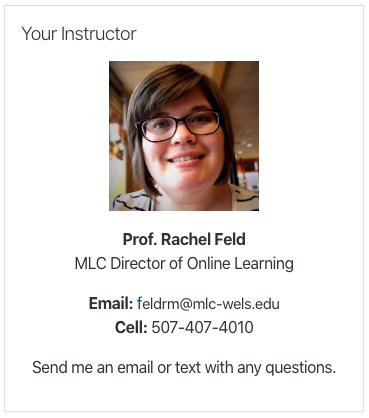
Students find having a block with information about the instructor on the course home page is helpful, especially in an online course. Please follow these instructions to **add** this block to your course. If you already have an instructor block but need to update it, please see the next section.

1. Log into Moodle and enter your course site.
2. Click on the **Edit mode** toggle in the upper right corner to turn editing on.
3. Click the arrow button on the right side of the page to expand the blocks drawer.
4. Choose **Text** from the list.
5. A block with the title *(new Text block)*should appear at the top of your course blocks.
6. Click the **Gear** in the HTML block and choose **Configure (new Text block) block**.
7. On the next page, enter the title for the block. *Your Instructor* is typically used.
8. In the *Content* textbox, enter the information you'd like your students to see. This could include your name, photo, email address, preferred method of communication, etc. See the sample below. Use the toolbar in the textbox to format your text.
9. Scroll to the bottom and click **Save changes**.
10. Repeat steps 6-9 to adjust the formatting as needed. Note that some formatting will depend on the size of the screen the student is viewing your course from.

[![Instructor-Block.png](https://help.mlc-wels.edu/uploads/images/gallery/2019-10/scaled-1680-/Instructor-Block.png)](https://help.mlc-wels.edu/uploads/images/gallery/2019-10/Instructor-Block.png)
#### Updating the *Your Instructor* Block

1. Log into Moodle and enter your course site.
2. Click on the **Edit mode** toggle in the upper right corner to turn editing on.
3. Click the arrow button on the right side of the page to expand the blocks drawer.
4. Click the **Gear** in the *Your Instructor* block and choose **Configure Your Instructor block**. Note: If your block is named something different, the **Configure** option will include the name of the block.
5. In the *Content* textbox, edit your contact information.
6. Scroll to the bottom and click **Save changes**.
7. Repeat steps 3-5 to adjust the formatting as needed. Note that some formatting will depend on the size of the screen the student is viewing your course from.

#### Available Blocks

The most commonly used blocks are listed below. Please follow the link for more information on the block.

- [Activities](https://docs.moodle.org/en/Activities_block)
- [Activity Results](https://docs.moodle.org/en/Activity_results_block)
- [Calendar](https://docs.moodle.org/en/Calendar_block)
- [Comments](https://docs.moodle.org/en/Comments_block)
- [Course Completion Status](https://docs.moodle.org/en/Course_completion_status_block)
- [Course/Site Summary](https://docs.moodle.org/en/Course/site_summary_block)
- [Courses](https://docs.moodle.org/en/Courses_block)
- [HTML](https://docs.moodle.org/en/HTML_block)
- [Latest Badges](https://docs.moodle.org/en/Latest_badges_block)
- [Latest News](https://docs.moodle.org/en/Latest_announcements_block)
- [Logged In User](https://docs.moodle.org/en/Logged_in_user_block)
- [Online Users](https://docs.moodle.org/en/Online_users_block)
- [Pearson MyLab &amp; Mastering (Block)](https://support.pearson.com/getsupport/s/article/MyLab-Mastering-for-Moodle-Add-the-Block)
- [People](https://docs.moodle.org/en/People_block)
- [Random Glossary Entry](https://docs.moodle.org/en/Random_glossary_entry_block)
- [Recent Activity](https://docs.moodle.org/en/Recent_activity_block)
- [Remote RSS Feeds](https://docs.moodle.org/en/Remote_RSS_feeds_block)
- [Search Forums](https://docs.moodle.org/en/Search_forums_block)
- [Self Completion](https://docs.moodle.org/en/Self_completion_block)
- [Upcoming Events](https://docs.moodle.org/en/Upcoming_events_block)

# File Resource

PDFs, Word Documents, Images, Spreadsheets, and more can be added to the course page for students to download and view.

#### Add a New File

1. Log into Moodle and enter your course site.
2. Click on the **gear** in the upper right corner and select **Turn editing on**.
3. If you're using sections, scroll to the section where you want to add the file.
4. Click **Add an activity or resource** underneath the section where you want to add the file.
5. Scroll down under the **Resources** heading and select **File**.
6. Click **Add**.
7. On the next screen, enter the **Name** that students to see on the course page. The **Description** is optional.
8. Under **Select files**, click the **Add files** [![Capture.PNG](https://help.mlc-wels.edu/uploads/images/gallery/2019-08/scaled-1680-/Capture.PNG)](https://help.mlc-wels.edu/uploads/images/gallery/2019-08/Capture.PNG)button.
9. In the resulting window, choose **Upload a file** on the left and click the **Choose File** button.
10. Locate the file on your computer and click **Open**.
11. Click the blue **Upload this file** button.
12. Scroll to the bottom of the page and choose either of the blue **Save** buttons.
13. The file should now appear on your course page. If it is not in the exact location that you want, follow [these instructions](https://help.mlc-wels.edu/books/moodle/page/organizing-course-content) to reorder the course items.

#### Update an Existing File

1. Log into Moodle and enter your course site.
2. Click on the **gear** in the upper right corner and select **Turn editing on**.
3. To the right of the menu item you want to update, click **Edit** and choose **Edit Settings**.
4. On the next screen, next to **Select files**, click on the existing file.
5. A window should appear. Click the grey **Delete** button near the top of the window.
6. Follow steps 8-12 above to add the new file.