F5: Discussions and Groups
- Q and A Forums
- Group Types
- Setting Up a Group
- Use Groups in a Discussion Forum
- Discussion Forum Settings
- Discussion Forum Types
- Fix the "Not part of a Group" Error
- Adding or Removing an Individual Student from a Pre-Existing Group
- Grading Moodle Discussion Forums
Q and A Forums
Question and Answer forums can be used when you don't want students to see the responses of others before they respond to the discussion prompt. The setup for these forums is slightly different than a typical discussion forum.
Adding a Q and A Forum to a Course
- Enter your course and turn editing on.
- Click Add an activity or resource, choose Forum and click Add.
- Give your forum a name. You can also include a description or instructions for the forum. Unlike regular discussion forums, do not put your discussion prompt in the description area.
- Next to Forum type, choose Q and A forum.
- Adjust the discussion forum options as needed.
- Click Save and display.
- On the resulting page, click Add a new question. If you do not add a question, students will not be able to post in this forum.
- Two textboxes will appear for a subject and message. This is where you can put the discussion forum prompt that you want students to respond to.
- Enter a subject for the discussion prompt. This is what students will see on the main page of the discussion forum.
- Enter the discussion prompt in the message box. You can add files or edit group settings by clicking the advanced button. Note that if you are using groups, you need to select the option to copy the question into each group.
- Click Post to forum.
- You can add additional questions to the forum by clicking Add a new question and repeating the above steps.
Replying to a Q and A Forum
The process for replying to a Q and A Forum is different for students than a standard forum. It can be helpful to share the directions below with your students when first using a Q and A forum. Instructions can be found here - https://help.mlc-wels.edu/books/moodle-for-students/page/replying-to-q-and-a-forums. You can also share the link with your students.
Group Types
No Groups
Groups will not be used for this activity. This is the default setting.
Separate Groups
Groups will be used for this activity. Students can only see the content of their own group. The other groups and their content are not visible to them.
Visible Groups
Groups will be used for this activity. Students can see the content of their group and all the other groups, but can only interact with the content from their own group.

Setting Up a Group
In Moodle, groups are set up for the whole course, but only impact those activities that are set to use groups. Groups can be changed throughout the course as needed.
Instructions
- Log in to Moodle and enter your course site.
- Click Participants on the top green menu.
- Click the Enrolled users menu near the upper left corner of the Participants window and choose Groups.
- From here you have two choices; to auto-create groups or manually create them.
Auto-Create Groups
- Click Auto-create groups near the bottom of the screen.
- Fill out the options for your groups:
- General
- Naming Scheme: This is how your groups will be named. You can use @ to create letter name groups or # to create numbered groups. Click the blue question mark next to the text box for more information.
- Auto create based on:
- Number of groups: you specify how many groups you want
- Members per group: you specify how many students you want in each group
- Group/member count: how many groups or members per group you want, based on your choice above
- Group messaging: allow or prohibit group members to use the Moodle messenger to communicate with their whole group.
- Group Members
- Select members with role: typically you should choose student.
- Select members from group: only use if you want to create a group within a group.
- Allocate members: choose how the groups will be divided
- Prevent last small group: if checked, no group will be smaller than the number you set above, but might be larger.
- Ignore users in groups: if checked, the group will contain only users that are not already in another group.
- Include only active enrollments: if checked, any students with suspended accounts will not be included in the groups.
- Grouping
- Grouping of auto-created groups: allows you to put all newly created groups into a grouping
- Grouping name: the name for the new grouping
- General
- Click Preview if you want to look at the groups before creating them, or Submit to simply create them.
Create Group
- Click Create Group near the bottom of the screen.
- Fill out the options for your group:
- General
- Group name: How the group will be identified in Moodle.
- Group ID number: Leave this blank.
- Group description: optional
- Enrollment key: behaves like a password for students to access groups. Typically not used.
- Group messaging: allow or prohibit group members to use the Moodle messenger to communicate with their whole group.
- Hide picture: if a picture is uploaded below, choose to show or hide the group picture.
- New picture: allows you to upload a group picture/icon to identify the groups.
- Click Save changes. The group will then appear in the list of groups on the next screen.
- Click the name of the group in the list.
- Click add/remove users to put students into the group you created.
- On the next screen, click the name of a student you want to add to the group and click Add. Repeat as necessary for all desired group members.
- Click Back to groups.
- General
Use Groups in a Discussion Forum
Groups can be used in a Discussion Forum to limit the number of posts an individual student interacts with. This can be especially helpful in courses with a large number of students.
Using Separate or Visible Groups
Instructions
- First, you need to set up groups within the course.
- After groups have been set up, you need to set the discussion forum to use groups. This can be done either from the Discussion Settings or the course home page.
Method #1 - Discussion Settings
- Either add a new discussion forum or turn editing on and choose Edit settings from the forum's edit menu to edit an existing forum.
- From the settings page, scroll down to Common module settings. Click the title to expand the menu if the options are not visible.
- Next to Group mode, choose the group setting you want for the forum.
- If you have set groupings in your course, an option for choosing the grouping will appear.
- After you have chosen the group settings, scroll to the bottom of the page and click one of the Save buttons.
Method #2 - Course Home Page
- Turn editing on within the course.
- Next to each discussion forum, a small person icon should appear. Hovering the mouse over the icon will indicate which group mode the forum is currently set to.
- Click the icon to cycle through the 3 group settings. See the image below for what each icon represents.
Removing Groups
If a student is unable to post to a discussion forum and gets an error about not being in a group, likely groups have inadvertently been set within the discussion forum. Follow these instructions to remove the group setting from the discussion forum. This can be done either from the Discussion Settings or the course home page.
Method #1 - Discussion Settings
- Turn editing on in your course and choose Edit settings from the forum's edit menu.
- From the settings page, scroll down to Common module settings. Click the title to expand the menu if the options are not visible.
- Next to Group mode, choose No groups.
- After you have chosen the group settings, scroll to the bottom of the page and click one of the blue Save buttons.
Method #2 - Course Home Page
- Turn editing on within the course.
- Next to each discussion forum, a small person icon should appear. Hovering the mouse over the icon will indicate which group mode the forum is currently set to.
- Click the icon to cycle through the 3 group settings. See the image below for what each icon represents.
Discussion Forum Settings
An explanation of the various settings that can be utilized in a Moodle discussion forum. These settings can be accessed when first adding a discussion forum to the course page or by turning editing on in the course page, clicking edit next to the discussion forum, and choosing edit settings.
General
Forum Name
- This is the title that will appear on the Moodle course page. It is a required field.
Description
- Directions for the discussion forum can go here. If using a standard forum, the discussion prompt can go here as well. If using a Q and A Forum, the discussion prompt goes elsewhere. Images and links can also be included. Click the down arrow on the left side of the text box toolbar for more formatting options.
- This information can be displayed on the course main page if the checkbox below the text box is checked, but this can lead to a cluttered course page.
Forum Type
- This setting impacts how the instructor and students will interact with the forum. The two most common types are Standard forum for general use and Q and A Forum. Please see the page on Forum Types for more information.
Availability
Due Date
- If a date is set here, students will see the due date within the Moodle discussion forum and on their Moodle calendar. Click the Enable checkbox to choose a date. Students can still post in the forum after the set date, but Moodle will indicate it was turned in late. This option is disabled by default.
Cut-off Date
- If a date is set here, students will not be able to post anything after this date. Click the Enable checkbox to choose a date. This option is disabled by default.
Attachments and Word Count
Maximum Attachment Size
- The largest file size that a student can attach to a discussion post. This is set to 1 GB by default.
Maximum Number of Attachments
- The largest number of files that a student can attach to a discussion post. This is set to 1 by default.
Display Word Count
- If enabled, students and instructors can see the word count of posts. This is set to no by default.
Subscription and Tracking
Subscription Mode
- Sets the type of notification options that forum participants will have for this forum. If a participant is subscribed to a forum, then they will receive notifications for that forum based on their notification settings in their profile.
- Optional Subscription: participants can choose if they want to subscribe.
- Forced Subscription: participants are all subscribed and cannot unsubscribe. This is the default setting.
- Auto Subscription: participants are all subscribed but can choose to unsubscribe.
- Subscription Disabled: subscribing is not an option for this forum
Read Tracking
- Allows participants and instructors to track which posts they have read.
- Optional: participants can decide if they want unread posts highlighted. This is the default setting.
- Off: unread posts cannot be tracked.
Discussion Locking
Lock Discussions After Period of Inactivity
- If enabled, participants cannot post to the forum after it is locked.
- Do not lock discussions: inactivity never locks the forum. This is the default setting.
- 1 day, 1 week, 2 weeks,etc.: the discussion forum is locked after no one posts for the specified period of time.
Post Threshold for Blocking
Time Period for Blocking
- If enabled, participants can only post a certain amount of times within a set period of time.
- Don't block: participants are not blocked from posting no matter how many times they post. This is the default setting.
- 1 day, 1 week, 2 weeks,etc.: participants are blocked from posting based on the numbers set below
Post Threshold for Blocking
- The maximum number of posts a participant can make within the time period set above. This setting is only visible if a time period is chosen above.
Post Threshold for Warning
- Students will be warned they are reaching the posting threshold after the number set here. This setting is only visible if a time period is chosen above.
Ratings
Roles with Permission to Rate
- Identifies which roles are able to rate discussion posts. A participant needs to have one of the listed roles in the course in order to rate a discussion forum.
Aggregate Type
- Sets how Moodle will calculate the rating for the discussion forum entries.
- No ratings: the entries cannot be rated. This is the default setting.
- Average of ratings: the final grade will be the mathematical average of all rated entries for an individual student.
- Count of ratings: the final grade will be the total number of entries that a student makes.
- Sum of ratings: the final grade will be the mathematical sum of all rated entries for an individual student. This is the most commonly used aggregate type.
- Maximum rating: the final grade will be the highest rating a student received out of all the rated entries.
- Minimum rating: the final grade will be the lowest rating a student received out of all the rated entries.
Scale
- The rating scale that will be used for the discussion forum.
- None: no scale will be used. This is the default setting.
- Points: numerical points can be awarded to entries. This is the most commonly used setting.
- Scale: one of the pre-defined grading scales can be used in the discussion forum.
Restrict Rating to Items with Dates in this Range
- If checked, only entries that fall within the dates set below can be rated.
- From: the earliest entries that can be rated.
- To: the latest entries that can be rated.
Common Module Settings
Availability
- Show on course page: The assignment will be visible to the students on the course page. This is the default setting.
- Hide from students: The assignment will be hidden from the students.
ID Number
- This is used for some custom reporting options. Do not enter anything here.
Group Mode
Grouping
- If groups are chosen, you can also indicate which grouping the assignment should use.
Add Group/Grouping Access Restriction
- If clicked, a group or grouping restriction will appear in the restrict access settings below.
Restrict Access
- Restrictions allow you to set a variety of criteria that must be met before the students can access the discussion forum.
- You can indicate if students must or must not meet all or any of the restrictions.
- Click Add restriction... to access and set the different types of restrictions.
- After setting a restriction, a grey eye icon appears either to the left of the restriction or to the left of the word student if numerous restrictions are set. If the icon is a solid grey, students who do not match the set requirements will see the assignment on their course page, but it will be greyed out so they cannot access it. If the icon has a line through it, students will not be able to see the assignment if they do not match the requirements. Click the icon to toggle between these settings.
Date
- The discussion forum is available either from a certain date or until a certain date.
Grade
- The discussion forum is available based on the grade a student achieves in another discussion forum, based on the overall course grade, or based on the grade in a specified category.
Group
- The discussion forum is only available to students within a specified group.
Grouping
- The discussion forum is only available to groups within a specified grouping.
User Profile
- The discussion forum is available to students based on a variety of fields that the student has set within their profile. Note that not all students have filled out every field in their Moodle profile.
Restriction Set
- This allows you to nest multiple restrictions.
Activity Completion
- Activity completion helps students keep track of which course activities they have completed.
- Activity completion needs to be turned on in the course settings for this option to appear.
Completion Tracking
- Do Not Indicate Activity Completion: Activity completion will not be utilized for this discussion forum.
-
Students Can Manually Mark the Activity as Completed: A grey checkbox will appear to the right of the discussion forum on the course home page. Students can check the box when they believe they have completed the activity.
- Expect completed on: If enabled, the students will see a date they are expected to complete the activity by.
-
Show Activity Complete When Conditions Are Met: You can set certain criteria for activity completion. The activity will automatically be marked as completed when those criteria have been met. More than one criterion can be enabled.
- Require View: The activity will be marked complete when the student views it. Note that it cannot measure if the student actually reads it.
- Require Grade: The activity will be marked complete after it is graded.
- Require Posts: The activity will be marked complete after the student has posted in the forum the number of times indicated. This is the default option.
- Require Discussions: The activity will be marked complete after the student has created the number of discussions indicated.
- Require Replies: The activity will be marked complete after the student has posted the number of replies indicated.
- Expect completed on: If enabled, the students will see a date they are expected to complete the activity by.
Tags
- Activities can be tagged with keywords. Tags can be used to organize or compile items with similar keywords.
Discussion Forum Types
There are five types of discussion forums to support participant collaboration and learning. Each type is described below and further explained on the Moodle Forum Activity page.
Standard Forum for General Use
- Instructions and discussion prompts should be put in the forum description.
- Students are able to add a new discussion thread or threads to the forum.
- This is the most typically used forum. It is also the default option.
Standard Forum Displayed in a Blog-like Format
- Identical to a Standard Forum for General Use except that students will see the first post from each discussion thread displayed on the discussion forum's main page.
Q and A Forum
- Instructions should be put in the forum description.
- Discussion prompts (questions) are posted by the instructor after the forum is created.
- Students can only reply to the instructor's questions. They cannot start a new discussion thread.
- Students cannot see the replies of their classmates until after they have posted.
- Because this type of forum behaves differently for both instructors and students, please read the page on Q and A forums carefully before using it in your course.
Each Person Posts One Discussion
- Instructions and discussion prompts should be put in the forum description.
- Students are able to add a new discussion thread to the forum. They can only add one new thread.
Single Simple Discussion
- Instructions and discussion prompts should be put in the forum description.
- Students can only reply to the initial prompt. They cannot start a new discussion thread.
Fix the "Not part of a Group" Error
In discussion forums, sometimes a student will get an error that says they cannot post because they are not part of a group. There are two ways to address this problem.
If the Discussion Forum IS Using Groups
-
- Add the student to one of the groups being used in the discussion forum by following these instructions.
If the Discussion Forum is NOT Using Groups
-
- Turn on editing in your course if it isn't already turned on.
- Check the small blue icon next to the forum's edit button. Make sure that it's a solid blue person icon without a circle. This is the "No Groups" icon in the image below.
- If it is a different icon, either the "Separate Groups" or "Visible Groups" icon in the image below, click the icon until it is a solid blue person.
Adding or Removing an Individual Student from a Pre-Existing Group
Adding a Student
- Log in to Moodle and enter your Moodle course.
- Click on Participants on the left-side column.
- Click the Gear Menu on the right side near the top and choose Groups.
- Select the group you want to add the student to from the list of groups.
- Click Add/Remove Users on the right.
- On the resulting screen, find the student in the Potential Members list on the right and click to select them.
- If your course has lots of students, they might not appear in the list. Use the search box below the box.
- Click Add.
- Repeat as necessary to add additional students.
- Click Back to Groups at the bottom of the page.
Removing a Student
- Follow steps 1-5 above.
- Locate the student in the Group Members list on the left and click to select them.
-
- If your course has lots of students, they might not appear in the list. Use the search box below the box.
-
- Click Remove.
- Repeat as necessary to remove additional students.
- Click Back to Groups at the bottom of the page.
Grading Moodle Discussion Forums

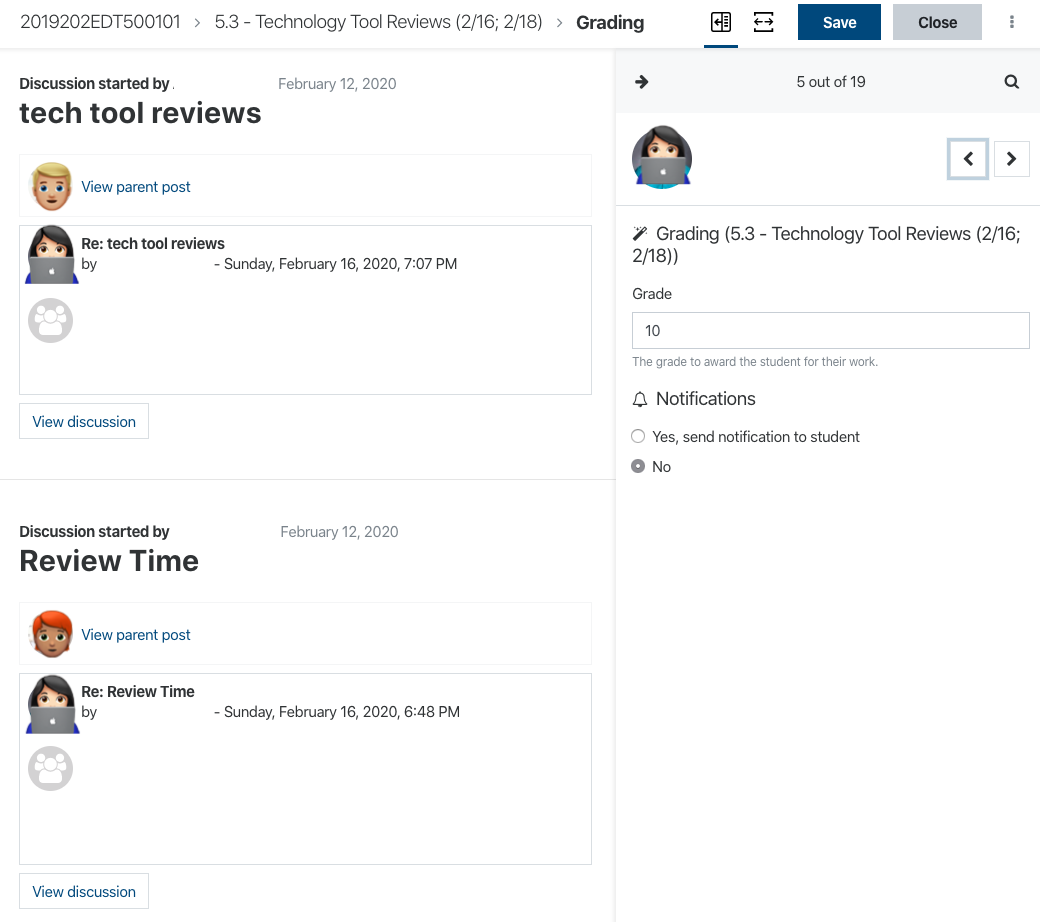
A Moodle Discussion forum can be graded within Moodle. The grades are automatically entered into the Moodle grade book. Students are able to view their grades and can receive individual feedback. There are two main ways of grading a discussion forum; whole forum grading and ratings. Whole forum grading allows you to see all of a student's contributions (posts and replies) to the discussion forum on one page and assign them a single grade. When the ratings option is used, each individual contribution is graded and then those grades are used to calculate a grade for the whole forum.
Whole Forum Grading
Adding Whole Forum Grading to a Forum
- Log into Moodle, enter your course, and turn editing on.
- Open the section where you want the discussion forum, click Add an activity or resource, choose Forum and click Add.
- You can also add whole forum grading to an existing forum. Click Edit to the right of the forum name and choose Edit settings.
- Enter the information for the forum as needed (forum name, description, etc.), scroll down, and click Whole forum grading.
- Click the menu next to Type and choose Point.
- In the maximum grade box, enter the number of points the activity is worth. Or, if using percentages, leave it at 100.
- Leave Grading method at Simple direct grading.
- If you'd like help with using a grading guide or rubric in a forum, please contact support.
- In Grade category, choose which category in your grade book the forum should be in. If you have not yet set up categories (or are not using categories) leave this at the default.
- Leave Grade to pass empty.
- Change Default setting for "Notify students" to Yes
- Change any other settings you need to in the discussion forum, scroll down, and choose one of the blue Save options.
Grading a Forum using Whole Forum Grading
- Log into Moodle and enter your course.
- Click on the discussion forum title that you want to grade.
- Click Grade users to the right of the blue Add a new discussion topic button.
- If you do not see this button, follow the steps above to add whole forum grading to the discussion forum.
- The grading screen (pictured below) will appear.
Ratings
Adding Ratings to a Forum
- Log into Moodle, enter your course, and turn editing on.
- Open the section where you want the discussion forum, click Add an activity or resource, choose Forum and click Add.
- You can also add whole forum grading to an existing forum. Click Edit to the right of the forum name and choose Edit settings.
- Enter the information for the forum as needed (forum name, description, etc.), scroll down, and click Ratings.
- Next to Aggregate type, choose how you'd like Moodle to calculate the discussion forum grade from one of the following options:
- Average of ratings: the mean of all ratings.
- Count of ratings: the number of rated items becomes the final grade. Note that the total cannot exceed the maximum grade for the activity.
- Maximum: the highest rating becomes the final grade.
- Minimum: the smallest rating becomes the final grade.
- Sum: All ratings are added together. Note that the total cannot exceed the maximum grade for the activity. This is the most common option.
- Note that in all of these options the ratings that will be considered for calculating are both initial discussion posts and replies.
- Click the menu next to Type and choose Point.
- In the maximum grade box, enter the number of points the activity is worth. Or, if using percentages, leave it at 100.
- In Grade category, choose which category in your grade book the forum should be in. If you have not yet set up categories (or are not using categories) leave this at the default.
- Leave Grade to pass empty.
- Change any other settings you need to in the discussion forum, scroll down, and choose one of the blue Save options.