F6: Grades and the Gradebook
- Adding Extra Credit
- Initial Gradebook Setup
- Reordering Gradebook Items
- Turning In Grades
- Overriding Existing Grades
- Setting the Grading Scale
- Exporting Grades
- Student View of Grades
- Excluding Individual Grade
- Other Grade Items
Adding Extra Credit
Extra credit can be added to the Moodle gradebook as a gradebook item that adds points to the student's number of accumulated points, but not to the point total for the course. This ability is dependent on some settings in your gradebook. For additional help with this, please contact support.
Instructions
- Log into Moodle and enter your course site.
- Click Grades in the left side menu.
- From the dropdown menu, choose Gradebook setup.
- Scroll to the bottom of the gradebook page and click Add grade item.
- On the next page, underneath Grade item, give the item a name and a total number of points in the maximum grade box.
- Underneath Parent category, choose the grade category for the item (if applicable) and change the weight to 1.0.
- If you don't have the option to change the weight of the item, your gradebook will not work with this method of extra credit.
- Click Save changes.
- The item should now appear on the list of grade items. An underlined plus sign
 will appear to the right of the item point total, indicating that the item will be calculated as extra credit.
 - Follow the instructions for grading other grade items to enter the extra credit points.
Initial Gradebook Setup
Gradebook Overview
If you haven't used Moodle Gradebook before, this would be a great time to try it out. Some benefits include:
- graded Moodle activities are automatically imported into the Moodle gradebook
- students can log in and see their grades at any time
- at the end of the semester, final grades can be sent to Portal with a few clicks.
If you'd like to get started, please follow the instructions and links below.
Setting Up Your Gradebook
- Make sure your grade scale in Moodle matches the grade scale for your course.
- Decide if you want to do weighted categories in your gradebook or not.
- If you're using weighted categories, set up the categories and put existing assignments into the correct categories.
- Grade your assignments.
Categories
Weights
Moving Items
Grade Scale
Aggregations
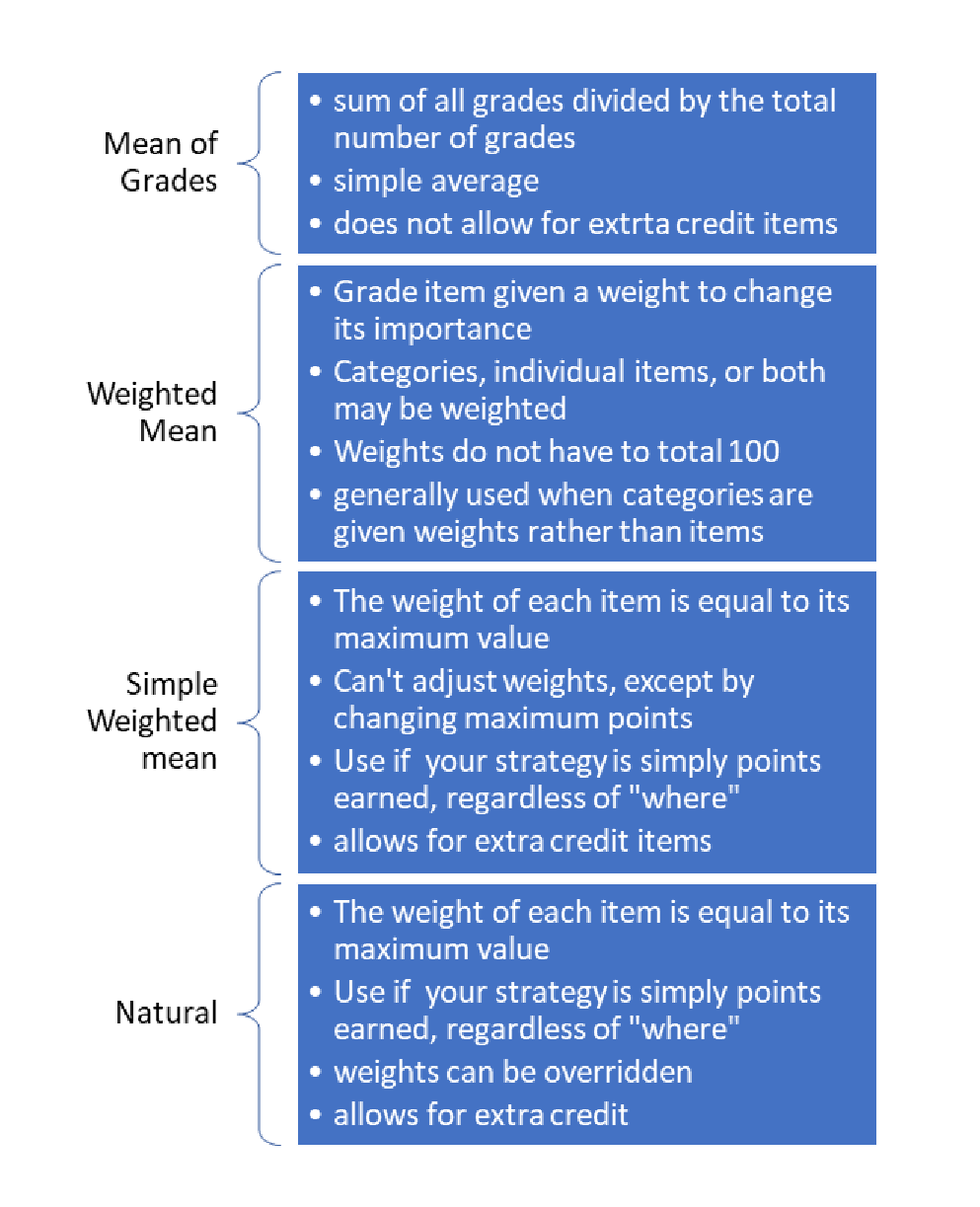
Moodle allows you to aggregate your grades in different ways, depending on how you want your grades calculated. There is a detailed list of aggregation strategies accompanied by the examples and the mathematics used to calculate grades. Whether an instructor employs the Moodle grade book or not, having a clear understanding of exactly how a grade is calculated is essential to assigning grades. Moodle allows for granular control of categories and weights in aggregating grades. Moodle's documentation goes into detail.
Example Calculations
|
|
Raw Scores |
Normalized Score |
|
Assign 1 |
75/100 |
.75 |
|
Assign 2 |
35/50 |
.70 |
|
Assign 3 |
10/10 |
1 |
|
Assign 4 |
85/100 |
.85 |
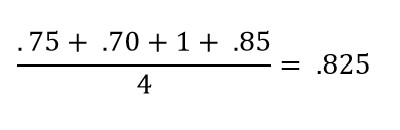
All raw scores are first normalized to a value between 0 and 1:
 Mean of Grades
Simple average of normalized grades:
Simple Weighted Mean
Normalized grade multiplied by weight, divided by sum of weights:

This is equivalent to:

Natural
If the weights are not adjusted, the sum of points earned is divided by the sum of possible points. Simple Weighted Mean and Natural will return identical results if no weights are adjusted in the Natural aggregation. The difference between Natural aggregation and Simple Weighted Mean is that Natural aggregation allows for weights to be overridden.
Weighted Mean
Sample Grades
|
Category |
Percentage |
Weight |
Category Subtotal |
|
Daily Work |
90% |
30% |
.90 * 30 = 27 |
|
Participation |
25% |
10% |
.25 * 10 = 2.5 |
|
Tests |
75% |
50% |
.75 * 50 = 37.5 |
|
Final |
65% |
10% |
.65 * 10 = 6.5 |
First, Moodle calculates the percentage score in each category. You may select whichever aggregation method you prefer for each category. Categories may have different aggregation methods, which may be different from the overall aggregation method.
Final Calculation:

The calculation may seem redundant because the weights add up to 100. Moodle does not require that weights add up to 100 in this method:
|
Category |
Percentage |
Weight |
Category Subtotal |
|
Daily Work |
90% |
1 |
.90 * 1 = .9 |
|
Participation |
25% |
1 |
.25 * 1 = .25 |
|
Tests |
75% |
3 |
.75 * 3 = 2.25 |
|
Final |
65% |
2 |
.65 * 10 = 1.3 |

(Note: there was no attempt to use equivalent weights between the two examples)
Reordering Gradebook Items
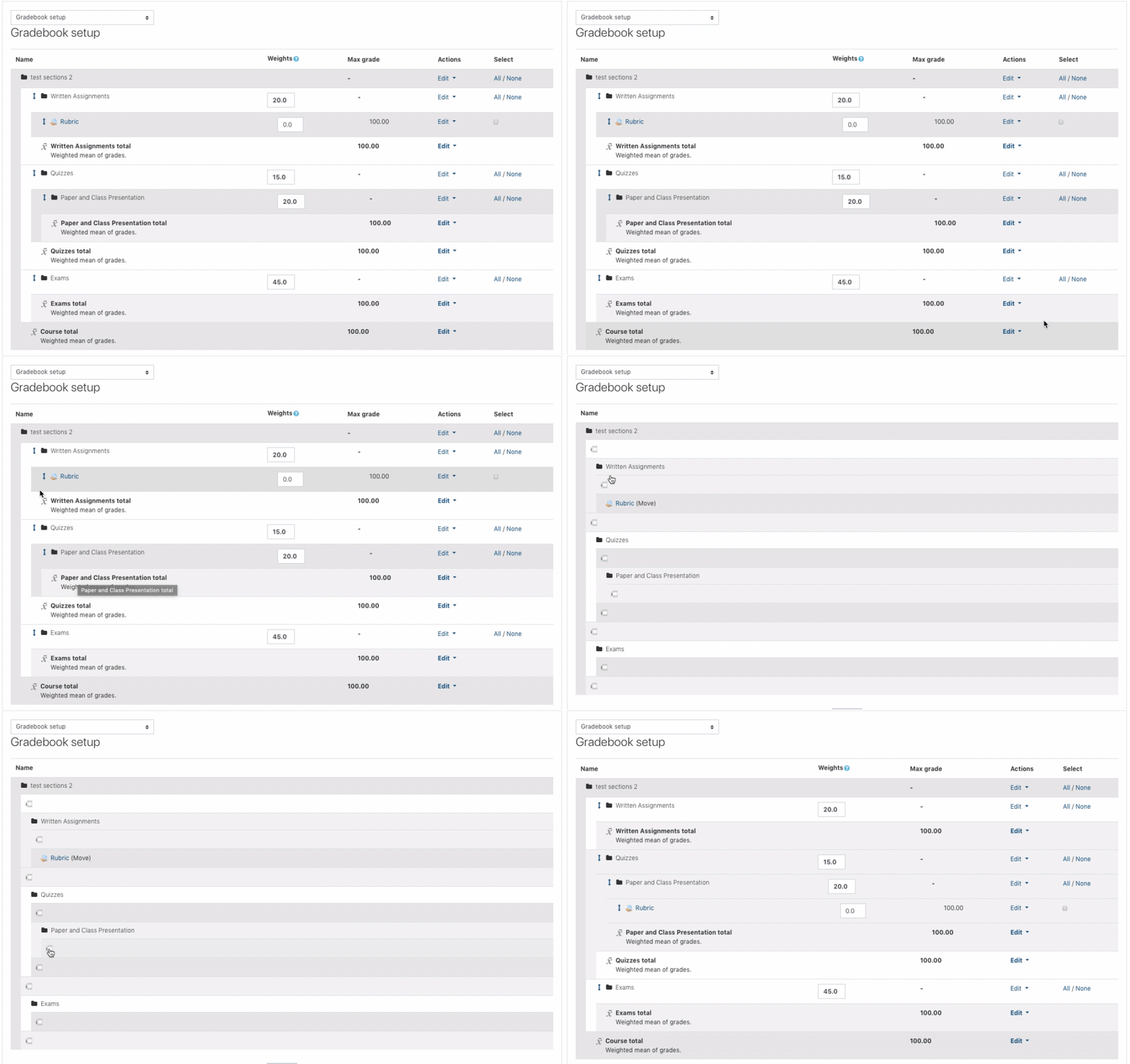
When viewing the gradebook, items are listed in chronological order, based on when the assignment or activity was added to the course site. This order might be different than the order the activities appear on the course site and/or the order you'd like them to appear in the gradebook. If a course uses categories for grading, this method can also be used to put assignments into the proper grading category.
Instructions
- Log into Moodle and enter the course you want to adjust.
- Click Grades in the left menu. If that menu is not visible, click the three lines in the upper left corner to make it appear.
- Click the dropdown menu and choose Gradebook setup.
- Click the up/down arrow to the left of the item you want to move.
- The screen will change, showing numerous checkboxes indicating where the item can be moved.
- Click the checkbox that corresponds to the location you'd like the item to be.
- Repeat steps 4-6 until all the items are in the desired order.
- Note: If you are using categories, make sure to keep each gradebook item within the proper category.
Turning In Grades
At the end of each semester, grades need to be reported for each student. Grades are reported on Portal by following one of the methods below.
Manually Submitting Grades
- Visit portal.mlc-wels.edu and log in with your MLC username and password.
- Select Grades from the top menu and click on Enter Grades.
- Click on the name of the course you want to enter grades for and a listing of your students should appear.
- Next to each student's name, select the appropriate letter grade.
- Click Submit on the bottom of the page.
Importing Final Grades to Portal from Moodle
- Log in to Moodle and enter your course site.
- Click Grades in the top menu.
- From the dropdown menu, click Export.

- On the next screen, from the "Export as" menu, choose MLC Portal.
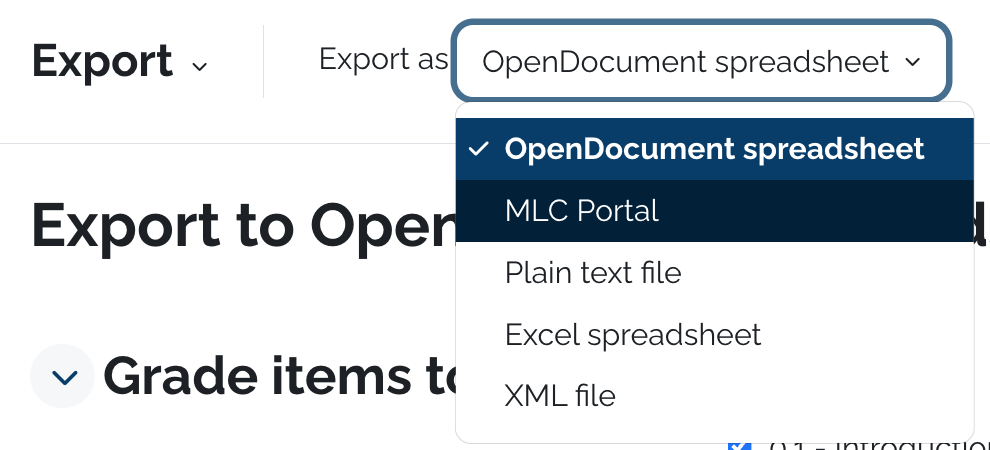
- Click Export Grades.
- A new tab will open with the Portal website. If prompted, log into Portal using your MLC username and password.
- The listing of students will be populated with letter grades based on their grade in Moodle. You can make adjustments to the grades as needed.
- Be sure to check that Moodle has rounded the way you want to round. Moodle calculates to more decimal places than are shown by default, which can impact which letter grade is imported to Portal.
- Click Submit on the bottom of the page.
Other Information
- Grades are due by the date listed on the MLC faculty/staff calendar or the Graduate Faculty Handbook.
- You do not need to enter all grades at the same time.
- Once you submit a grade for a student, you cannot change it yourself. Instead, you need to fill out a Change of Grade Form and send it to the MLC Records office. If you have any questions about this, please contact the MLC Records Office at (507)-354-8221.
- After you have submitted grades, you can inform your students that they can view their final grade on Portal. They should follow these instructions to view their grade.
Exporting the Gradebook
- It is a good idea to export your gradebook from Moodle to an Excel spreadsheet so that the data is saved in case you decide to delete the course site.
- To export the gradebook, please do the following:
- Enter your course site.
- Click Grades from the left menu.
- From the dropdown menu, choose Export to Excel Spreadsheet.
- Scroll to the bottom and click Download.
- Move the downloaded gradebook file from your download folder to another folder on your computer.
Overriding Existing Grades
Setting the Grading Scale
The grading scale is how Moodle translates percentages into letter grades. It is also the scale that is used when exporting grades from Moodle into Portal. The default grading scale can be changed in your course to match the grading scale in your syllabus. Grading scales to transfer with other course material when importing a course from a previous semester, but it is still wise to check this grading scale for accuracy at the beginning of each semester.
Checking the Current Grading Scale
-
- Log into Moodle and enter the course where you'd like to check the grading scale.
- Click on Grades in the top menu.
- From the drop-down menu (which likely says Grader Report), scroll down and click Grade Letters.
- The grading scale currently set for the course will be shown.
- If the grading scale that is shown is not the grading scale you want to use for your course, click the blue Edit button and follow the directions below, starting at the *.
Changing the Course Grading Scale
- Log into Moodle and enter the course where you'd like to check the grading scale.
- Click on Grades in the top menu.
- From the drop-down menu (which likely says Grader Report), scroll down and click Grade Letters.
- Click the blue Edit button.
- * If it is not already selected, check the box to Override site defaults.
- Edit the numbers and/or letters to match the grading scale for your course.
- Scroll to the bottom and click Save changes.
Default Grading Scale
| A | 95-100 |
| A- | 93-94 |
| B+ | 91-92 |
| B | 87-90 |
| B- | 85-86 |
| C+ | 83-84 |
| C | 79-82 |
| C- | 77-78 |
| D+ | 75-76 |
| D | 72-74 |
| D- | 70-71 |
| F | 0-69 |
Exporting Grades
Importing Final Grades to Portal from Moodle
- Log in to Moodle and enter your course site.
- Click Grades in the top menu.
- From the dropdown menu, click Export.
- On the next screen, from the "Export as" menu, choose MLC Portal.

- Click Export Grades.
- A new tab will open with the Portal website. If prompted, log into Portal using your MLC username and password.
- The listing of students will be populated with letter grades based on their grade in Moodle. You can make adjustments to the grades as needed.
- Click Submit on the bottom of the page.
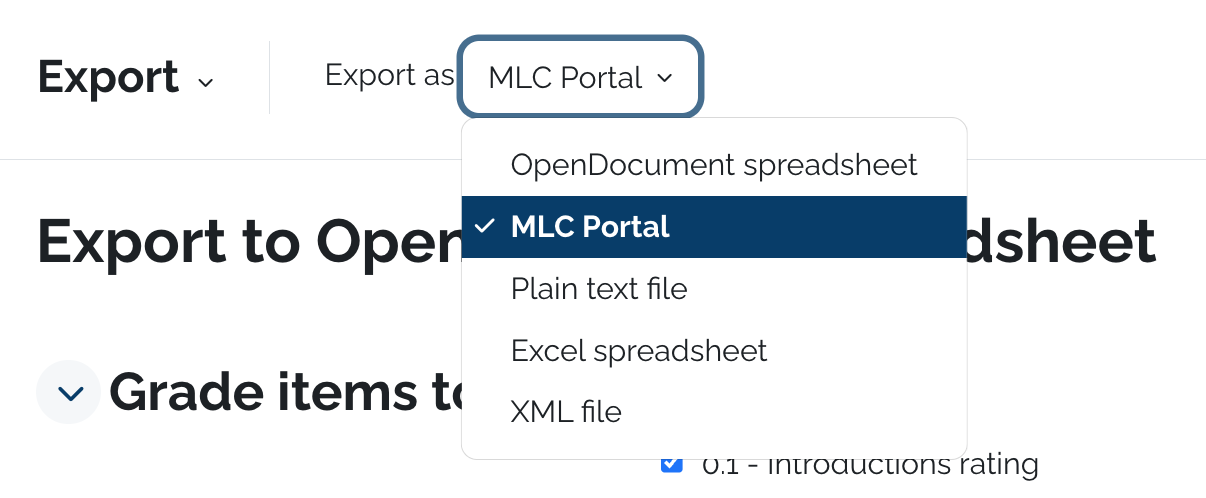
** This method will use the Letter Grade scale that's set for your course in Moodle to translate percentages into letter grades. To check or edit that scale, please follow these instructions.
Student View of Grades
Showing Letter Grades
1. The first step is to open Course: ASL8001 01: American Sign Language and ... and click Grades
2. Click Grader report
3. Select Course grade settings
4. Click Default (Real)
5. Select Letter (percentage)
6. Scroll down and click Save changes
7. That's it. You're done.
Here's an interactive tutorial
** Best experienced in Full Screen (click the icon in the top right corner before you begin) **
Excluding Individual Grade
Other Grade Items
You can also add your own entries to the gradebook that aren't linked to a Moodle activity like an assignment or discussion forum. This could include in-class activities for face-to-face classes or other activities completed outside of Moodle.
Adding Other Grade Items
- Log into Moodle and enter your course site.
- Click Grades
 from the menu on the left.
- If the menu is not visible, click
 in the upper left corner.
- If the menu is not visible, click
- Choose Gradebook setup from the dropdown menu on the Grades page.
- Scroll to the bottom of the page and choose Add grade item.
- Fill in the following information:
-
Grade item
- Item Name: how the entry will appear in the gradebook. This will be visible to you and the students.
-
Grade type: value is the default choice. Click the
 for information about the other options.
 - Scale: this option is only active when using the scale grade type.
- Maximum grade: the largest number of points the item is worth.
- Minimum grade: the smallest number of points the item is worth.
- Hidden: if checked, the grade item will not be visible to students.
- Locked: this option does not apply to this type of grade item. Do not check it.
-
Parent category
- Item weight: this only applies if you are using weighted grades and categories.
- Grade category: this only applies if you are using categories in your gradebook. Choose the category the grade item should be in.
- Click Save changes
- The item will appear in your gradebook. Follow the instructions for reordering gradebook items if needed.
-
Grade item


Grading Other Grade Items
- Log into Moodle and enter your course site.
- Click Grades from the menu on the left.
- If the menu is not visible, click in the upper left corner.
- If the menu is not visible, click
- Choose Single view from the dropdown menu on the Grades page.
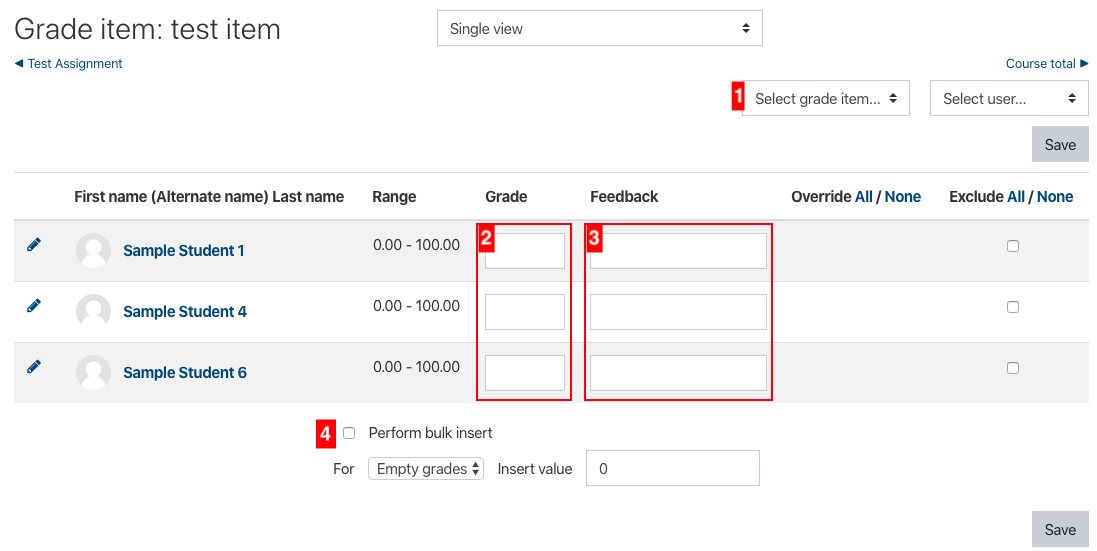
- Choose the gradebook item you want to enter from the dropdown titled Select grade item (#1).
- Enter the numerical grade for each student (#2).
- To insert the same grade for multiple students, see Bulk Insert Grades below.
- Enter any feedback you might want to leave for the student (#3).
- Click Save and then Continue.
Bulk Insert Grades
- Log into Moodle and enter your course site.
- Click Grades from the menu on the left.
- If the menu is not visible, click in the upper left corner.
- If the menu is not visible, click
- Choose Single view from the dropdown menu on the Grades page.
- Choose the gradebook item you want to enter from the dropdown titled Select grade item (#1).
- Scroll to the bottom and check the box next to Perform bulk insert (#4).
- From the dropdown, choose either Empty grades or All grades.
- Use Empty grades if you have already entered some grades and want to give all the rest of the students the same grade while keeping the grades that are already there.
- Use All grades if you haven't already entered other grades and want to give all students the same grade, or if you have already entered other grades but want to overwrite the existing grades.
- Type the grade you want to be entered next to Insert value.
- Click Save and then Continue.