F7: Communicate with Students
- Initial Communication with Students
- Class Announcements Forum
- Video Conferencing - Google Meet
- Video Conferencing - Big Blue Button
- Recording Video in Moodle
Initial Communication with Students
For online courses, please contact your students about two weeks prior to the start of the semester, following the guidelines below.
Initial Email Communication
- Access your course roster in Portal.
- Click the blue Email all (Personal) link. Your email program should open with the student-preferred email addresses populated in the BCC box.
- For information on how to make Gmail your default email handler in Google Chrome, please see this MLC Knowledge Base article.
- If you have difficulty accessing your course roster and/or email addresses, please let the MLC Office of Continuing Education know at continuinged@mlc-wels.edu.
- In your initial email, please:
- Welcome your students to the course
- Mention the date when the course will begin.
- Attach a copy of the course syllabus.
- Mention the required textbook information, and any other information you think they would like to know.
- Inform them when you will make your course visible in Moodle so they can look around at the preliminary course information.
- Ask them to reply to your email message so that you know they received it.
- If you have some students that have not responded after several days, please contact them by phone to make sure they are receiving the information. Online students appreciate personal contact from the course instructor. If you still do not receive a response, please contact the Office of Continuing Education.
Notes
- When viewing the class roster, you can also click on individual students to view their address, phone number, etc.
- Emailing (messaging) students directly from within Moodle uses whatever email address is currently listed in their Moodle profile, which might not yet be their preferred email address. Students are instructed to update their email address in their Moodle profile during the online orientation for new students.
Here's an interactive tutorial
1. The first step is to go to portal.mlc-wels.edu and click Login
2. Enter your Username
3. Enter your Password
4. Click Login
5. Click Scheduling
6. Click Schedule Browser
7. Click Your Name
8. Scroll down to the bottom of your schedule and click the blue people icon.
9. Click E-mail All (Personal)
10. The email addresses should populate into a new email from whatever email client you typically use.
If it's not the right email address (i.e. it's not your MLC email address), copy and paste the email addresses into a new email from your MLC account.
Class Announcements Forum
The Announcement forum is available by default in all courses. It has some unique features.
- Only teachers can post in it.
- All students are automatically subscribed to it, meaning they will get an email whenever you post something.
- Students cannot reply to announcements, only view. The benefit to this over email is that they can easily come back to review what was sent and you don’t have to copy all their email addresses.
Instructions
- Log into Moodle and enter your course.
- Click on Announcements
- Click Add a new topic
- The next screen is very similar to an email window. Put a subject in the subject line and your information in the message textbox.
- Click the blue Post to forum button.
- In 15 minutes, your post will be visible to students and sent to them via email. In that 15 minute window, you can change the announcement if needed.
Video Conferencing - Google Meet
Video Conferencing - Big Blue Button
You can find some information at the EdTech blog in the post titled BigBlueButton Basics.
Recording Video in Moodle
Anywhere that instructors or students have a textbox to enter text, they can also record audio or video. This can be used for students to introduce themselves or explain their learning, or for instructors to give project directions or assignment feedback. You need a webcam and microphone to use this feature. Most recent laptops have these.
Instructions
- Enter the activity where you want to record the video. Examples of this include a discussion forum post or assignment.
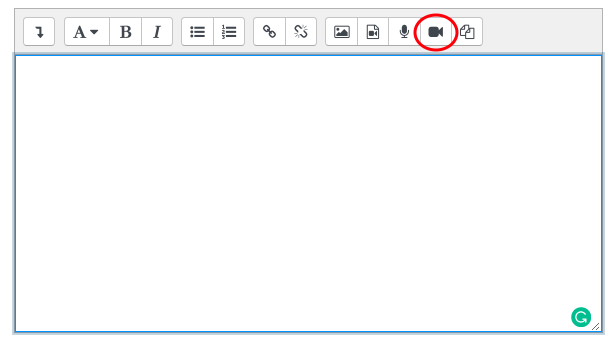
- In the textbox, click the video camera icon. Note that if you are in a discussion forum, you might need click advanced for that option to appear.
- After you click the icon, a window should appear with a red Start recording box. Click that box.
- If prompted by your browser, allow Moodle to access your webcam and microphone.
- After you click Start recording, a screen showing what you are recording will appear. Below that screen is the Stop recording button and a countdown timer. The timer indicates how much time you have left in the recording.
- When you are finished with your recording, click Stop recording.
- If you want to start the video over without saving what you've done, click the x in the upper right corner of the window.
- After you click Stop recording, a preview of your video will appear if you want to watch it. If you want to redo the recording, click Record again. Otherwise, click Attach recording to insert the video in the activity.
- Depending on the length of the video, it might take a while to process and appear in the textbox. When it does, submit the assignment or feedback like you usually would.
Troubleshooting
- Check that your webcam/microphone are properly configured on your computer.
- Check your browser settings to make sure it is allowing the use of the webcam/microphone.