F8: Monitor and Support Students
- Class "Attendance" in Moodle
- Regular & Substantive Interactions: Online Faculty Guidance
- Monitoring Student Activity
- Enabling Student Access to Logs and Reports
- Best Practices for Teaching Online Courses
Class "Attendance" in Moodle
It may be useful to know when a student last accessed your course. Moodle keeps track of that for you. Directions follow (click on an image to open a larger view in a new window):
| 1. In your Course page, look to the upper left corner to find the button with three horizontal lines (the "hamburger). Clicking the button will open the left pane. |  |
| In the left pane, select "Participants." | 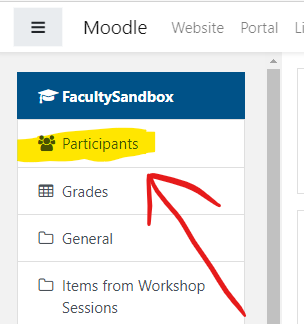 |
| A list of all the course participants will appear. You can view when each participant last accessed the course. | |
| If you have a large roster, you can apply a filter to search for a specific participant. |  |
Regular & Substantive Interactions: Online Faculty Guidance
High impact and best practices in teaching and learning encourage meaningful interactions between instructors and students. MLC has long advocated for robust learning experiences across all modalities. Recent guidance by the federal government requires that institutions receiving Title IV funding demonstrate that their courses include regular and substantive interactions between instructors and students. These interactions occur when faculty meet with students at specific times, present information, solicit student feedback, and answer student questions within a predictable timeframe.
The U.S. Department of Education defines both regular and substantive interactions.
Regular interaction between students and their instructor in asynchronous online instruction must be intentionally planned and initiated by the instructor. Regular interaction includes BOTH
- Providing the opportunity for substantive interactions with students on a predictable and scheduled basis commensurate with the length of time and the amount of content in the course or competency; AND
- Monitoring the students’ academic engagement and success and ensuring substantive interaction with the student when needed as indicated by such monitoring or upon request by the student.
Substantive interaction involves engaging students in teaching, learning, and assessment consistent with the content under discussion, and also AT LEAST TWO of the following:
- Providing direct instruction (synchronous only);
- Assessing or providing feedback on a student’s coursework;
- Providing information or responding to questions about the content of a course or competency;
- Facilitating a group discussion regarding the content of a course or competency; or
- Other instructional activities as approved by the institutional or programmatic accrediting agency.
Martin Luther College expects its faculty to provide regular and substantive interactions with students in each online course in a uniform manner. To that end, each faculty member follows these practices and publishes them in their course syllabus:
- Respond to student questions communicated via email, Moodle messenger, or an open forum within 24 hours.
- Give substantive feedback and scores to students in discussion forums within 72 hours of the forum’s due date.
- Evaluate student assignments with instructive comments within 7 days of the assignment due date.
- Schedule, publish, and attend virtual office hours at least once monthly so students can consult with the instructor in real-time using convenient electronic means (phone, video conference, text messaging).
Monitoring Student Activity
What are "Blocks?"
Blocks are part of the Moodle Course Page. These areas give the user information at a glance. Courses are created with a default set of blocks enabled. There are additional blocks available. Blocks can be repositioned on the course page, or they may be deleted.
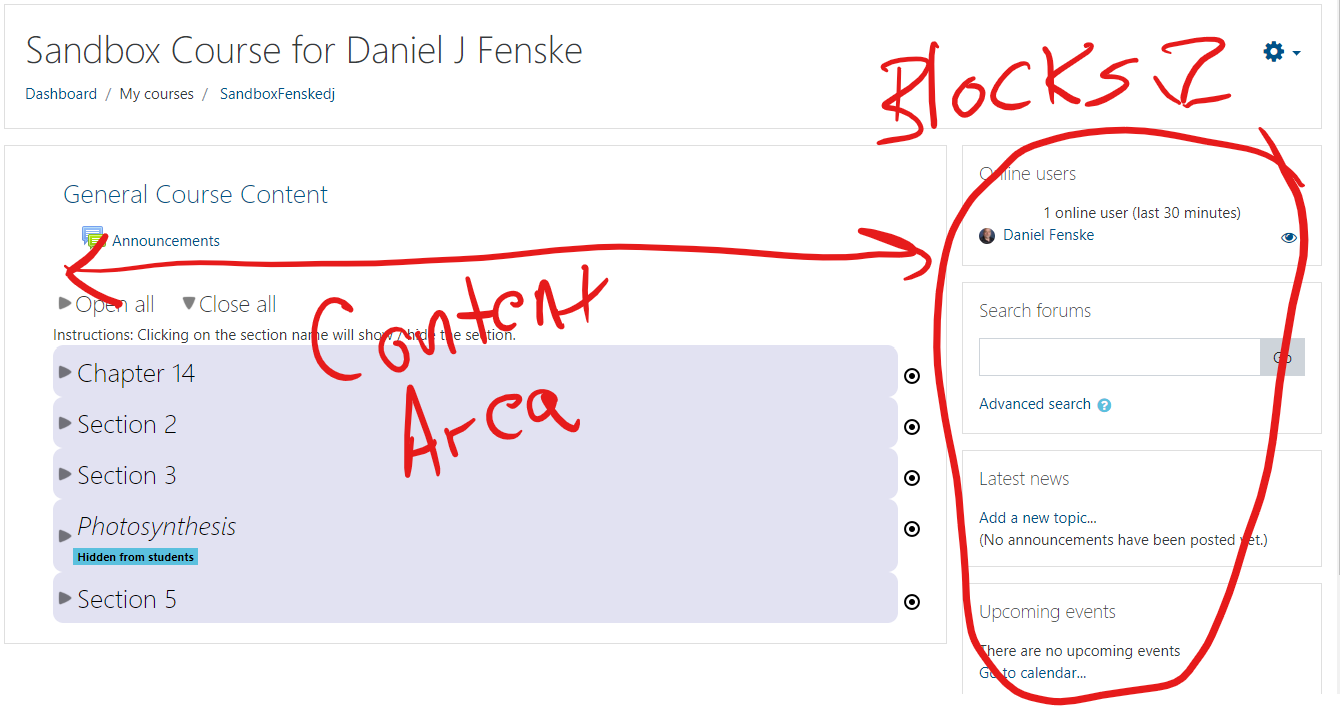
There are two Blocks that are very useful for monitoring what is going on in your course. Those Blocks are the recent Activity Block and the Online Users Block. Recent Activity is displayed by default. As things happen in the course, this block will display that for you. You can also get a report by clicking on the link that appears in the Block "Full report of recent activity...".
The Online Users block displays a list of students who are currently logged in to your course. This Block must be added if you wish to make use of it. The instructions for adding this Block follow.
Add a Block
| 1. Navigate to your Course Page. Turn Editing on. |  |
| 2. At the upper left corner of the page, find the 3 horizontal line button (the "hamburger"). Click on that button to expand the left side pane. | |
|
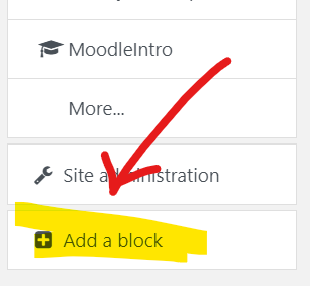
3. When the left side pane opens, scroll to the very bottom of the pane. You will see a box, "Add a Block". Select that button. |
 |
| 4. For our purposes, we'll add a Block that tells us which users are currently logged in to our course. Scroll down the list of Blocks to find "Online users". Select that Block. | 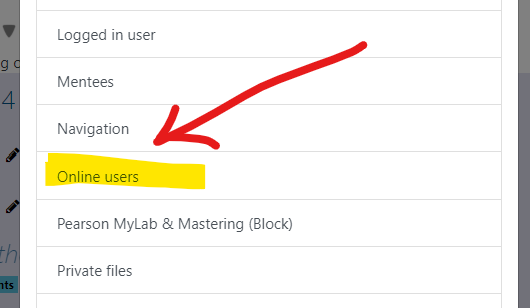 |
| 5. The Block will appear in the right pane of your course. You can change the position (up or down in the pane) by clicking and holding on the crossed arrow icon. Your cursor changes to the crossed arrow. You can drag the Block up or down to your desired position. | 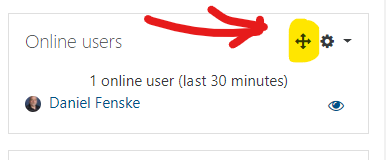 |
| Turn your editing off, your block is in place. |
Delete a Block
You may decide that you do not wish to use a Block, and want to remove it from the Course Page. Directions follow:
1. Turn Editing on (refer to step 1 of the directions above).
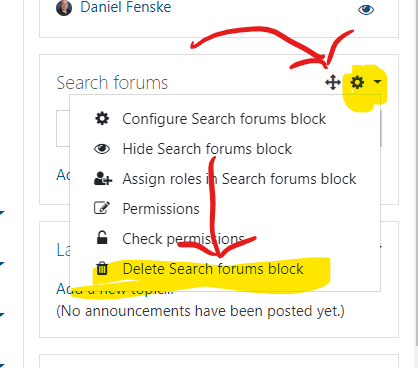
2. Locate the Block you wish to delete. Click on the "gear" icon. From the menu, select the last item "Delete ___ block".
3. Accept the confirmation dialog that appears. The Block is deleted. It may be re-added at any time.
Reports
Moodle provides several tools for giving you feedback about student activity. Moodle's Reports offers some useful information about student activity. Directions to access the Reports follows (clicking on an image will bring up a larger view in a new tab):
| 1. In your Course page, select the small arrow next to your picture. From the drop-down menu, select "More". | 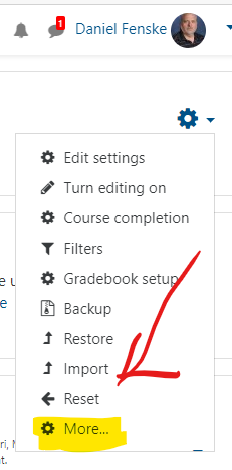 |
| 2. The Course Administration page appears. Note that the middle section has the Reports options. | 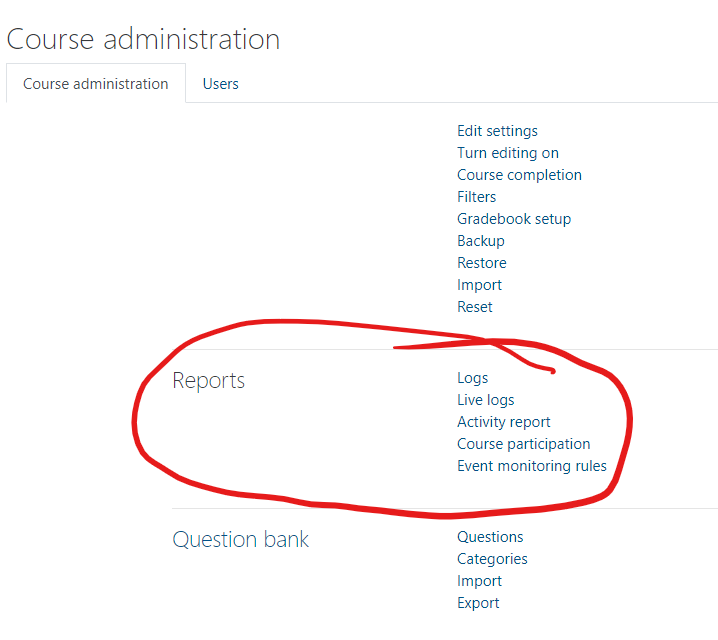 |
| 3. Selecting "Activity Report" brings up a Report of all activity on every item in your course. This report may take a few minutes to generate. It allows you to see which items are accessed. You have the option to Filter the Report by date range. | 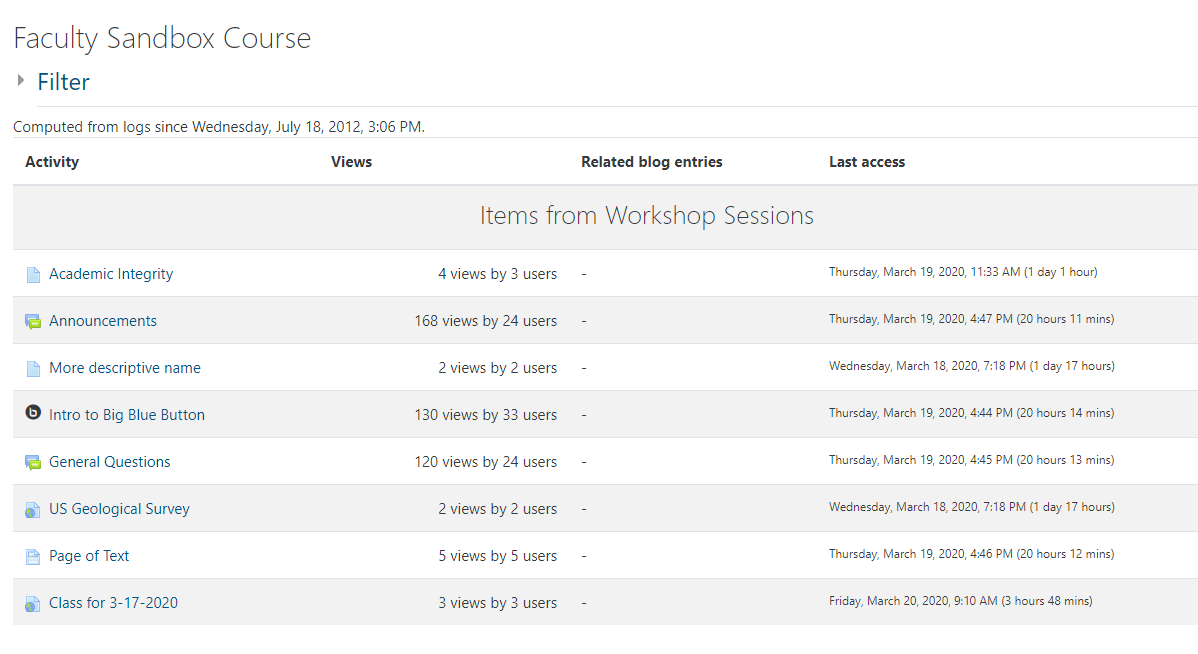 |
| 4. Selecting "Course Participation" allows you a very detailed report about activity in your course. You select which Activity you are interested in, how far back to look, and which actions you are interested in. When you click "Go," Moodle displays the requested information. | 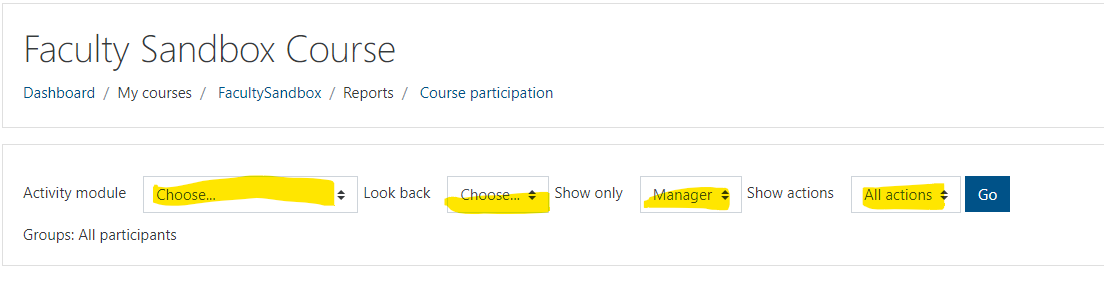 |
| 5. In this example, the Announcements Forum is selected, for the last 4 days, by Students, and All actions. The result is displayed. One user accessed this activity, some did not. | 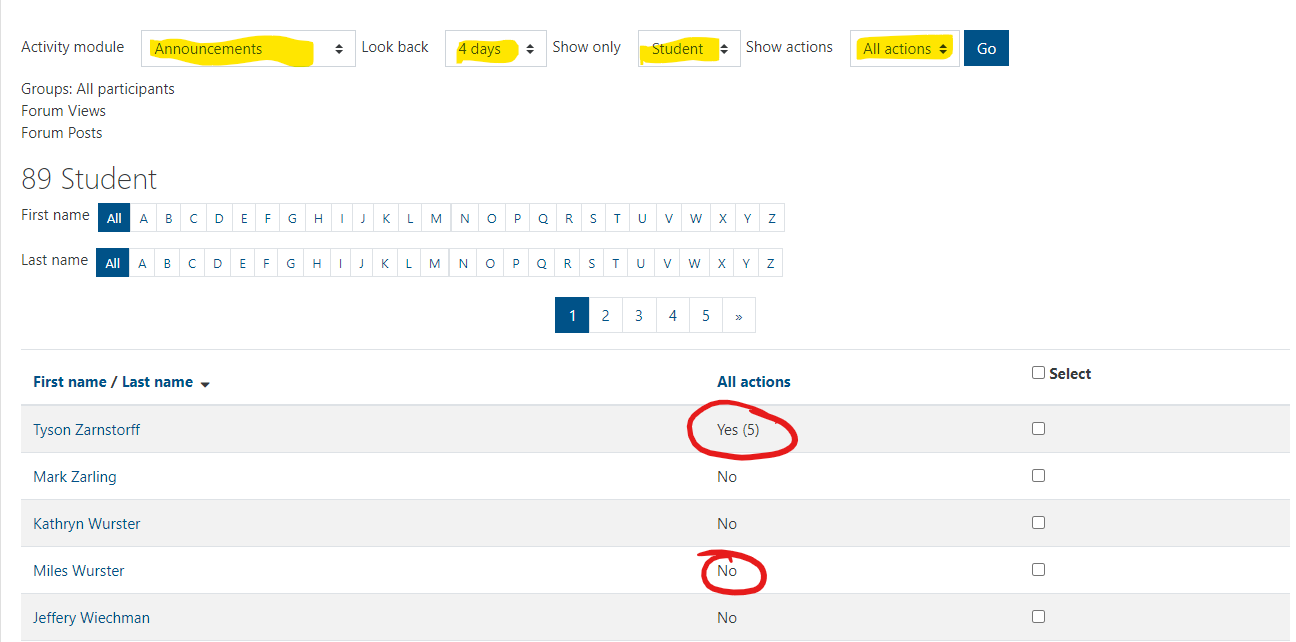 |
Logs
Moodle keeps logs of all activity in your course. You can view these logs. Logs enable you to see very granular information, and you have many options for viewing logs. Generally, the logs are used when you want information about a specific student for a specific reason. Directions:
1. Select Logs from the Reports section (refer to the directions above.)
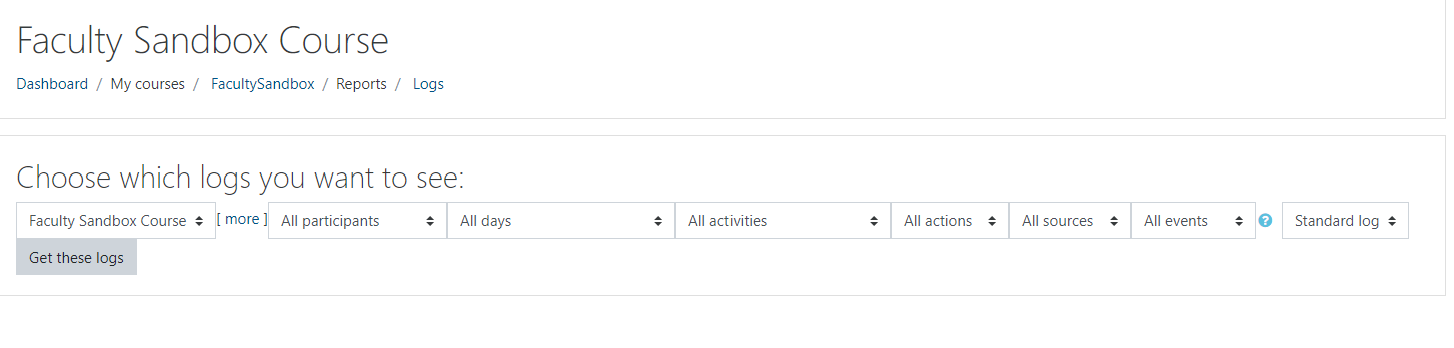
2. You will see a dialog box where you have quite a few options. Note all the menus to select from. Make your selections. You will never hurt anything by viewing logs. However, Moodle will take more time to process logs when you leave selection criteria broad.
Enabling Student Access to Logs and Reports
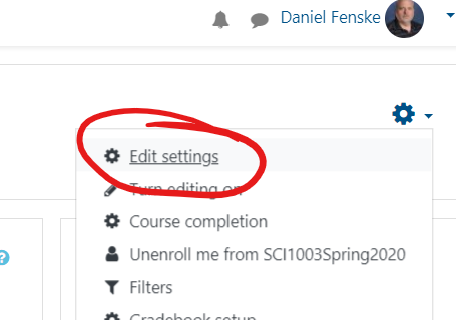
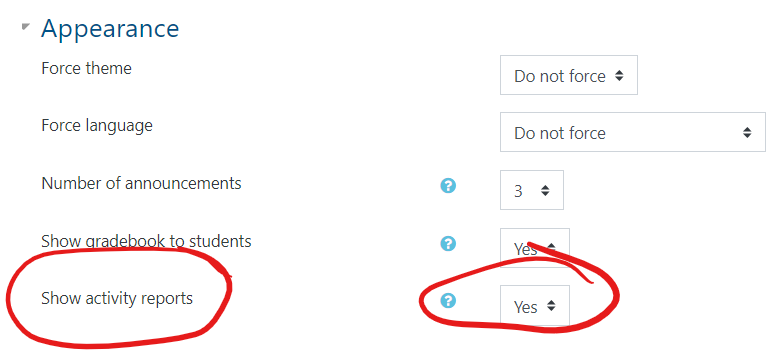
You can allow students to access logs and activity reports. Steps:
Log in to the course. Select "Edit Settings" from the gear icon:
Expand the "Appearance" tab. Set "Show activity reports" to Yes:
Best Practices for Teaching Online Courses
Some Best Practices for Teaching Online Courses, based on prior experience with teaching online courses through MLC and student feedback from various courses.
Length of lessons
Weekly or every 2 weeks. In EDU9502: Designing and Constructing Online Courses, everyone learned that course material should be "chunked" into small segments within a lesson and that lessons should normally be only one or two weeks in length. Students prefer new lessons beginning on the same day of the week throughout the course.
Which day of the week should a lesson begin/end?
During the fall and spring terms, most students in the graduate program are teaching full-time, which gives them little time to work on their grad course on school days. Therefore, they complete the bulk of their work for a given lesson over the weekend. For this reason, many of them indicated that in the spring and fall they prefer that new lessons begin on a Wednesday and end on a Tuesday since it places the weekend in the middle of the lesson time period.
However, during the summer term, they prefer that lessons run from the typical Sunday through Saturday (or Monday through Sunday) since they prefer to do the bulk of their work during the week and not on the weekends. Some instructors simply prefer to run courses from Sunday through Saturday even during the school year, which is okay. Ultimately, it is up to the course instructor.
Preparing to teach a course during the 8-week summer term
When transforming a regular semester-long online course (15-16 weeks) and teaching it in the summer term (8 weeks), there is no need to redo or combine any of your lessons. The idea is to simply take each two-week period from the fall or spring semester offering and cover the same material in one week in the summer term. For most instructors that means they cover two lessons per week in the summer, often running one lesson from Sunday-Wednesday and the other lesson from Wednesday-Saturday. (Remember, in the summer term most students prefer a Sunday-Saturday "week", as explained earlier.)
Keep all students working through the course at the same pace
Typically, some students prefer to work ahead while others seem to wait to do things at the last minute. In an online course, it is important that students are working on the group aspects of the lesson at the same time. One good method to attempt to satisfy both extremes is to make the "lesson guide sheet" document visible to students about a week prior to the start of the new lesson, but don't make the posting or submission areas visible until the official start date of the lesson. If following a "Wednesday-Tuesday weekly format," some instructors make the next week's lesson guide sheet available on a Friday evening, so students that want to work ahead can use the weekend to do so, but they can not submit their work until the lesson officially begins on the following Wednesday. (Also, see the sections on Post due dates... and Group discussion forum due dates below.)
Post due dates to inform and pace student work
A schedule of activities can be posted in a variety of ways. Some instructors provide a document listing all of the activities and the due dates at the start of the course. Others provide general dates for lessons in the Moodle heading areas of topical blocks, and specific activity due dates within the instructions for the activity, or in the activity set up in Moodle. Others make use of the Moodle calendar. Many instructors use more than one method. If your lesson is spread across more than a week, it is wise to make some activities due before the end of the lesson so students cannot save everything for the last minute. (Also, see the suggestion below on Group discussion forum due dates.)
Group discussion forum due dates
Set a posting due date for the original contribution to a forum, and then a later posting due date for replies. For example, if a new weekly lesson starts on Wednesday, some instructors set a due date of Saturday for the initial post and a due date of Tuesday for all reply posts. This forces all students in a group to make their initial contribution to the forum by the middle of the weekend, which allows those that want to take care of their reply posts obligations on the second half of the weekend and without having to stay up late into the evening to do so.
Provide a "Student Expectations" document
Different online instructors have different expectations of students. It is very helpful to your students if you post your expectations of them at the very start of the course. It is also a good idea to include what students can expect from the instructor!
Use the Moodle Grade Book
Students are used to seeing grades, and comments, on various activities posted to the grade book in Moodle. The current grade book can accommodate many different methods of grading. However, if you have not used it before or recently, getting it set up can be confusing. However, Rachel is always able, willing, and happy to assist you in setting up your grade book and understanding how it works. Simply let her know how you would like grades to be calculated and she will set up the grade book for you!
Use "Choice" for students to select activities
The "choice" activity feature in Moodle is very good at allowing (forcing) students to select from a list of possible choices for a given activity so you do not have more than one student selecting the same project or activity in a given lesson. It can also be used to get student feedback (vote) on a particular question.
Use "Groups" for discussion work
Small groups are often used in discussion forums to greatly cut down the amount of reading and posting that students need to do during the course. At the end of a group activity, it is a good practice to set the group setting to "Visible groups" so all participants will be able to view the discussion that occurred within other groups. When the change is made, it is a good idea to add some text in the forum introduction such as: Please note: The setting in this forum has been changed from "Separate Groups" to "Visible Groups." To see the work from a different group, select the group by using the "Visible groups" button located below. Generally, viewing or reading these additional posts should be optional.
In Moodle, it is less confusing to students to have them in only one group at a time. If students are members of more than one group at a time, students need to exercise additional care so that they post to the correct group for each activity. They need to specify the correct group prior to selecting the "Add a new discussion topic" button.
There is not a perfect group size, but groups of four or five seem to have worked well in discussion forums for many instructors. If one person is late in posting, the others still have two or three different people they can make their reply post to.
Grading discussion forums
It is important that students understand the grading rubric that is being used for discussion forum work. A convenient way to assign points is to use the "Sum of ratings" setting in the forum setup, and then assign a certain number of points for the initial post and a certain number of points for each reply post. It is also good to include a general message in the forum introduction area so students understand the rating being used, such as (This forum is worth 10 points. You will receive up to 5 points for your initial post and up to 3 for each reply post.)
Use the "Folder" resource to allow students to see work produced by others
On the course homepage, create a "Folder" resource and then upload student files into it. (You may zip student files into a single file, upload the zipped file into the folder, and then unzip.)
Instructor participation/presence
It is important to let students know that you are actively reading their work and checking in on the course on a nearly daily basis. This is especially important in discussion forums. Please refer to the guidance on Regular and Substantive Interactions for more information.
Be consistent in how materials are to be turned in
Most instructors make use of the assignment activity upload features in Moodle to receive student work and provide comments back to the students. Others might use a different method. There is no one method that needs to be followed, but it is good to be consistent throughout the course.
Scanned files
Scanned pages from books should be scanned directly in a PDF (not jpg) format with multiple pages combined together in a single document. This will greatly reduce the overall file size, make the text and/or images clearer, and be much easier for the students to work with. (Feel free to contact Rachel for assistance.)
Lesson Feedback after each lesson/unit
Waiting until the end of the course for summative feedback is not as useful as gathering feedback after each lesson. You can use the Feedback activity at the end of each lesson where students are asked to complete 3 statements;
The most useful thing in the lesson was…
The most challenging part of the lesson was…
The lesson could be improved by...
Although this is still gathering information after the fact, such feedback can be very useful information for the next time the course is offered and sometimes even useful for making adjustments to future lessons in the current offering of the course.
Faculty assistance
Many useful screencasts and documents have been placed here on KnightHelp. Also, feel free to contact Rachel for assistance.