# Fixing Orphaned Activities
After importing and opening up a course, sometimes activities appear as **orphaned**. Please follow these directions to fix the issue.
#### Instructions
1. Log in to Moodle as usual and click on the course.
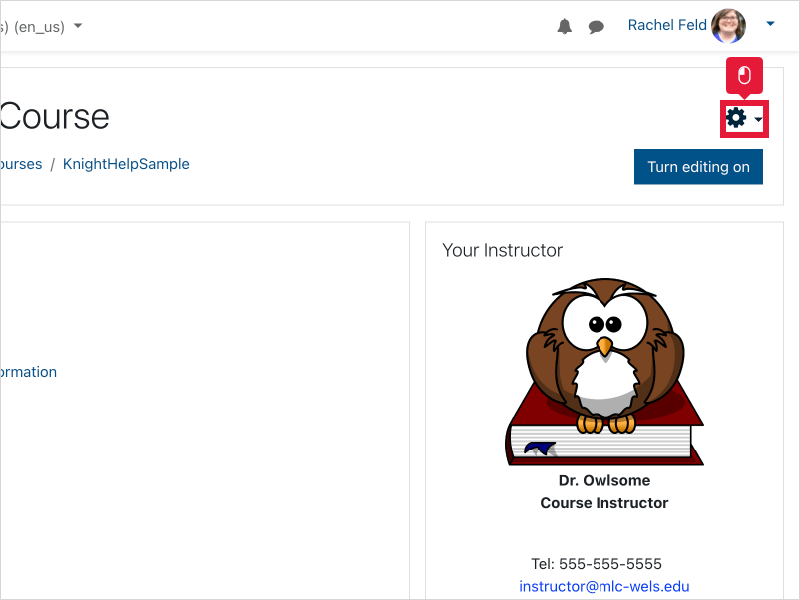
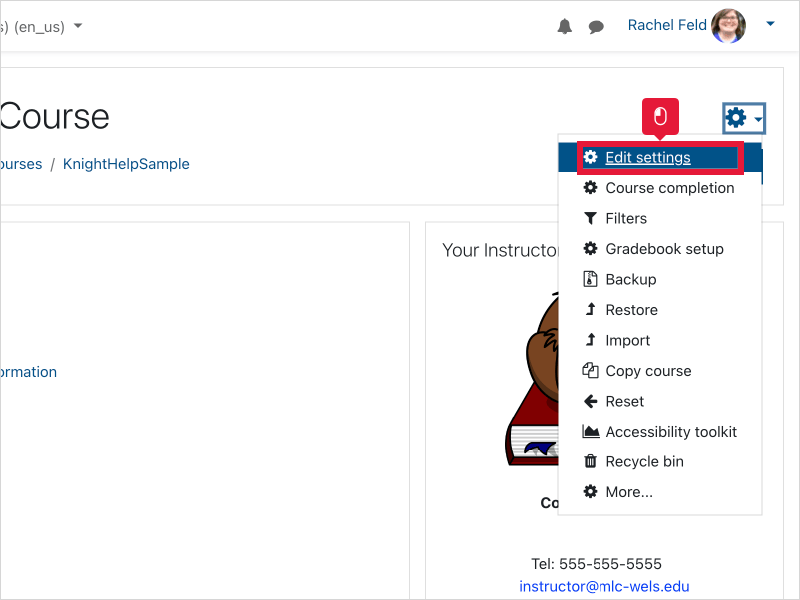
2. Click on the **gear** in the upper right corner and choose **Edit Settings**.
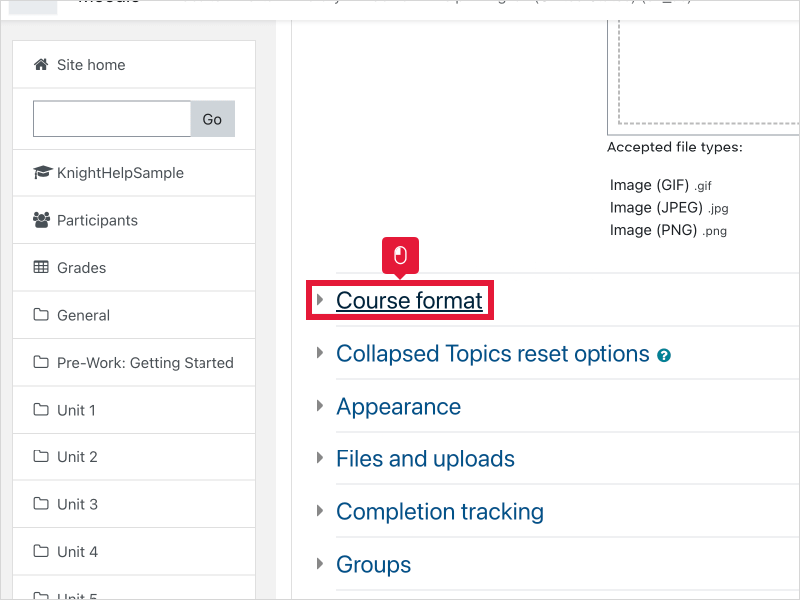
3. Scroll down and click on the blue heading **Course Format**.
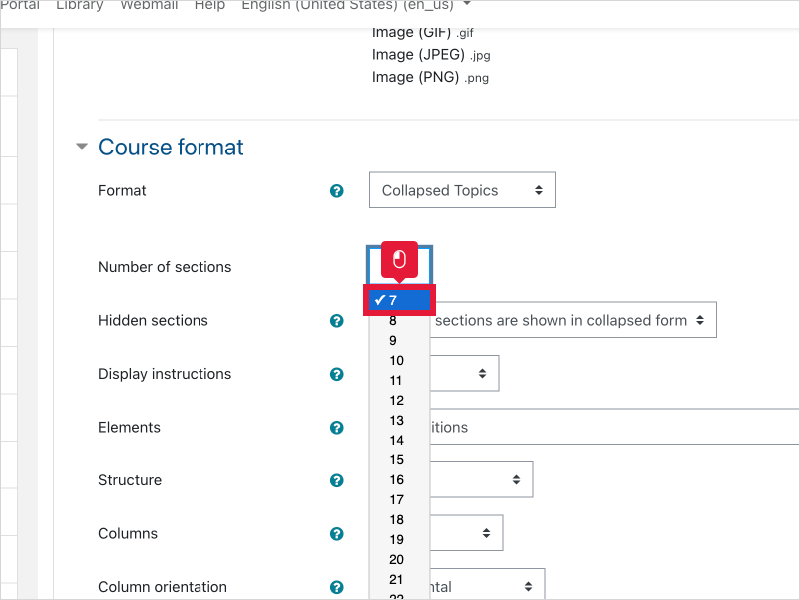
4. Next to the second option, **Number of sections**, choose a number bigger than what is currently there. Many courses have 8 topics, but it depends on how you have organized your content. If you remember how many sections your course had, choose that number. If not, take your best guess -- the number can be changed again if needed.
- **Number of sections** refers to the number of topics in your course. Depending on how your course is designed, this is likely the number of weeks in the semester or units in your class.
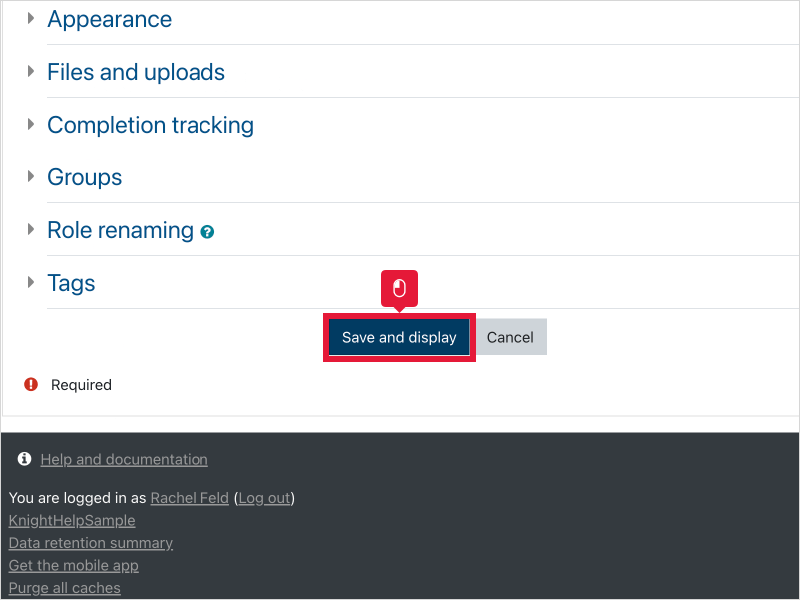
5. Scroll to the bottom of the page and choose **Save and display**.
6. Check to see that all your course content is displayed/no longer orphaned. If not, the course likely had more sections. Repeat steps 2-5 as necessary.
---
### Here's an interactive tutorial
*\*\* Best experienced in Full Screen (click the icon in the top right corner before you begin) \*\**
[https://www.iorad.com/player/2111278/Fixing-Orphaned-Content](https://www.iorad.com/player/2111278/Fixing-Orphaned-Content)
*7 STEPS*
1\. The first step is to open your course and click **the gear icon.**
2\. Click **Edit settings**
3\. Scroll down and click **Course format**
4\. Scroll down and click the dropdown by **Number of Sections.**
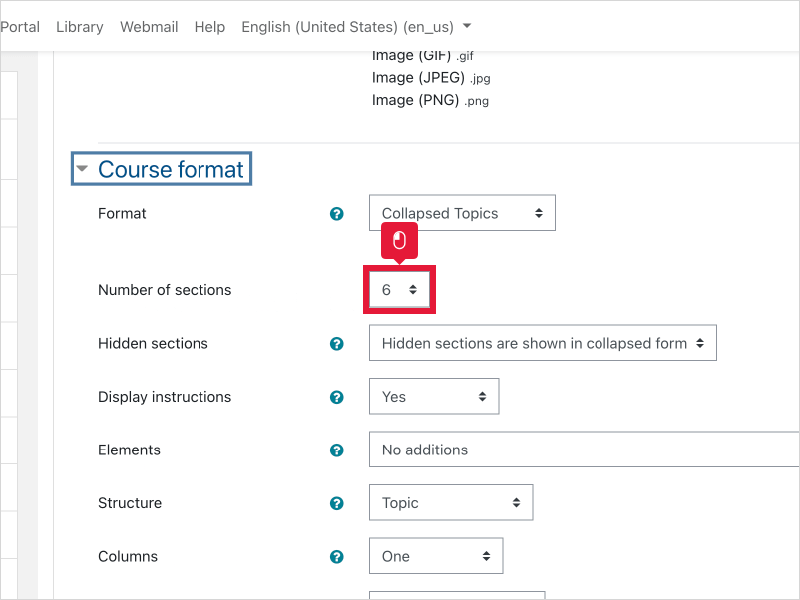
5\. Select a number larger than what is currently highlighted.
6\. Scroll down and click **Save and display**
7\. Check to see if all of your course sections are visible. If not, repeat the process with a bigger number.