# Grading Moodle Discussion Forums

A Moodle Discussion forum can be graded within Moodle. The grades are automatically entered into the Moodle grade book. Students are able to view their grades and can receive individual feedback. There are two main ways of grading a discussion forum; whole forum grading and ratings. Whole forum grading allows you to see all of a student's contributions (posts and replies) to the discussion forum on one page and assign them a single grade. When the ratings option is used, each individual contribution is graded and then those grades are used to calculate a grade for the whole forum.
### Whole Forum Grading
#### Adding Whole Forum Grading to a Forum
- Log into Moodle, enter your course, and turn editing on.
- Open the section where you want the discussion forum, click **Add an activity or resource,** choose **Forum** and click **Add.**
- You can also add whole forum grading to an existing forum. Click **Edit** to the right of the forum name and choose **Edit settings**.
- Enter the information for the forum as needed (forum name, description, etc.), scroll down, and click **Whole forum grading**.
- Click the menu next to **Type** and choose **Point**.
- In the maximum grade box, enter the number of points the activity is worth. Or, if using percentages, leave it at 100.
- Leave **Grading method** at **Simple direct grading.**
- If you'd like help with using a grading guide or rubric in a forum, please contact support.
- In **Grade category**, choose which category in your grade book the forum should be in. If you have not yet set up categories (or are not using categories) leave this at the default.
- Leave **Grade to pass** empty.
- Change **Default setting for "Notify students"** to **Yes**
- Change any other settings you need to in the discussion forum, scroll down, and choose one of the blue **Save** options.
####
#### Grading a Forum using Whole Forum Grading
- Log into Moodle and enter your course.
- Click on the discussion forum title that you want to grade.
- Click **Grade users** to the right of the blue *Add a new discussion topic* button.
- If you do not see this button, follow the steps above to add whole forum grading to the discussion forum.
- The grading screen (pictured below) will appear.
-
[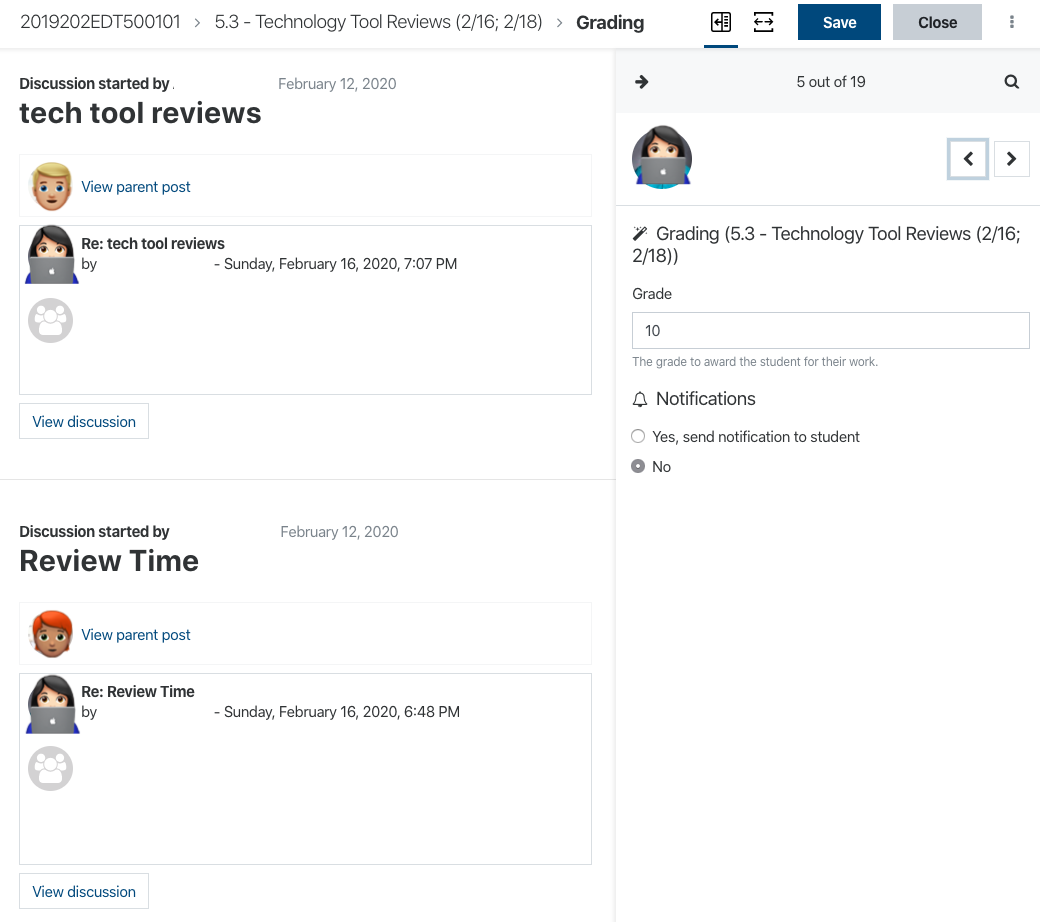](https://help.mlc-wels.edu/uploads/images/gallery/2020-03/WholeForumGrading2.png)
---
### Ratings
#### Adding Ratings to a Forum
- Log into Moodle, enter your course, and turn editing on.
- Open the section where you want the discussion forum, click **Add an activity or resource,** choose **Forum** and click **Add.**
- You can also add whole forum grading to an existing forum. Click **Edit** to the right of the forum name and choose **Edit settings**.
- Enter the information for the forum as needed (forum name, description, etc.), scroll down, and click **Ratings**.
- Next to **Aggregate type**, choose how you'd like Moodle to calculate the discussion forum grade from one of the following options:
- Average of ratings: the mean of all ratings.
- Count of ratings: the number of rated items becomes the final grade. Note that the total cannot exceed the maximum grade for the activity.
- Maximum: the highest rating becomes the final grade.
- Minimum: the smallest rating becomes the final grade.
- Sum*:* All ratings are added together. Note that the total cannot exceed the maximum grade for the activity. This is the most common option.
- *Note that in all of these options the ratings that will be considered for calculating are both initial discussion posts and replies.*
- Click the menu next to **Type** and choose **Point**.
- In the maximum grade box, enter the number of points the activity is worth. Or, if using percentages, leave it at 100.
- In **Grade category**, choose which category in your grade book the forum should be in. If you have not yet set up categories (or are not using categories) leave this at the default.
- Leave **Grade to pass** empty.
- Change any other settings you need to in the discussion forum, scroll down, and choose one of the blue **Save** options.