# Frequently Asked Questions
# Why can't I see my course?
For online classes, the Moodle course is typically available a few days before the start of the semester. If you cannot find your Moodle course on your dashboard, there are several things to try.
- Check your student schedule on Portal to make sure you are enrolled in the course.
- Check the[ filter setting](https://help.mlc-wels.edu/books/moodle-for-students/page/moodle-dashboard#bkmrk-5.-course-overview) on your dashboard and make sure it is set to **all (except hidden)**.
- Adjust the number of courses being shown on your [course overview](https://help.mlc-wels.edu/books/moodle-for-students/page/moodle-dashboard#bkmrk-5.-course-overview) or navigate to the next page(s) of your course list if applicable.
- Check for hidden courses by changing the [filter setting](https://help.mlc-wels.edu/books/moodle-for-students/page/moodle-dashboard#bkmrk-5.-course-overview) on your dashboard.
- If the course has not yet started, check your email (personal and [MLC mail](https://help.mlc-wels.edu/books/mlc-accounts/page/accounts-overview#bkmrk-mlc-g-suite-account)) for information from your instructor about when the course will be open.
- Contact your instructor for information about when the course will be open. Instructor email addresses are available in the [MLC Faculty Directory](https://mlc-wels.edu/directory/landing-page/).
If none of the above options are successful and your course has either already started or is scheduled to start in the next three days, please [contact MLC](https://help.mlc-wels.edu/books/moodle-for-students/page/who-do-i-ask-for-moodle-help) for help.
# What email address does Moodle use?
Moodle notifications get sent to whatever email address is set in your Moodle profile. By default, that email address is set to your MLC email address. It is encouraged, especially for undergraduates, to keep the email address set to your MLC email address. However, if you would like notifications to be sent to a different email address, you can do so by editing your [Moodle Profile](https://help.mlc-wels.edu/books/moodle-for-students/page/updating-your-profile#bkmrk-general).
# How do I know if my instructor received my assignment?
Typically, instructors will use the **Assignment** [](https://help.mlc-wels.edu/uploads/images/gallery/2019-09/M_Assignment_Icon.png)feature if you're supposed to turn in a document. If you haven't submitted it yet, it will look like figure 1 below on your course page. Note that the due date will only appear if your instructor has set one.[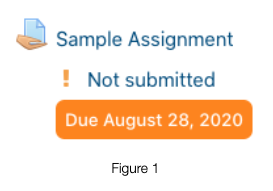 ](https://help.mlc-wels.edu/uploads/images/gallery/2020-08/assignment2.png)
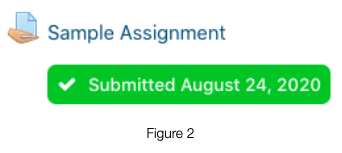
After you have submitted the assignment, your view will change to look like figure 2 below. The date in the green box reflects the date that you submitted the assignment. Your instructor will be able to see the date and time that your assignment was submitted. You can edit or resubmit your assignment (if the instructor allows) by clicking the assignment name again. The date will update to reflect the new submission.
[](https://help.mlc-wels.edu/uploads/images/gallery/2020-08/assignment3.png)
# How do I check my grades?
Grades for individual assignments and activities can be viewed either within the assignment/activity itself, or from the grades screen.
To view your grades from the grade screen:
- Log into Moodle, and access your course.
- Click **Grades** from the left-hand menu. If that menu does not appear, click [](https://help.mlc-wels.edu/uploads/images/gallery/2019-11/HamburgerButton3.png) in the upper left corner.
- For each assignment that has been graded, you will see the grade and feedback as pictured below.
[](https://help.mlc-wels.edu/uploads/images/gallery/2020-08/Grade.png)
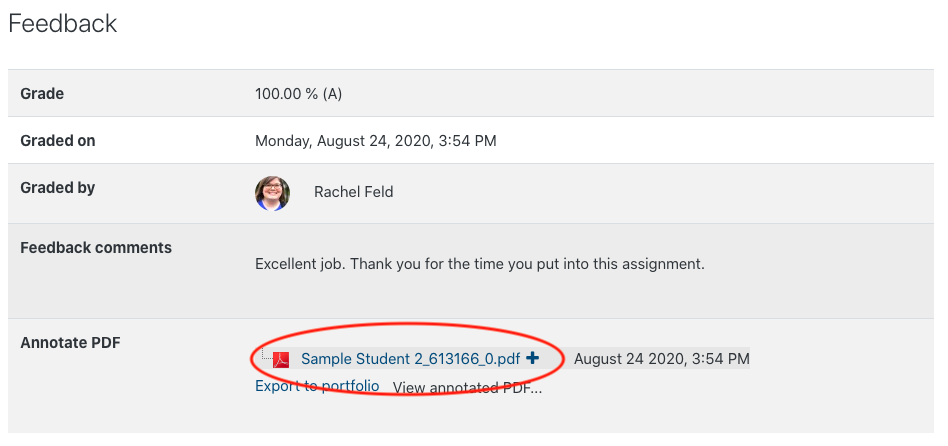
- You can also click on the name of the assignment (either from the grades screen or from the main course page), **scroll down**, and view the feedback from your instructor.
- This view will also show you the link to any annotations that your instructor made on your document. Click the document link (circled in red) to view the annotations.
[](https://help.mlc-wels.edu/uploads/images/gallery/2020-08/Grades2.png)
# Can I use Google Docs?
# What is the difference between a discussion forum and an assignment?
# How do I contact my instructor?
# Who do I ask for Moodle help?
Need help navigating Moodle? Not sure how to turn in an assignment? See below for the different help resources that are available.
#### Self-Help
- This website (help.mlc-wels.edu) should be your first stop for Moodle help. Use the search bar above to quickly locate pages related to your question.
- You can also check the Moodle course EDT0001: Introduction to Online Learning if it still appears in your course list.
- Check the course syllabus or other resources the instructor has provided.
#### Help from Others
- Contact a classmate or your instructor via [email or Moodle messenger](https://help.mlc-wels.edu/books/moodle-for-students/page/communicating-in-moodle).
- Contact [MLC IT Services.](https://mlc-wels.edu/support/)
- Contact the [Director of Online Learning](mailto:feldrm@mlc-wels.edu).
If you have questions regarding billing, course registration, or other topics outside of Moodle, please contact the [MLC Graduate Studies and Continuing Education Office. ](https://mlc-wels.edu/continuing-education/contact-us/)
# How do I fill out my course survey?
Graduate and undergraduate courses make use of Portal for feedback surveys. These surveys are used by MLC and individual faculty members to improve our programs and courses. You will receive a notification from your instructor, on your Moodle course page, or on Portal if you have a survey to fill out.
##### Instructions
- Access the survey area of MLC's Portal by visiting [https://portal.mlc-wels.edu/nwpp/surveys.php](https://portal.mlc-wels.edu/nwpp/surveys.php)
- Log in to the Portal with your Moodle username and password.
- If you’re not prompted to log in, the login area is in the upper right.
- If you encounter difficulty entering the Portal, please [contact the MLC IT Services](https://mlc-wels.edu/support) help desk for assistance: helpdesk@mlc-wels.edu or 507-233-9100 during normal business hours.
- Select the survey for your course.
- Follow the instructions on the survey.
# What do I do if the area to turn in my Google assignment on Moodle is too tiny to click?
Sometimes Google assignments in Moodle have formatting issues resulting in the box where you need to click to attach your assignment being too tiny to click. To fix this issue, try zooming out in your browser. Instructions are linked below for the most popular browsers, although Google assignments works best in Chrome.
- [Chrome](https://support.google.com/chrome/answer/96810?hl=en-ie&ref_topic=7439724&co=GENIE.Platform%3DDesktop)
- [Microsoft Edge](https://support.microsoft.com/en-us/microsoft-edge/accessibility-features-in-microsoft-edge-4c696192-338e-9465-b2cd-bd9b698ad19a)
- [Firefox](https://support.mozilla.org/en-US/kb/font-size-and-zoom-increase-size-of-web-pages#:~:text=Press%20and%20hold%20Ctrl%20while,out%2C%20or%200%20to%20reset.)