S2: Navigate and Personalize Moodle
Course Navigation
After you click on a course in your Moodle Dashboard, you will be taken to the course home page. The content of each course home page will vary depending on how your instructor has designed the course, but the following features are typical of each course.
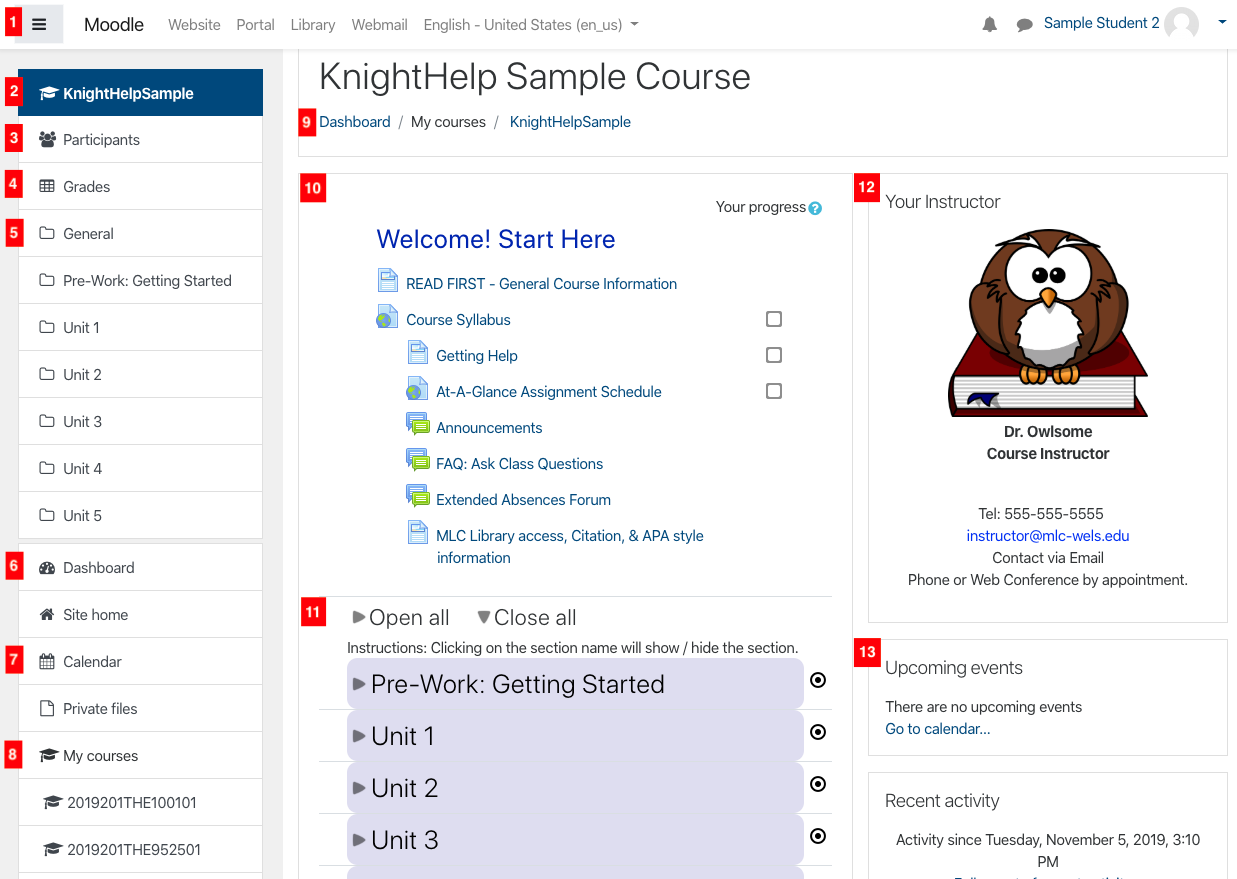
1. Moodle Toolbar: this toolbar remains the same on any Moodle page. Its features are described on the Moodle Dashboard page.
2.  : the course short name will appear here. You can click here from any course page or activity to return to the course home page.
3.  : click here to view a list of your classmates and instructor for this course.
4.  : click here to view your grades for this class. Visit the page on Checking Grades and Feedback for more information about this section.
5.  : each section in the course will be listed here. Instructors often organize their courses by topic, lesson, or unit.
6.  : click here to go back to your Moodle Dashboard.
7.  : click here to view your Moodle Calendar.
8. : the rest of your current courses will appear here. Click the course short name to quickly switch between course pages.
10. Course Information: this section typically contains overall course information like the syllabus and announcement forum. The content will vary for each course.
11. Course Sections: each course section contains the resources for that topic, lesson, or unit. Click the arrow to expand the section and see its contents. See the Common Moodle Tasks chapter for more information.
13. Instructor Information: many online courses will have instructor information on the course page. Use this information if you need to contact your instructor.
14. Course Blocks: Additional course blocks will appear here depending on what the instructor has included in the course.
Text Editor Features
Nearly every text box in Moodle has a wide variety of formatting and editing features. Use the icons in the toolbar to access these features.

- Expands the toolbar to show the second row of icons.
- Changes the style of the text. These styles are predetermined by the Moodle administrator.
- Bold
- Italic
- Bulleted List
- Numbered List
- Insert Link
- Remove Link
- Add Image
- Add Media
- Record Audio
- Record Video
- Manage Embedded Files
- Underline
- Strikethrough
- Subscript
- Superscript
- Text Color
- Font Type
- Size
- Left/Center/Right Justify
- Decrease/Increase Indent
- Equation Editor
- Insert Special Characters
- Insert Table
- Clear Formatting
- Undo/Redo
- Accessibility Checker
- Screenreader Helper
- HTML View
- Fullscreen View