# Network Information
# Changing Expired Passwords
For security reasons, your password is set to expire the first time you log in and then about every 180 or so days. When prompted, change the password immediately, lest it expires and locks you out of the network.
**If you get locked out**, you will have to go to IT Services, room 293, with your ID card for assistance or you can visit [https://sspr.mlc-wels.edu](https://sspr.mlc-wels.edu) from any other device and retrieve your password using your Personal E-mail address as listed on Portal.
#### Instructions
1. A **Confirm… dialog box** will appear when your password has expired. Even though it says, Do you want to change your password? and allows a Yes or No, the result of continually saying No is a locked account.
2. Therefore, choose **Yes**.
3. A **Change Password** window will appear.
4. **Enter a new password**. Use a minimum of 5 characters (anything on the keyboard). Use something your friends won’t guess, but you will remember. Previously used passwords cannot be used again.
5. In the next box **retype the new password**.
6. Press **Enter** or click on **OK**.
7. After a short delay, your desktop window should appear.
# Logging onto the Network
1. **Turn on the computer. If the computer and monitor are on** but the screen is blank, wiggle the mouse to bring the computer out of “sleep” mode or try turning the monitor off and on again.
2. **Wait** while the operating system loads. (You might have to click the mouse for a Log on box to appear.)
3. **In the Username** box, **type your login username**. You should have already retrieved your username this summer when setting up your course schedule on campus. This username does not include @mlc-wels.edu.
4. **Tab** to or **click** in the **Password** box.
5. **Type in your network password**. If you logged into the Portal previously, use the password you created at that time.
6. Press the **Enter key** or click the **arrow** button.
7. **If you encounter problems during login**, contact **IT Services**, room 293, (507) 233-9100, or support@mlc-wels.edu, for assistance.
8. When you log in, your **password** might be **expired**. See [these instructions](https://help.mlc-wels.edu/books/new-student-orientation-information/page/changing-expired-passwords) for changing your expired password.
# Additional Information
### **To get assistance from IT Services:**
Stop by room 293 in WCC, ***or*** call Ext. 100 from on-campus or 507-233-9100 from off-campus. Hours are during the school day and after evening chapel until 10 pm. Additional information from Network Services is available online at [https://mlc-wels.edu/its.](https://mlc-wels.edu/its)
### **Computer Locations:**
Computers for general student use are located in all dormitories, the library, outside the science area on the second floor of the Wittenberg Collegiate Center, and the Computer Lab 221 on the second floor of Old Main. **Wireless access** is available throughout campus including classrooms, administrative areas, public areas, and dorm rooms.
### **Logging onto the Network:**
If you need help with logging on or changing your password, go to IT Services, room 293, along with your student ID for assistance. **Note:** You can only log onto the network on one computer at a time
### **Where to Save on the MLC Network:**
**Caution:** Do NOT save to the hard drives of MLC computers or you will lose your work!!!
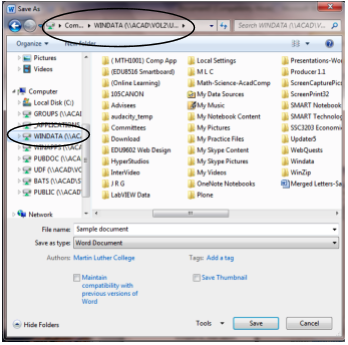
If you save your documents to the **WINDATA (I: drive)** **on the MLC Network** so you can get at your work from any campus computer and your work will automatically be backed up for you on a nightly basis.
1. To save your work select **Save As**, or simply press the **F12 key**, which will cause a **Save As window** similar to the one to the right to open.
2. As usual, change the file name, document type, etc.
3. **The file needs to be saved to the correct drive, if you hope to get it back later.** Most files saved by MLC faculty and students should be saved to the **WINDATA (\\\\ACAD\\VOL2\\USERS\\...) (I:)** drive. *(****Caution:**** If you are working on a lab computer and save to the ****C: drive**** (local hard drive), your work will be lost once the computer is turned off.)*
4. Once you have selected the **WINDATA...(I:)** drive, you can select a particular folder to store your file in, create a new folder, or save directly to the I: drive.
[](https://help.mlc-wels.edu/uploads/images/gallery/2019-08/NetworkSave.png)