# General Tips
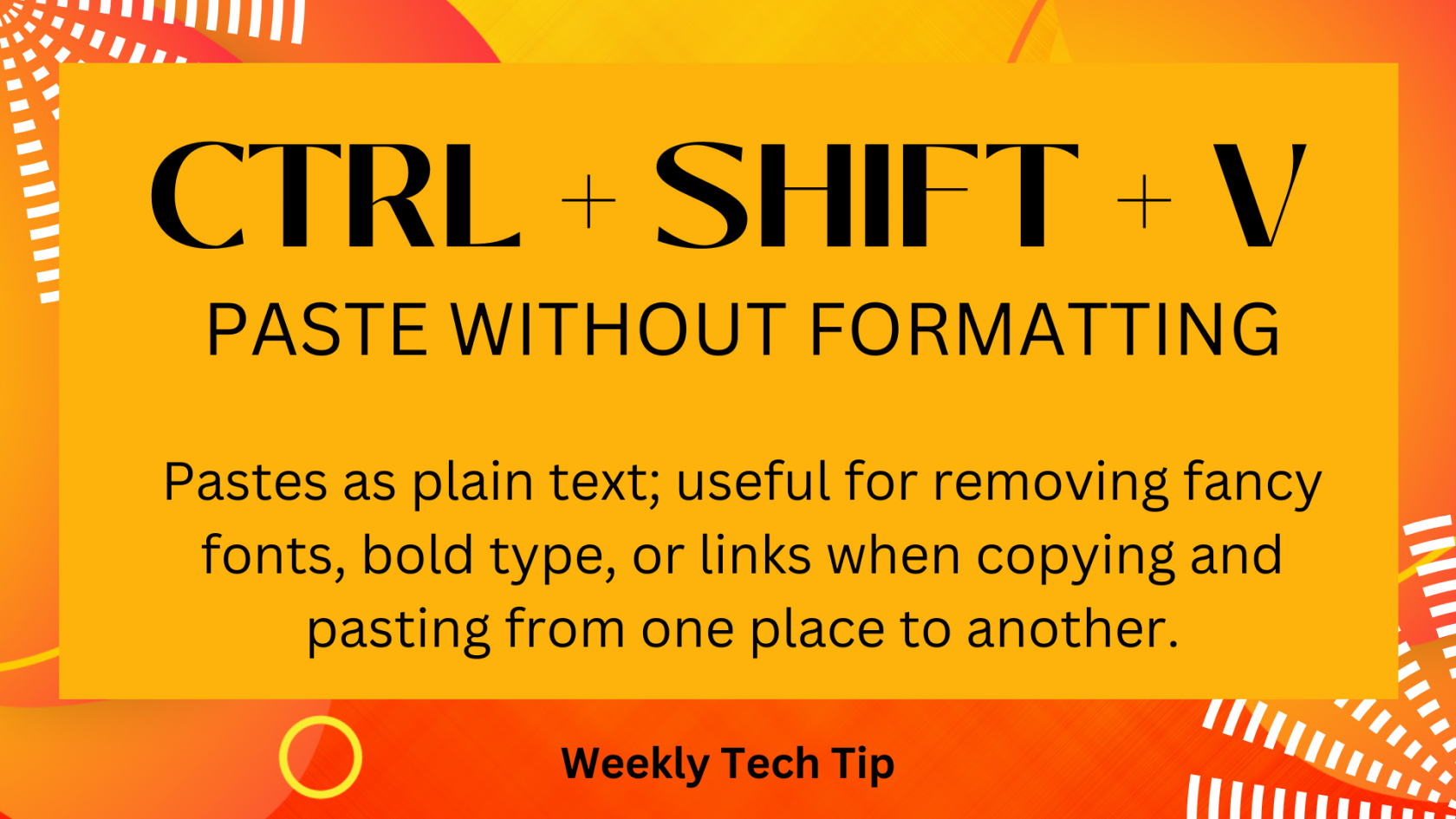
# CTRL + SHIFT + V: Paste without formatting
[](https://help.mlc-wels.edu/uploads/images/gallery/2023-08/CTRL-+-SHIFT-+-V.png)
May be especially useful if pasting from one program to another (e.g. from a bulleted list in Word to an email or from a website to a spreadsheet cell).
Bonus: Ctrl + V pastes *with* formatting
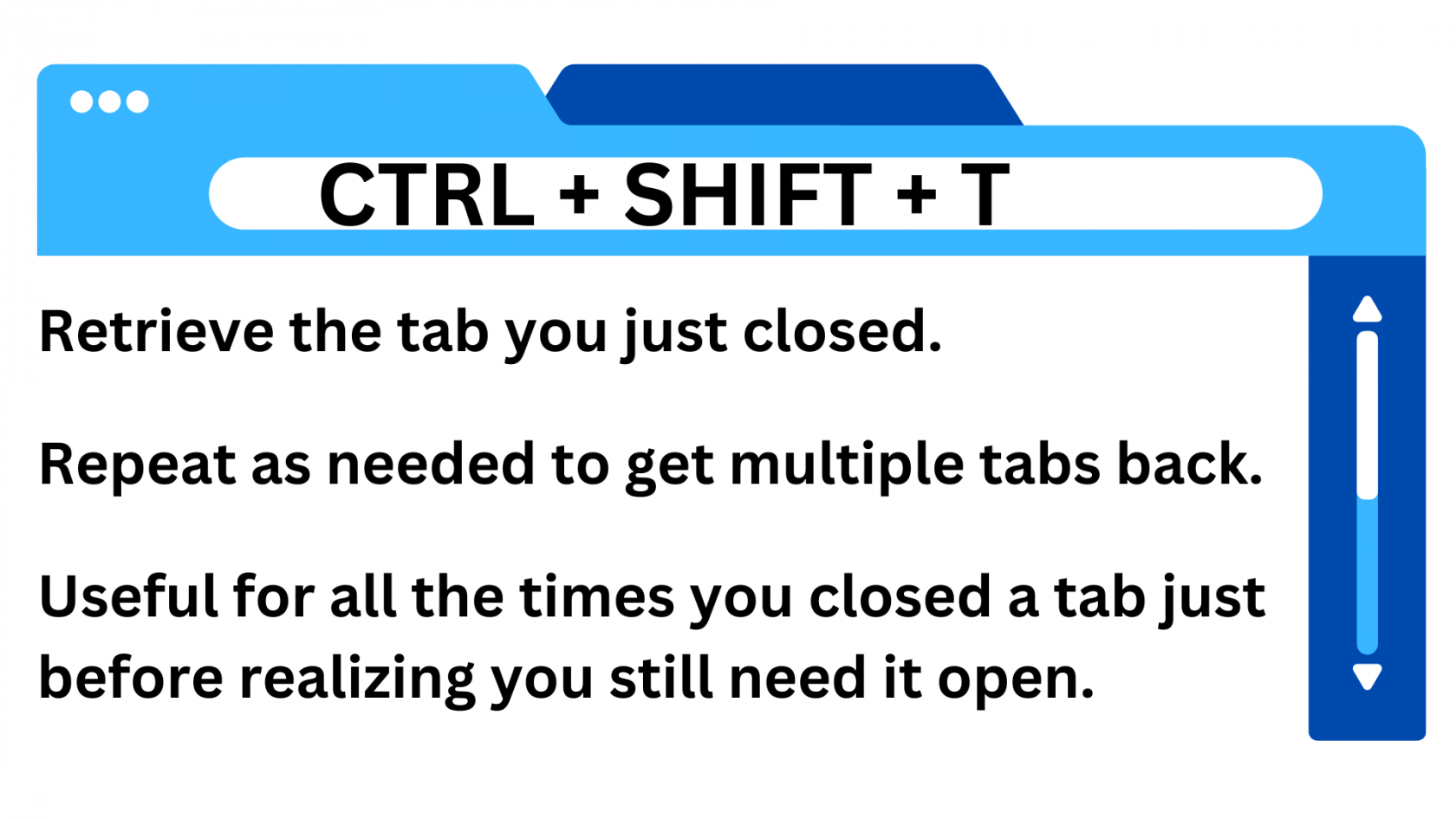
# CTRL + SHIFT + T
[](https://help.mlc-wels.edu/uploads/images/gallery/2023-09/CTRL-+-SHIFT-+-T.png)
Don't redo your search or try to remember what page you had open -- just bring back the tabs from whatever page they were on when you closed them.
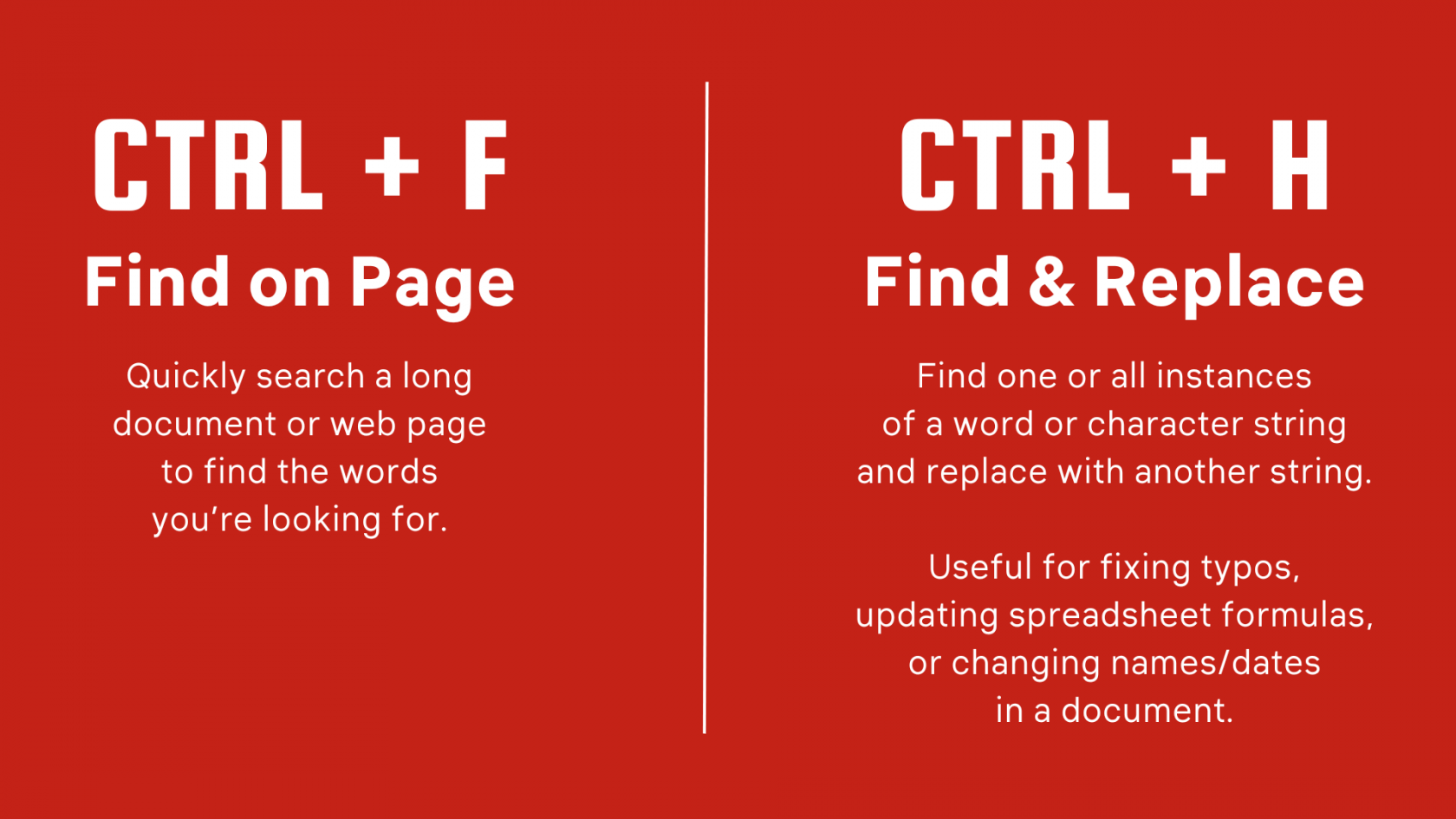
# CTRL + F - Find on Page | CTRL + H - Find & Replace
[](https://help.mlc-wels.edu/uploads/images/gallery/2023-09/CTRL-+-F.png)
# WINDOWS + SHIFT + S: Default Windows Screenshot
[](https://help.mlc-wels.edu/uploads/images/gallery/2023-09/WIN-+-SHIFT-+-S-windows-default-screenshot.png)
**Default Windows Snipping Tool: WINDOWS + SHIFT + S**
Useful for:
- Sharing how to do something with step-by-step examples of your screen
- Submitting IT tickets that show exactly what you see on your screen
- Saving a screenshot of something you want to go see again later
# Windows Key + L
[](https://help.mlc-wels.edu/uploads/images/gallery/2023-10/LOCK--SCREEN.png)
**Windows Key + L : Quickly locks your computer screen.**
**Make it a habit to do this every time you leave your computer** as one part of making our campus more cybersecure.
(The windows key is usually between Ctrl and Alt to the left of the spacebar.)
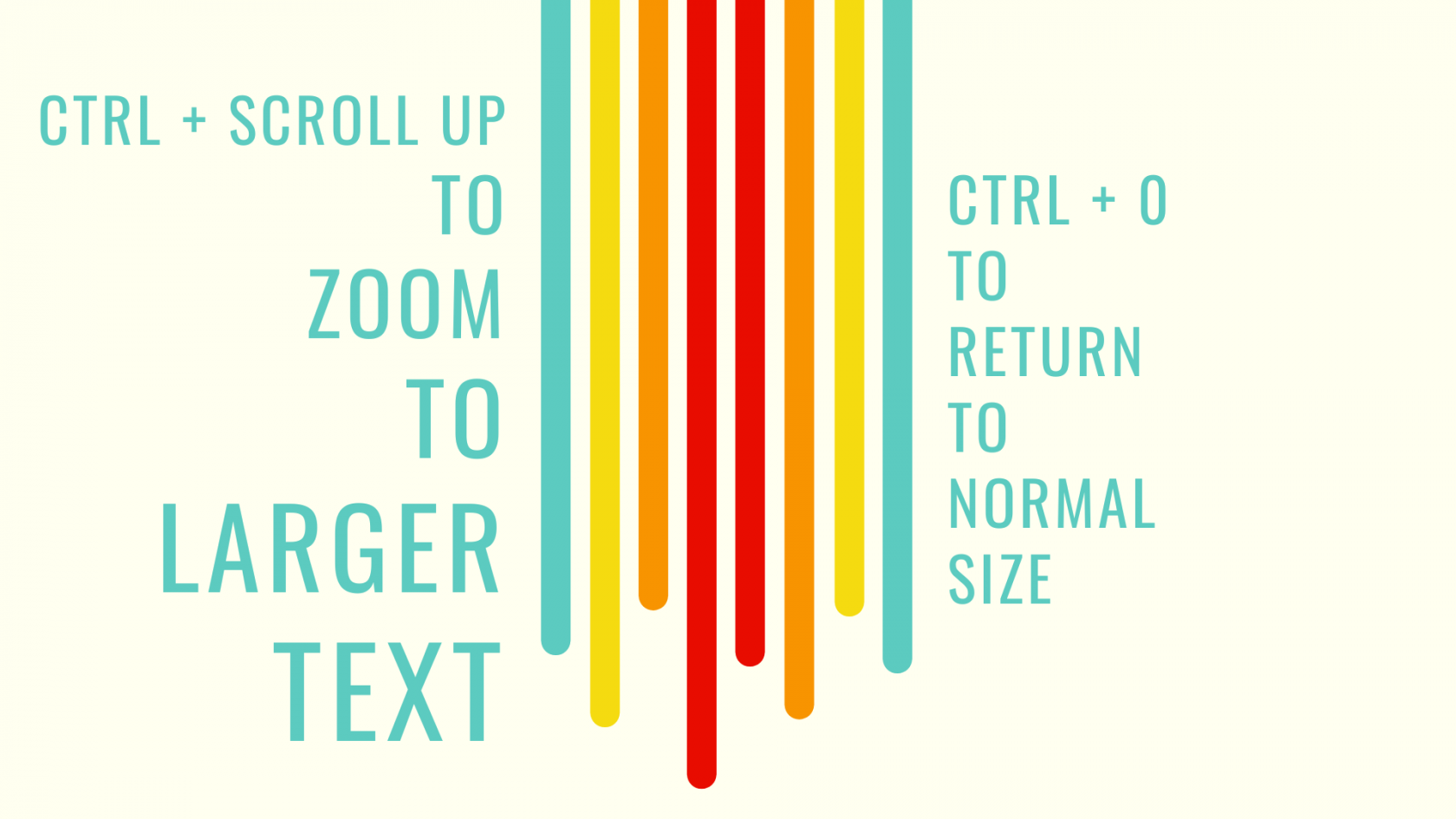
# CTRL + Scroll (up or down)
[](https://help.mlc-wels.edu/uploads/images/gallery/2023-10/ctrl-+-scroll.png)
Useful for enlarging print in documents or seeing details in photos -- and then returning to your normal text size.
# Format Painter
[](https://help.mlc-wels.edu/uploads/images/gallery/2023-10/Format-painter.png)
Use the format painter (the icon that looks like a paint roller in your word processor or spreadsheet toolbar) to quickly copy the formatting from one cell or paragraph to another.
Example: You've worked hard to format a spreadsheet cell just how you want it -- bold, colored text, highlighted, borders -- and you don't want to have to make all those changes to another cell to make it look the same. Use the format painter to apply all of those properties at once. Click the cell you like, then the format painter, and then the cell(s) you want to look the same.
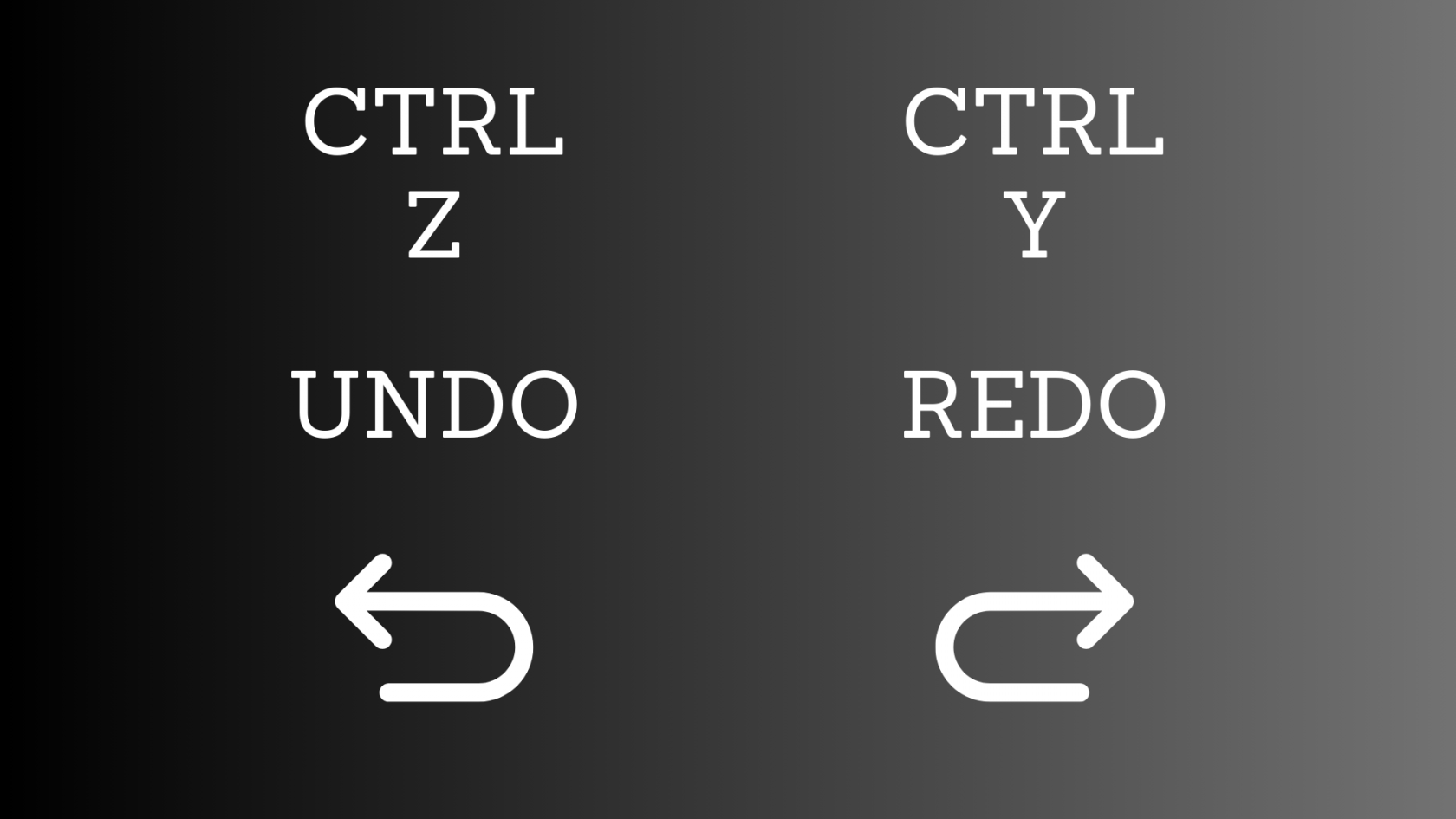
# CTRL + Z and CTRL + Y
[](https://help.mlc-wels.edu/uploads/images/gallery/2023-10/ctrl-z-ctrl-y.png)
Use to go back to earlier versions of a document, and then to revert to the newer one when you decide that was better after all.
# Double-click and Triple-click
[](https://help.mlc-wels.edu/uploads/images/gallery/2023-10/double-click-triple-click.png)
This can be quicker than dragging to highlight. Just double- or triple-click somewhere in your word or paragraph, and your whole selection will be highlighted.
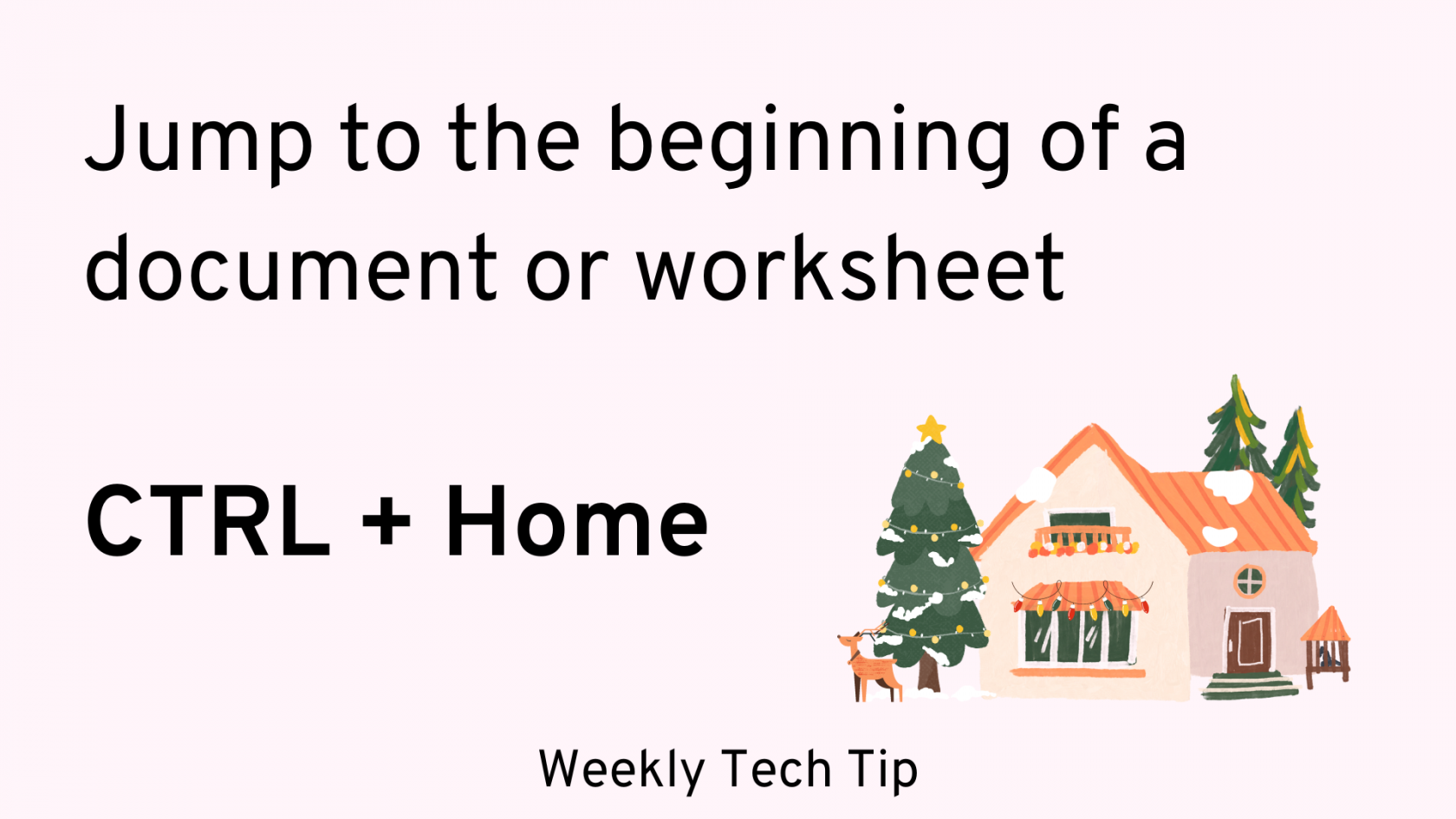
# CTRL + HOME: Jump to the beginning of a document or worksheet
[](https://help.mlc-wels.edu/uploads/images/gallery/2023-11/Ctrl---Home.png)
Useful when you're in the middle of a long document or spreadsheet and want to get back to the beginning quickly.
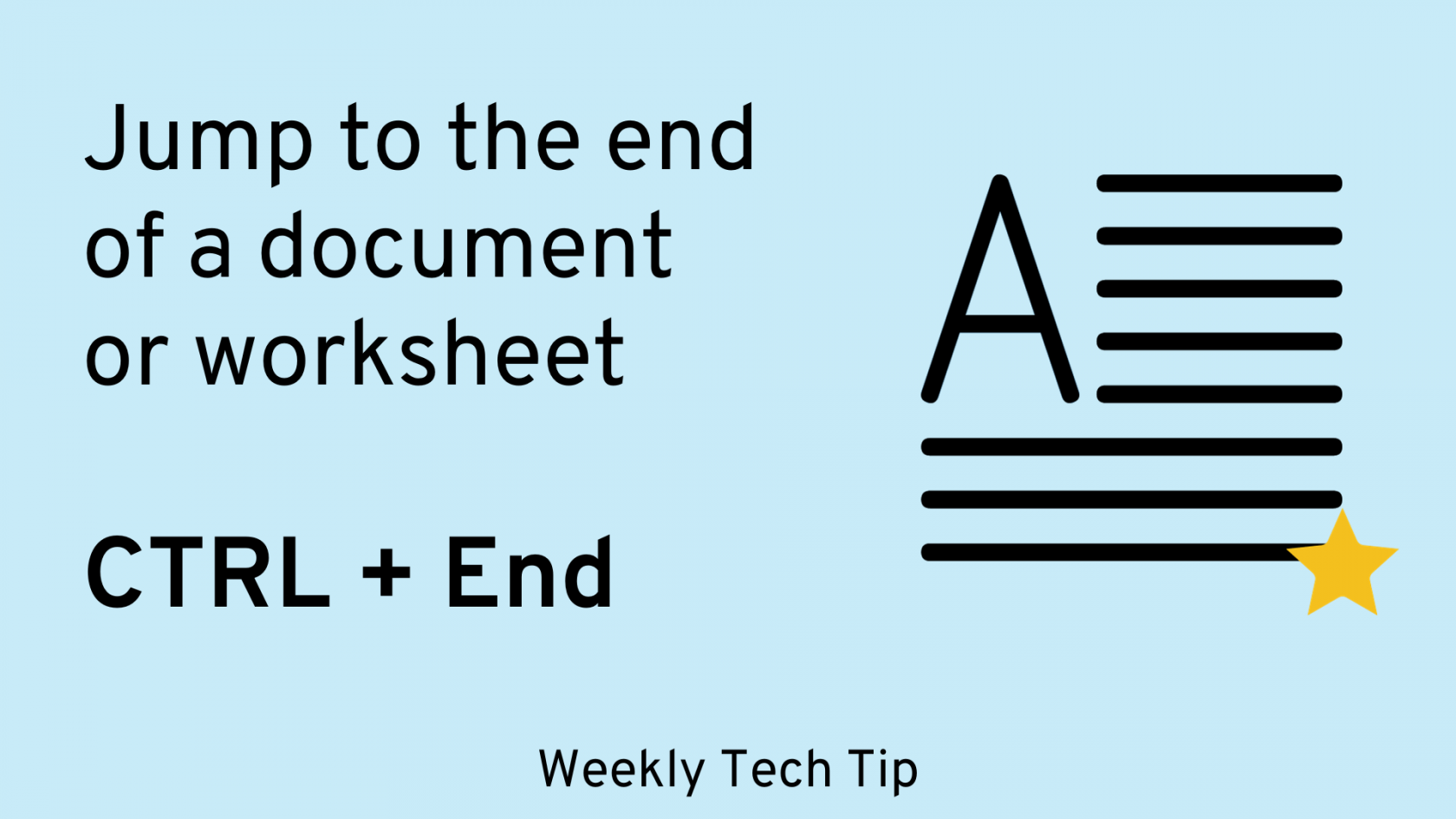
# CTRL + END: Jump to the end of a document or worksheet
[](https://help.mlc-wels.edu/uploads/images/gallery/2023-11/Ctrl---End.png)
Useful when you want to get to the end of a document quickly.
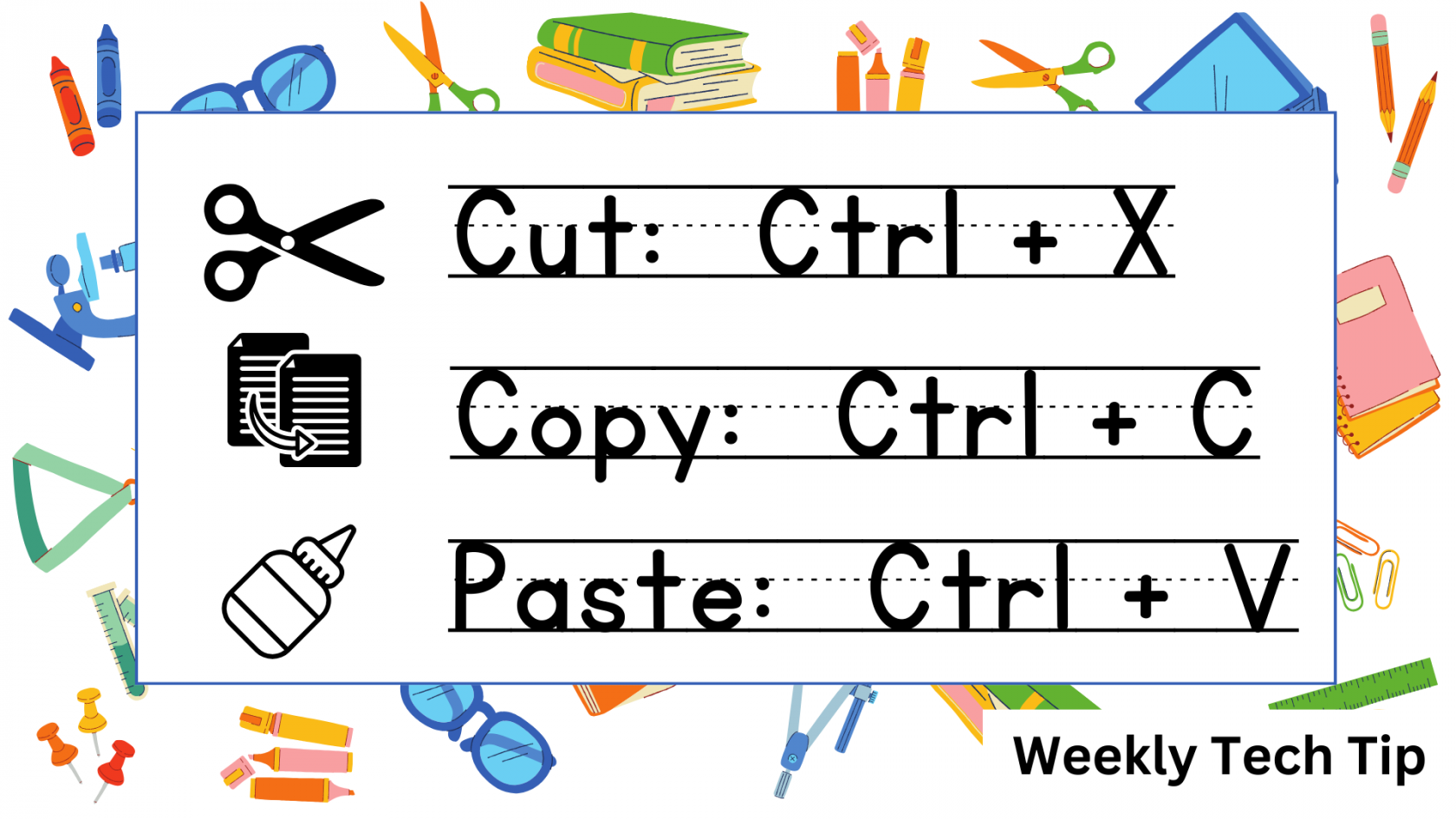
# Cut, Copy, & Paste Shortcuts
[](https://help.mlc-wels.edu/uploads/images/gallery/2023-12/Cut-Copy-Paste.png)
Keyboard shortcuts for cut, copy, and paste may speed up your work.
# Emojis List
[](https://help.mlc-wels.edu/uploads/images/gallery/2023-12/Emojis-list.png)
# Alt + Tab
[](https://help.mlc-wels.edu/uploads/images/gallery/2023-12/ALT---TAB.png)
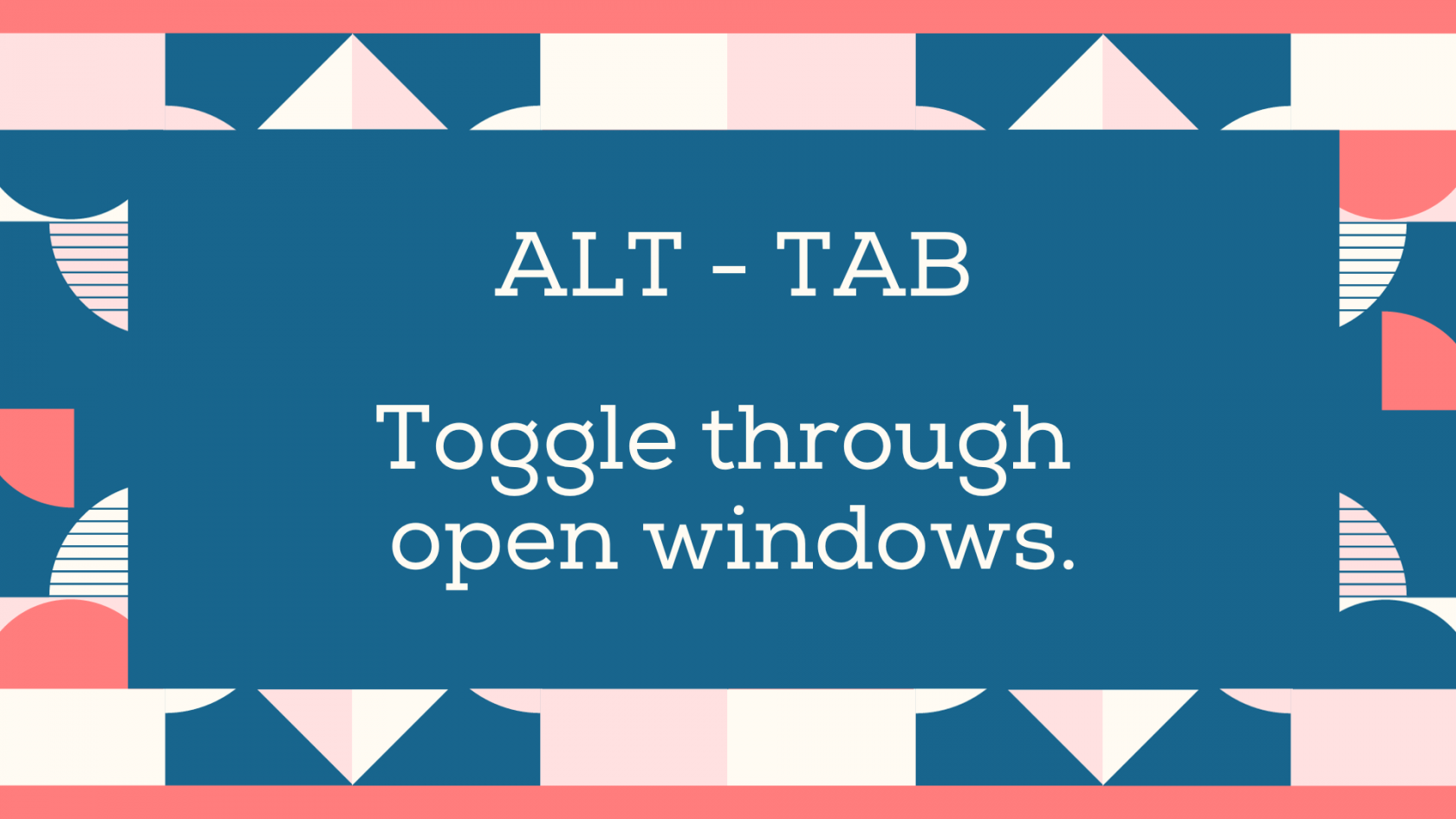
**Use Alt-Tab to quickly cycle between open windows.**
If you have several windows open, hold down the ALT key, then tap TAB repeatedly to move through the various windows.
# CamelCase
[](https://help.mlc-wels.edu/uploads/images/gallery/2023-12/CamelCase.png)
# Fill out online forms faster
**Fill out online forms faster by minimizing the use of your mouse or trackpad.**
- Use the TAB key to move between fields.
- For dropdown fields, type the first letter of your choice and repeat it until you get the right selection. For instance, hitting the "m" five or six times usually gets you to Minnesota. Once you have the right one, tab to the next field.
# Open Multiple Windows Side-by-Side
**Drag a tab or window to an outer corner or side of your screen. When it snaps to the location you want, select another open window to place beside it.** They will line up nicely without manual adjustment. You can then adjust the relative size of the windows by dragging the gray bar between them.
Instead of dragging, you can also use keyboard shortcuts: **WINDOWS + arrow (left, right, up, down)** to snap the windows into place.
Here's a short screen recording of how it works:
**Update:** There's another (maybe even easier) way to accomplish this.
**Hover over the resize button** **(next to the X in the upper right corner of your browser) and select the layout you want**.
# Pin to Taskbar | Pin Tabs
**If you have a program or website that you use frequently, "pinning" it can make it easier to access.**
**Programs:** If there's a program or Windows tool that you use frequently -- like Excel, the calculator, or File Explorer -- you can pin it to the taskbar at the bottom of your screen so it's never more than a click away. When the program or app is open, **right-click on it in the taskbar and select *Pin to Taskbar*.** Now it will be easily accessible in the future.
**Tabs:** If you go to the same websites over and over during your day -- maybe Gmail, Portal, and Google Calendar -- you can pin those tabs to your browser. This moves them to the left end of the open tabs and reduces the size of the tab. To pin any open tab, **right-click on it and select *Pin tab.***
Both of these can be reversed by right-clicking and choosing the **Unpin** option.
# CTRL + S : Save
Use the CTRL + S shortcut to save your file. This works in most programs (Word, Excel, etc.) that don't automatically save your work.
# Bold, Italics, Underline
***Keyboard shortcuts:***
- **Ctrl + B: Bold**
- *Ctrl + I: Italics*
- Ctrl + U: Underline
# Jump through words with keyboard
Use Ctrl + arrow key to jump through words one at a time in a document.
# Windows + A
Windows + A opens the “Action Center,” where you can, among other things, adjust sound and display settings.
# Ctrl + A: Select All
Ctrl + A highlights your entire document or spreadsheet. Then you can make changes – font size, bold, italics – or copy it to paste somewhere else.