
Dorm Networking
Networking
Residential students havecan a number of options for connectingconnect their devices to the campus-wide network and gainingto access to both MLC-offeredMLC services and the greater Internet. DependingMost ondevices yourshould room,connect andusing the deviceKnightNet youwireless wishnetwork. toWired connect,Ethernet theconnections stepsare youalso followavailable toin gainresidence accesshalls willwhere beneeded.
If you have questions or experience connection issues, you can contact IT Services for help.assistance.
Before continuingconnecting on,a personal device to the campus network, please readreview the MLC Student-Owned Devices Policy.
Connecting to KnightNet
Wireless
MartinKnightNet Lutheris Collegethe currentlyprimary offerswireless accessnetwork for student devices across campus, including residence halls.
To connect:
- Sign in to
threePortal. - Open the Directory and locate your information.
- Find the KnightNet Wi-Fi password listed with your information.
- Open the Wi-Fi settings on your device.
- Select KnightNet from the list of available wireless
networksnetworks. - Enter
campusthatincluding (starting Fall 2018) in dorms rooms around campus. Two of these networks are applicable to students. Clickpassword on your device and connect.
No separate device registration is required.
If you have trouble connecting, try forgetting the linksKnightNet below to find out how to connect to each network.
For informationnetwork on whichyour networkdevice toand choose,connecting checkagain. below based onIf the typeissue ofcontinues, devicecontact youIT are connecting with.Services.
Wired
While While wireless routers are now prohibited in the dorms, wired connections are still supplied for those instances where it makes sense to connect a device using an Ethernet connection. How you will go around connecting is dependent on how your room is setup.
To utilize the wired connections it is recommended to use a device that has access to a web browser as registration takes place using a webpage. If you have need to connect a device without a web browser to a wired port, please contact IT Services.
Wireless Access Points
If your room has one of our wireless access points installed, you will find two Ethernet ports available for your use either on the bottom or the top (depending on the orientation of the device). You are free to connect your device to either of these ports and you can register your device and have access to the Internet and other MLC services.
If you run into issues with the ports on your access point, please contact IT Services.ports.
Standard Ethernet Ports
TheseMost portsresidence willhall switchrooms also have standard Ethernet wall jacks. Connect your device to the proper network depending on if your device is registered or not. The switching can sometimes take a few minutes. After you have successfully registered your device on the MLC Guest Network, your port will switch to the MLC Student Network within a few minutes.
Quick Start Guide
Hook your computer up to theappropriate network jack usingyour ownan Ethernetcablecable.(cablesIf your wired device does not receive network access or you are
availableunsurefromwhichtheMLC Bookstore, Walmart, Menards, Amazon, and other retailers).Open your web browser (e.g. Firefox, Chrome, Internet Explorer, Edge, Safari, Opera, etc.).Follow the registration instructions (you will need your MLC Account username and passwordport toregister)use, contact Network Services.Go take a walk to give the system time to register your machine if it doesn't seem to work at first.
Devices
Some devices have specific requirements and will work better than others on certain networks. The following section will outline some of the issues to keep in mind when it comes to using your devices on campus.
Laptops/Phones/Tablets/Desktops
TheseMost are,computers, perhaps,phones, and tablets can connect directly to KnightNet.
To connect:
- Open your device's Wi-Fi settings.
- Select KnightNet.
- Enter the
easiestKnightNetdevicespasswordtofoundsupportunder your information in the Directory oncampus.Portal.
If you areexperience havingproblems, issuestry connecting,forgetting itKnightNet isfrom oftenyour usefulsaved towireless forget the networknetworks and then try connecting again. Changing your MLC Account password will cause connection issues as well.reconnecting.
Gaming Consoles
Most gamingGaming consoles do not support WPA2 Enterprise authentication, which is required tocan connect to theKnightNet MLCif Studentthey WLAN. As such, you can attempt to usesupport the MLCwireless Guestnetwork's WLANconnection forrequirements. accessFor (ifthe youbest haveperformance aand web browser in order to register) or to connect viareliability, a wired connection and register that way. You will have a much better experience using a gaming console connected to a wiredEthernet connection andmay registeredbe onpreferable thewhen MLCone Network.is available.
If your console doescannot notconnect to KnightNet or you have adifficulty webgetting browseronline, (The Xbox One, Xbox Series X/S, Playstation 4, and Playstation 5 DO), then you will need to contact IT Services with thefor followingassistance.
Please sonote that the console can be registered successfully:
NameDorm NameRoom NumberType of Connection (either wired or wireless; if wired, which port you are connected to if connect to an access point)Console MAC Address (for either the wired or wireless adapter)Console Type
Your device will be registered, and your port switched (if connected to an access point) during the next business day.
WeMLC cannot guarantee each andthat every game/gamegame, online service, or gaming console will be able to be successfully played/used herefunction on campus.the Wecampus network. Network Services will make oura bestreasonable effort to get things to work,assist, but assome thisservices ismay have requirements that cannot be supported on a campus instead of a single home, some things cannot be supported.network.
Streaming/Smart Devices/Printers/Televisions/Internet of ThingsTelevisions
Streaming/Many streaming and smart devices,devices—including moststreaming ofboxes, whichsmart dospeakers, nottelevisions, supportprinters, and similar devices—have different networking capabilities.
If your device allows you to select a Wi-Fi network and enter a password, select KnightNet and use the neededKnightNet encryptionpassword found under your information in the Directory on Portal.
Some devices may have limitations that prevent them from connecting successfully to loga intocampus thenetwork. MLCIf Studentyou WLAN.are As such, the streaming devices (Amazon Echo, Google Home, Chromecasts, Apple TV, Apple HomePod, Roku, etc.) will need to be registered in orderunable to connect to the MLC Guest WLAN since the devices normally have no web browser or even a screen.
As such, you will need to contact IT Services for assistance.
Keep in mind that some smart devices depend on your phone, computer, or other controlling device being able to communicate with them over the followingnetwork. informationCertain sodevice thatfeatures themay consoletherefore canwork bedifferently registered successfully:
NameDorm NameRoom NumberType of Connection (either wired or wireless; if wired, which port you are connected to if connect to an access point)Device MAC Address (for the wireless adapter)Device Type
You can connect toon a wiredcampus connectionnetwork asthan well,they just include your wired MAC address.
Some features of these devices require you to bewould on thea samehome network as the devices you are using or controlling. For example, wireless printers will be available to anyone using the same network you are connected to. If you have specific needs, please contact IT Services and work with the staff there.network.
Frequently Asked Questions
Whycan'tWhere do I
KnightNet password?
playfind mythe Xbox/Playstation?
Sign in to Portal, open the Directory, and locate your information. Your KnightNet Wi-Fi password will be listed there.
It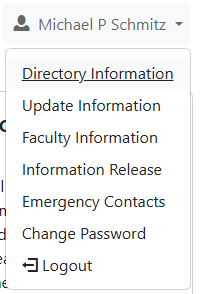

Do you are connected to the Guest Network/MLC Guest WLAN and that device has more restrictions than the Student Network/MLC Student WLAN. You willI need to connectregister my device?
No. Devices connecting to KnightNet do not require a separate registration process.
What should I do if KnightNet won't connect?
First, try forgetting the correctKnightNet network,network registeron your device,device orand then reconnecting using the password listed under your information in the Directory on Portal.
If you continue to have problems, contact IT Services for help..
Can I use my own wireless router in the dorms?
No. PleasePersonal dowireless not.
Whatare isnot apermitted MAC address?
It isin the hardwareresidence identifier for the network device on your machine. It is sometimes called a MAC address, hardware address, network address, or similar things. Often you can find the information needed in your device settings, printed on the box, on a sticker on the device, or on a network connection screen. They often look like pairs of letters and numbers separated by colons.halls.
Look for something like this: aa:bb:cc:11:22:33.
This information is vital and is needed in order for the network to be able to recognize your device and give it the access you require. Providing even a single inaccurate digit or number is enough to stop a device from connecting properly. Often the information is found while setting up a network connection on the device.
I can't connect my device to the network, what should I do?
If you are having issues, the best option is to contact IT Services to get the discussion started on how to best meet your needs.
Can you open a port for me?
As long as your gaming device is registered properly on the network, you should not need to request any additional network ports to be opened.
Be warned, some features of modern gaming devices are built with the idea that you are connected to a minimally shared internet connection in your home. However, this is not the case with a network shared among hundreds of students. If a feature is not working, please contact our office so that we can try and look into it but we are not able to guarantee operation of all features.
Where can I get an Ethernet cable?
The MLC Bookstore sells cables, along with Walmart in New Ulm as well.
What if I want/need to hook up multiple devices using a wired connection and have only one port?
You will need to purchase a network switch, NOT a router.router. Switches are usually quite cheap and easy to order online.
Does MLC filter Internet access?
MLC maintains firewalls and a filtering service.
MLC provides Internet access for all students, staff, and faculty with the purpose of enabling and enriching your academic experience. While it is available for personal and recreational purposes, we contract a service that runs on our firewalls that filters out pornographic and gambling sites.
The firewalls also filter by port. Ports that are not needed for common web applications are blocked to prevent attacks on your computers from the outside. This may prevent you from playing some multiuser games and other web applications that use non-standard ports in their setup.
Direct outbound SMTP (port 25 mail) is also blocked from the dormitories to prevent computers that have been infected with viruses from sending emails to propagate the virus. Outbound SMTP email is only allowed through MLC's mailhost which does antivirus checking prior to sending. You can, however, send and receive mail though any web based email system that uses ports 80 or 443.