
Stage 1: Faculty & Staff Access
Getting Started with Your New MLC Microsoft Account
MLC is introducing new Microsoft accounts for faculty and staff. This account will eventually become your primary MLC account, providing a simpler and more secure way to access MLC services.
For now, you will continue using your existing OES account for many campus services while we gradually transition to the new system.
Step 1: Find Your Welcome Email
You will receive an email from MLC IT containing:
-
Your new Microsoft account username
-
A temporary password
-
A link to MLC's SharePoint site KnightLine
Your account has already been created. You do not need to register for a new account.
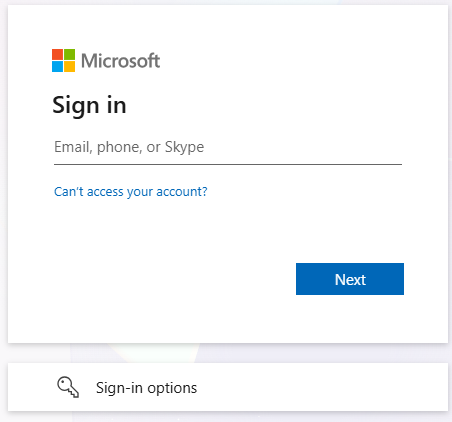
Step 2: Sign In for the First Time
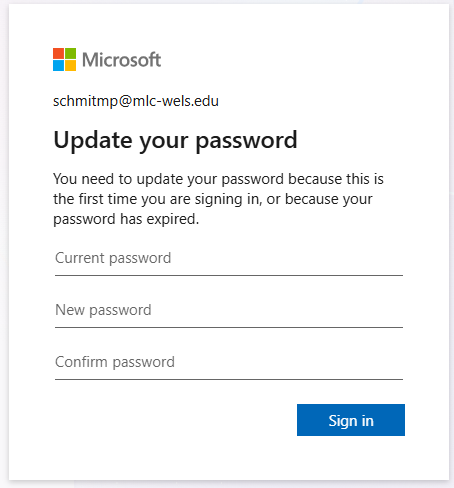
Important: Your new Microsoft password is separate from your existing OES password.
Step 3: Set Up Account Security
Microsoft will guide you through setting up additional security for your account.
You will be asked to:
-
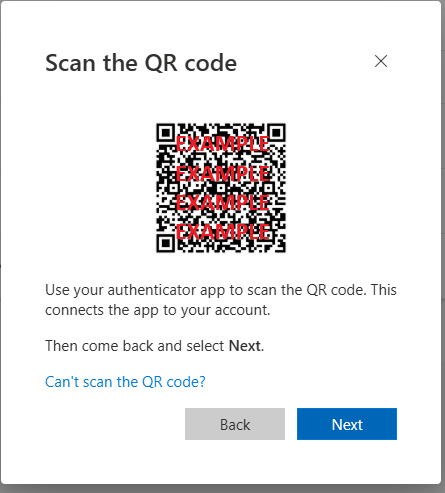
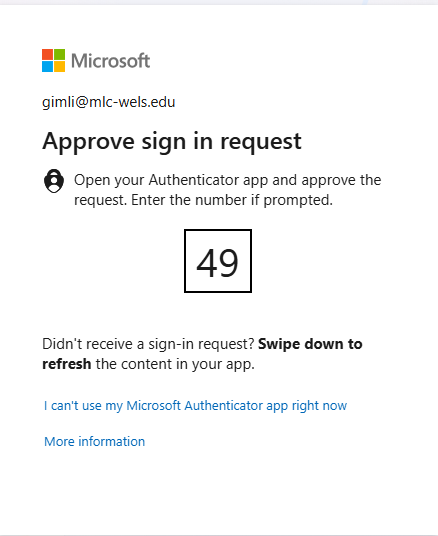
Set up multifactor authentication (MFA). This helps protect your account by requiring an additional verification step when signing in.
-
To use a different app, click the link at the bottom of the setup screen to choose another authenticator.
The setup process is nearly identical for either option. Simply scan the QR code with your chosen app and follow the prompts to finish adding your account.
-
-
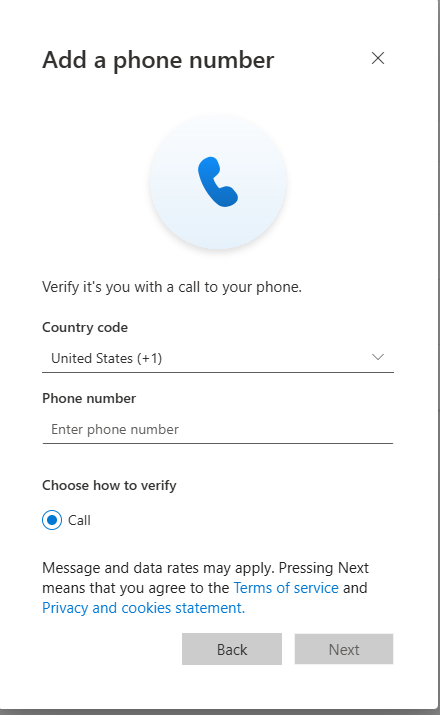
Add your phone number. This can be used to verify your identity and help secure your account.
Follow the instructions on the screen to complete the setup.
Step 4: You're All Set!
Once setup is complete, you should be able to access MLC's SharePoint site using your new Microsoft account.
You do not need to start using this account for everything immediately. MLC IT will communicate when additional services transition to Microsoft sign-in.
Signing In to the MLC Login Server
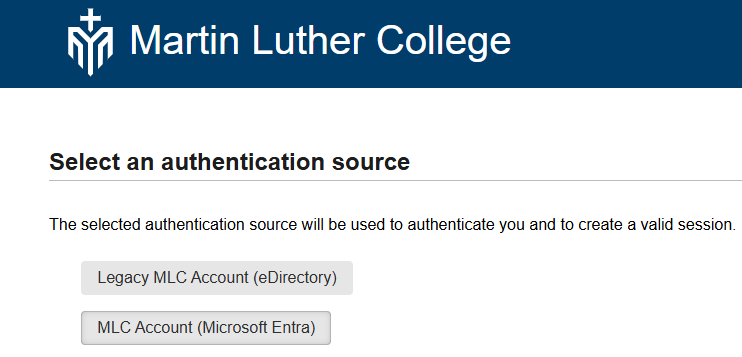
You will notice a new option when signing in to the MLC Login Server.
-
You can choose to sign in using either your OES account or your Microsoft (Entra) account.
-
Both options will work during the transition.
-
Eventually, this choice will be removed, and the Login Server will use Microsoft accounts automatically.
Need Help?
If you have trouble signing in, changing your password, or setting up MFA, please contact the MLC IT Department.
Remember: You only need to complete this initial setup once. Your new Microsoft account will gradually replace your OES account as MLC transitions to the new system.